
Partner Lifecycle
Day-to-day workflow for the compliance staff persona — covers the full lifecycle of a partner: create, upload + AI categorize + verify (or reject / revert) documents, track compliance status, communicate via the floating compose window (inline Email Partner + status-change “Open draft” toast), and execute status transitions (start onboarding / approve / suspend / discontinue) with partner notifications. Most of this workflow is the Document Requirements (DR) baseline that applies to every customer. Two steps — registering a product on the Products tab and linking a verified document to a product — are contributed by the FSVP plugin and only appear when the organization has the FSVP entitlement; a standalone-DR organization will not see the Products tab or those controls and can skip those steps. This workflow REPLACES the old partner-onboarding.yaml, which assumed foreign/domestic partner types and one-shot email sends. Every email-touching step now drives the floating compose window and assumes the org has a signature configured (workflow #1) and document types + requirements set up (workflows #2 + #3).
Who: Compliance staff / AP / Procurement (manager role) · Regulation: DR product is org-defined supplier approval (no specific CFR). Document verification by a Qualified Individual maps to 21 CFR 1.506 for FSVP-entitled orgs but is encoded as the platform’s “verified” status regardless of entitlement.
Open the Partners list page
Section titled “Open the Partners list page”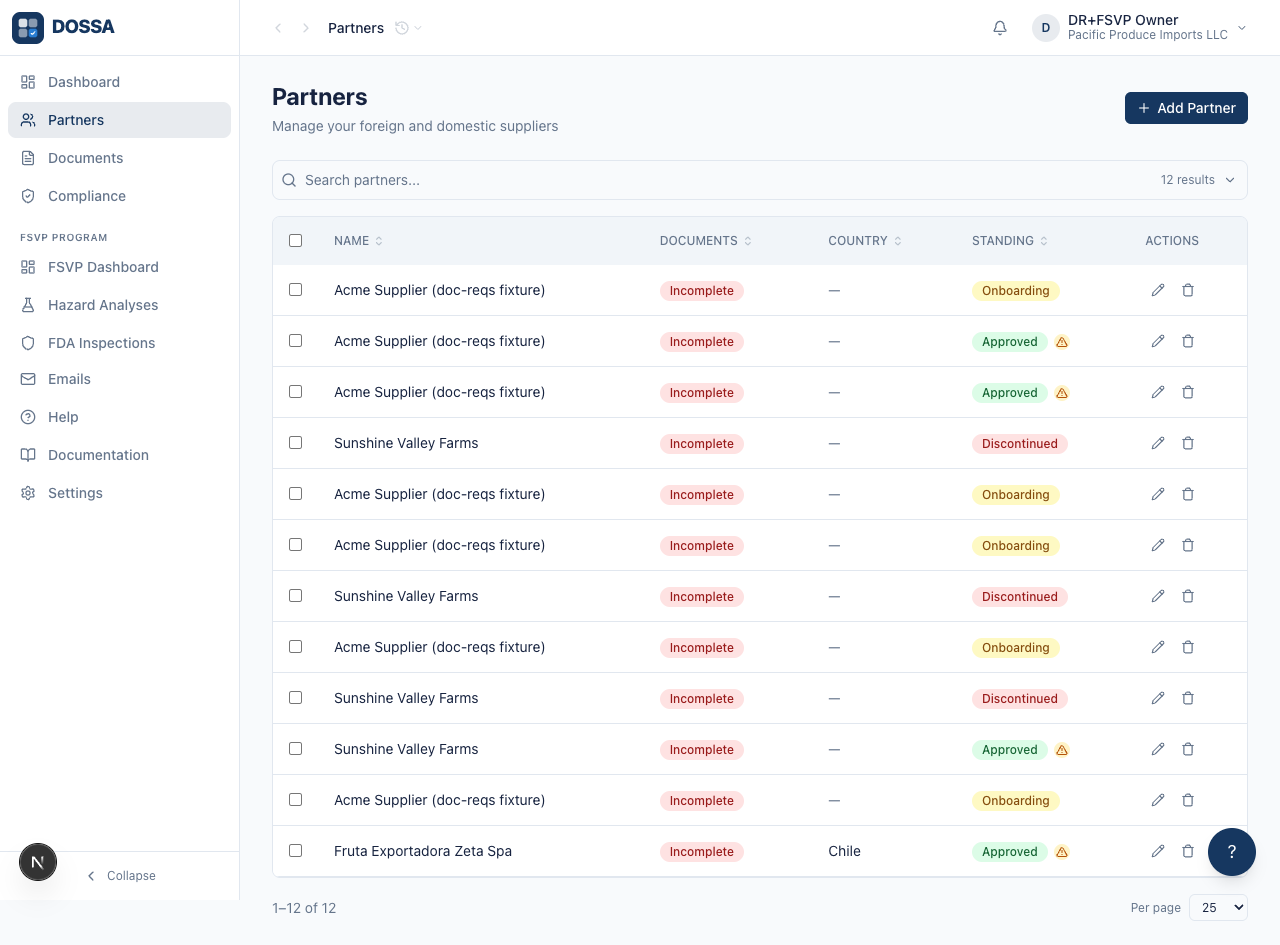
What you should see: Partners list loads with the data grid and search bar. The Add Partner button in the page header is always available; on a fresh org the grid shows the empty message “No partners yet. Add your first partner to get started.”
Put every partner missing a partner group into one, without visiting them one at a time
Section titled “Put every partner missing a partner group into one, without visiting them one at a time”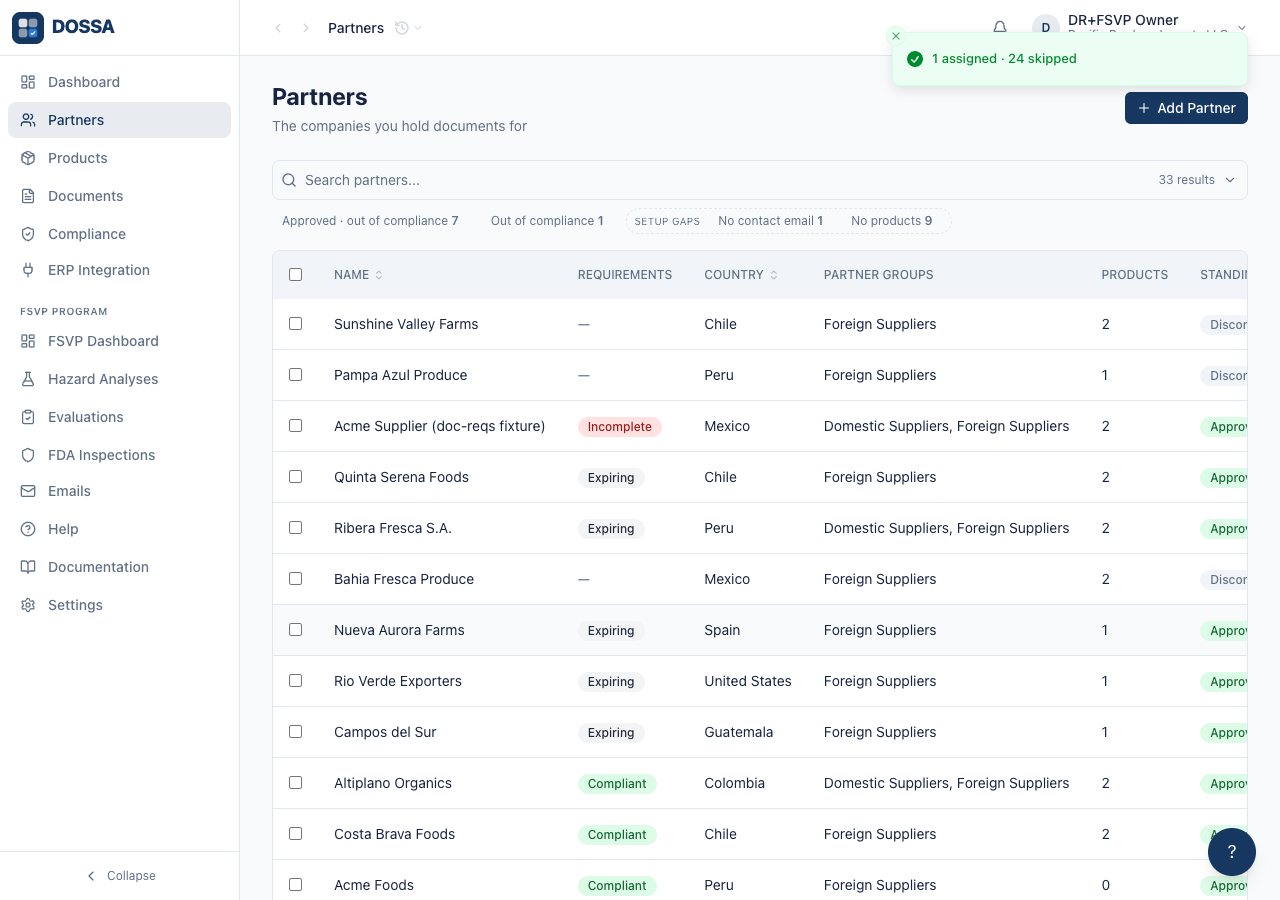
What you should see: A partner in no partner group is silently exempt from every group-scoped document requirement — it reads as compliant because nothing is required of it. Nothing on any screen said so before this chip existed, and the only remedy was to open each partner in turn. Adding is not replacing. Assigning a group to forty partners must not empty the groups the six already-grouped ones were in, so a partner already in the chosen group is reported as skipped rather than re-inserted — which also makes re-running the queue safe, instead of aborting the whole batch on a unique-constraint violation. Partners that could not be assigned come back named, with a reason, rather than costing the rest of the selection its result.
Create a new partner (Sunshine Valley Farms)
Section titled “Create a new partner (Sunshine Valley Farms)”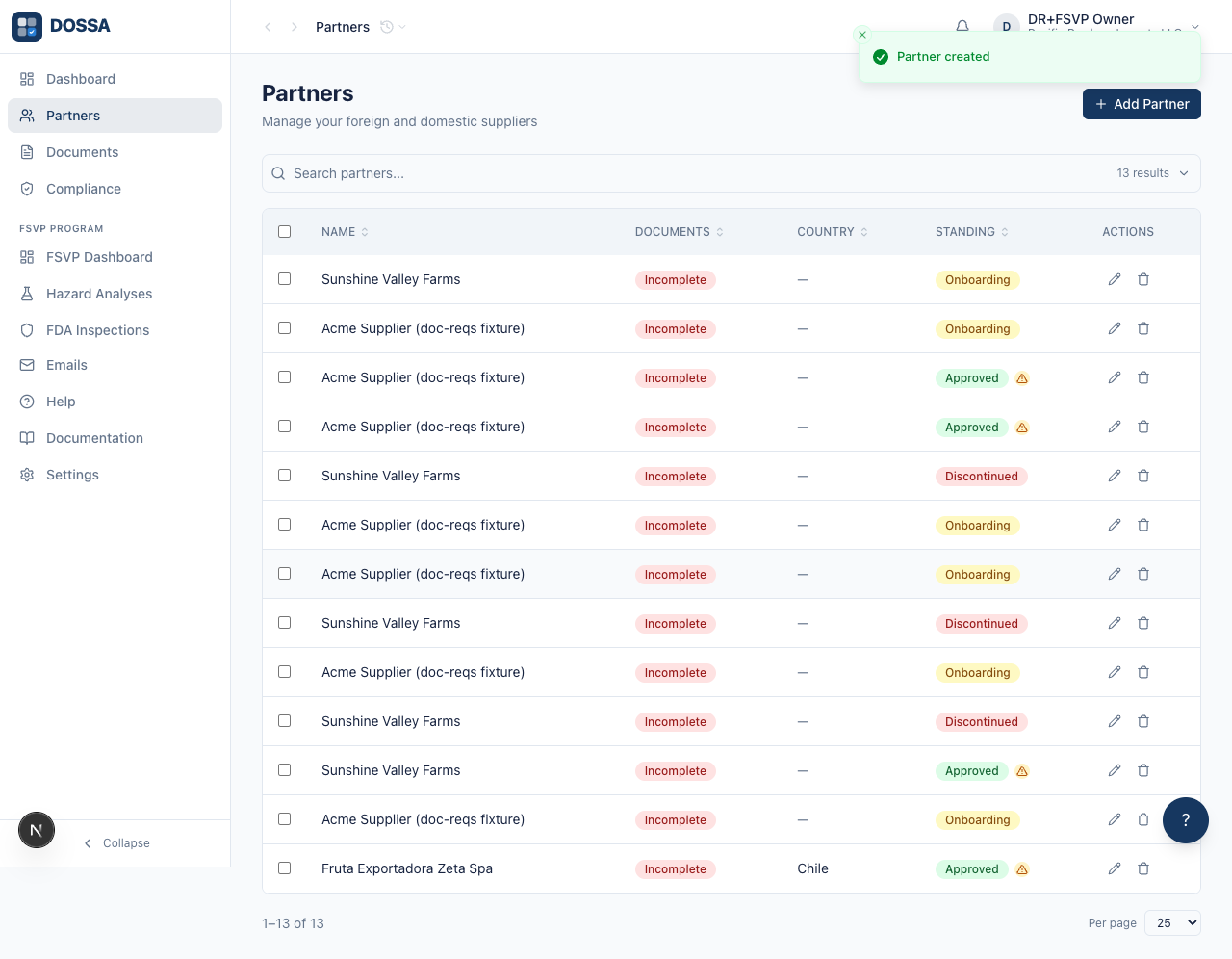
What you should see: The new partner is created and appears in the list with status “onboarding” — partners start directly in Onboarding, there is no pre-approval “invited” state. The list columns are Name, Compliance, Country, and Status. The create form has no partner-type field — whether the partner also goes through the FSVP regulatory process is decided later (and only when the organization has the FSVP add-on).
Put the new partner in a partner group so group-scoped requirements apply to it
Section titled “Put the new partner in a partner group so group-scoped requirements apply to it”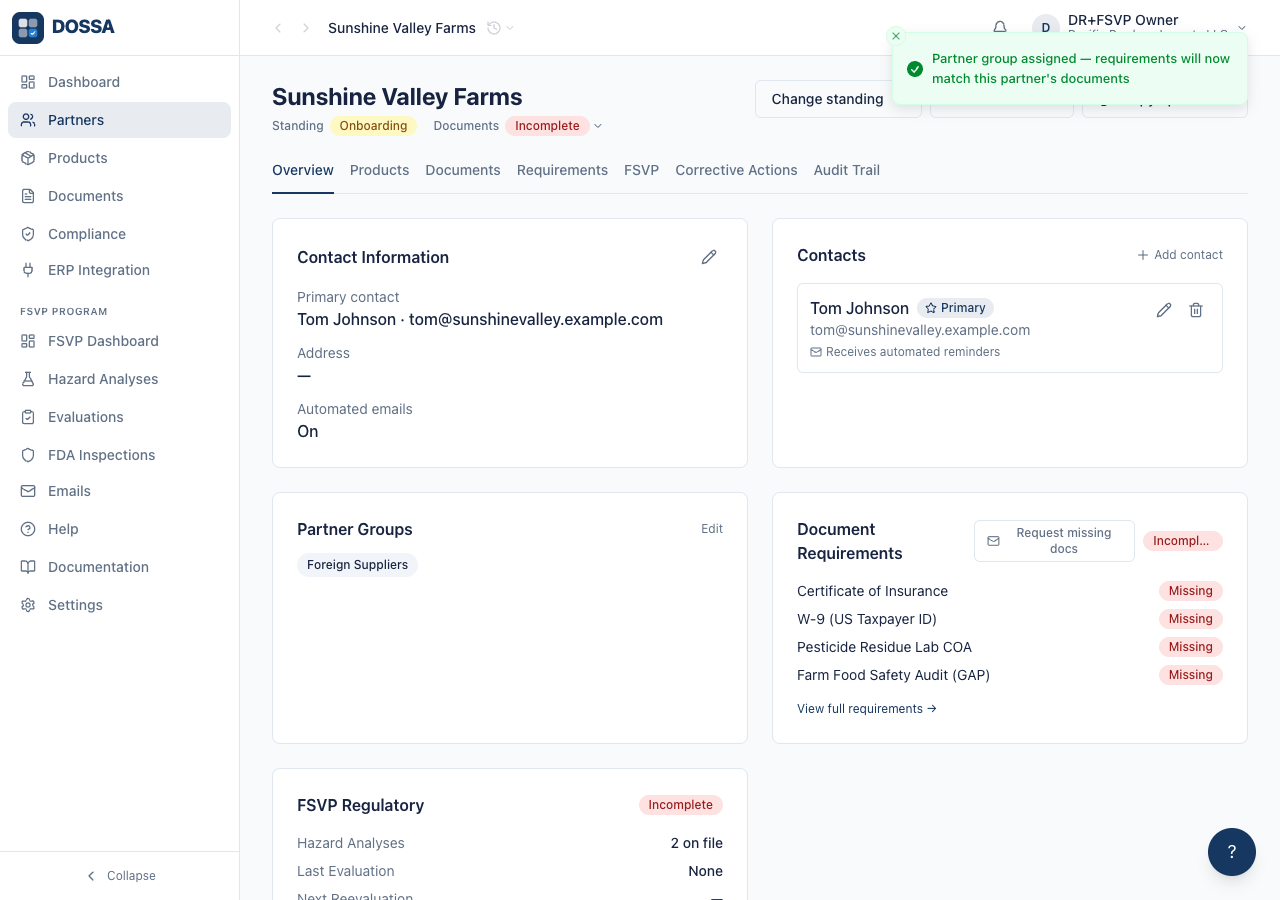
What you should see: A brand-new partner belongs to no group, and the page says so: “Documents won’t match group-based requirements for this partner until you assign one.” That warning is not cosmetic — most orgs scope the majority of their requirements to a group rather than globally, so a groupless partner owes almost nothing and reads as compliant while being unexamined. Assigning a group is what makes the checklist real. Do it now, while you are on the page, rather than discovering months later that a supplier was never asked for anything.
Open the partner detail page
Section titled “Open the partner detail page”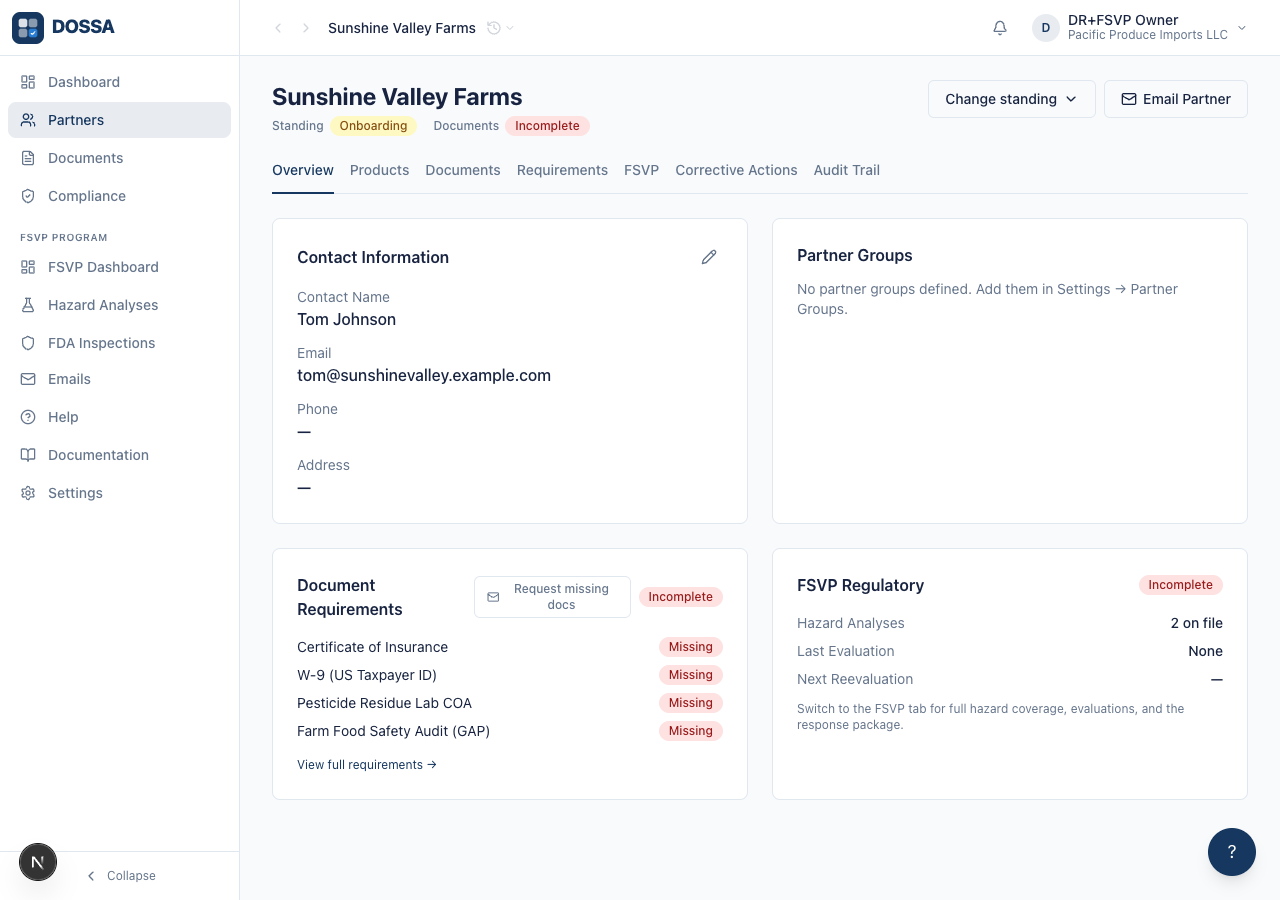
What you should see: Detail page renders with action row, tabs, and Overview content. The Email Partner button is enabled because partner.contact_email is set; on a partner with no email it would be disabled.
Open the floating compose window from the partner detail action row (no template — ad-hoc compose)
Section titled “Open the floating compose window from the partner detail action row (no template — ad-hoc compose)”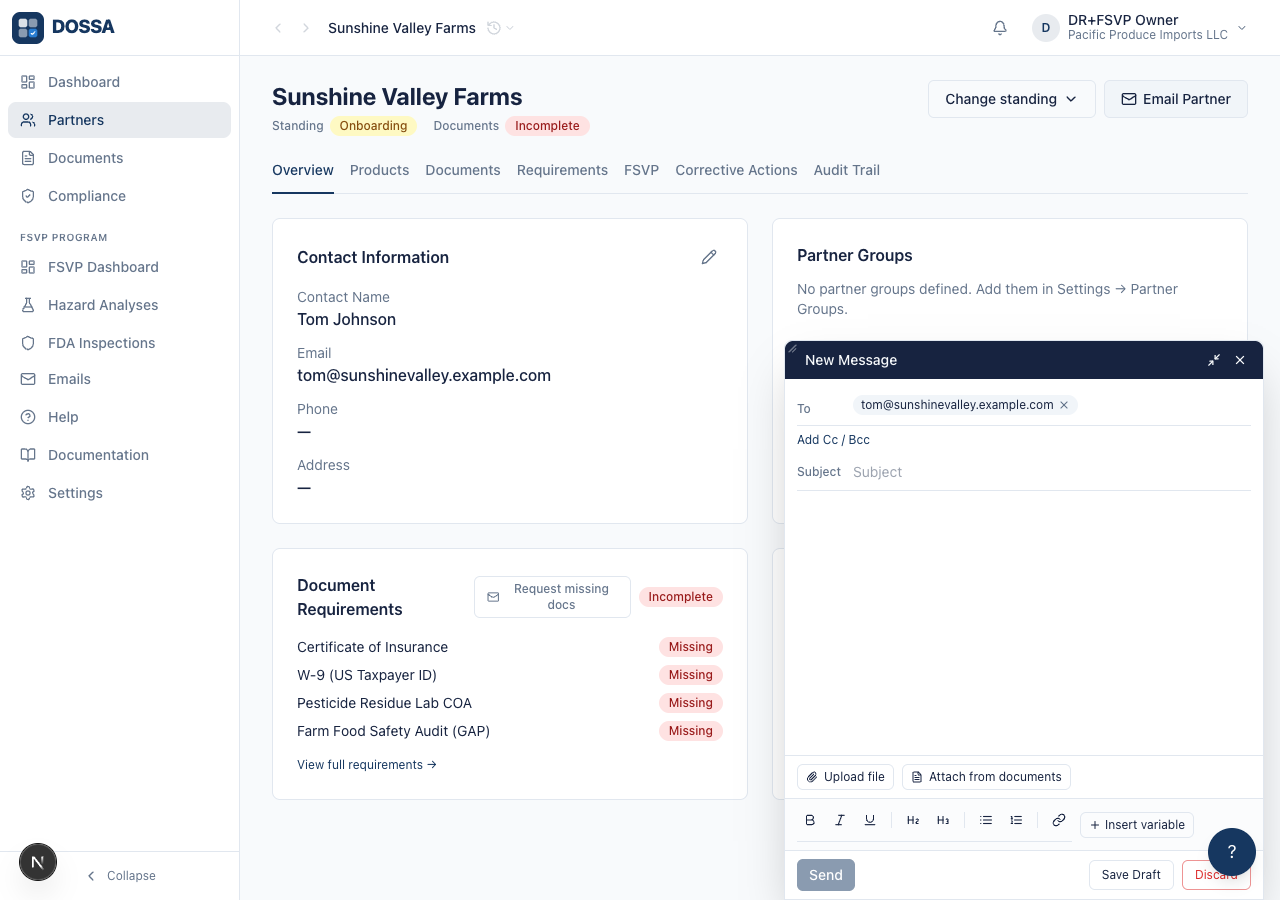
What you should see: Compose window opens at bottom-right of the dashboard with the partner pre-attached as the recipient. Because the draft is tied to this partner, the document picker used in later steps only offers this partner’s documents. From here the user can fill in subject and body, attach files, and Send — covered in subsequent steps.
Type a subject and body in the compose window and let it save automatically as a draft
Section titled “Type a subject and body in the compose window and let it save automatically as a draft”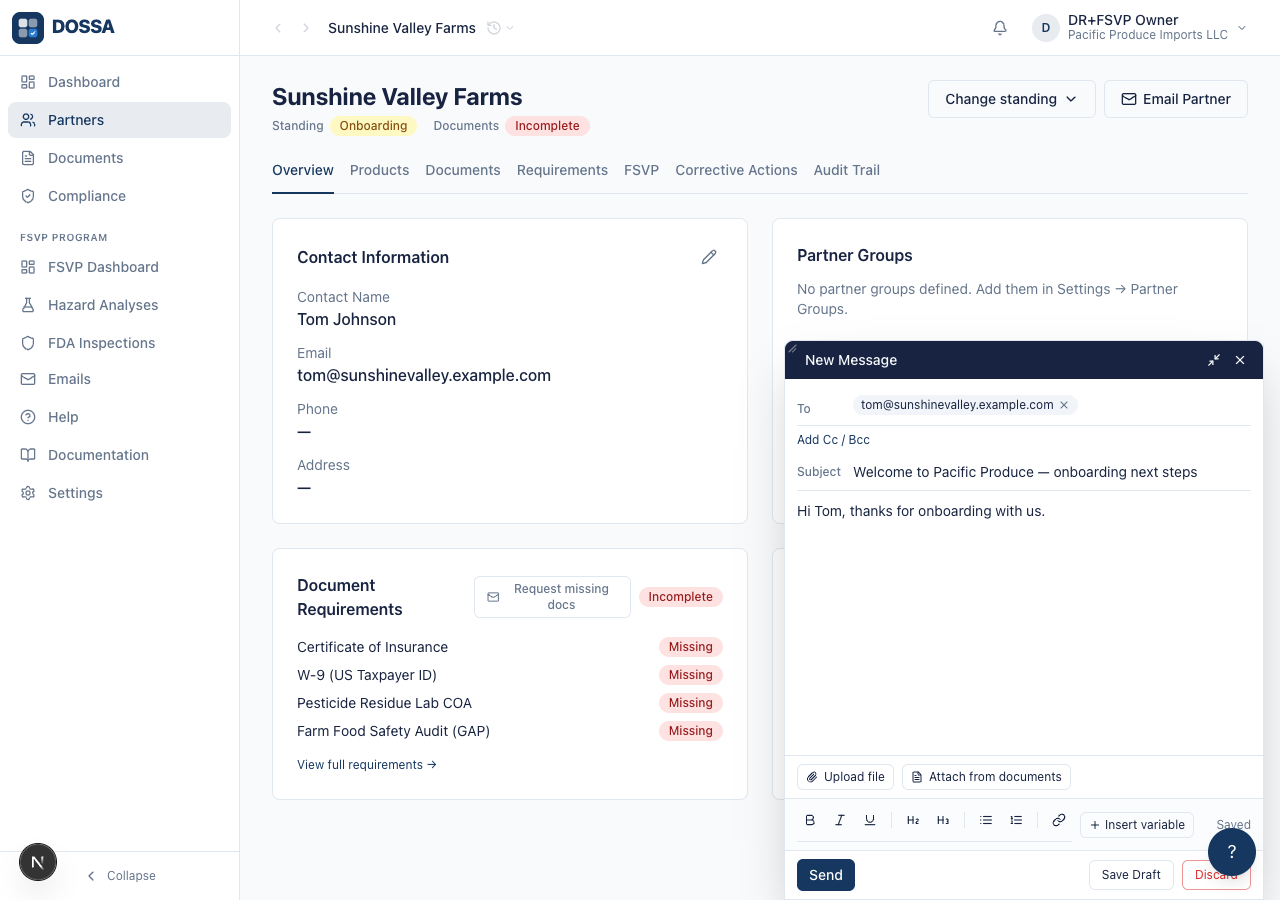
What you should see: The subject and body are typed into the open compose window. After a short pause the email is saved automatically as a draft and the save indicator changes to “Saved”.
Save Draft to close the compose window, then reopen the same draft from /emails
Section titled “Save Draft to close the compose window, then reopen the same draft from /emails”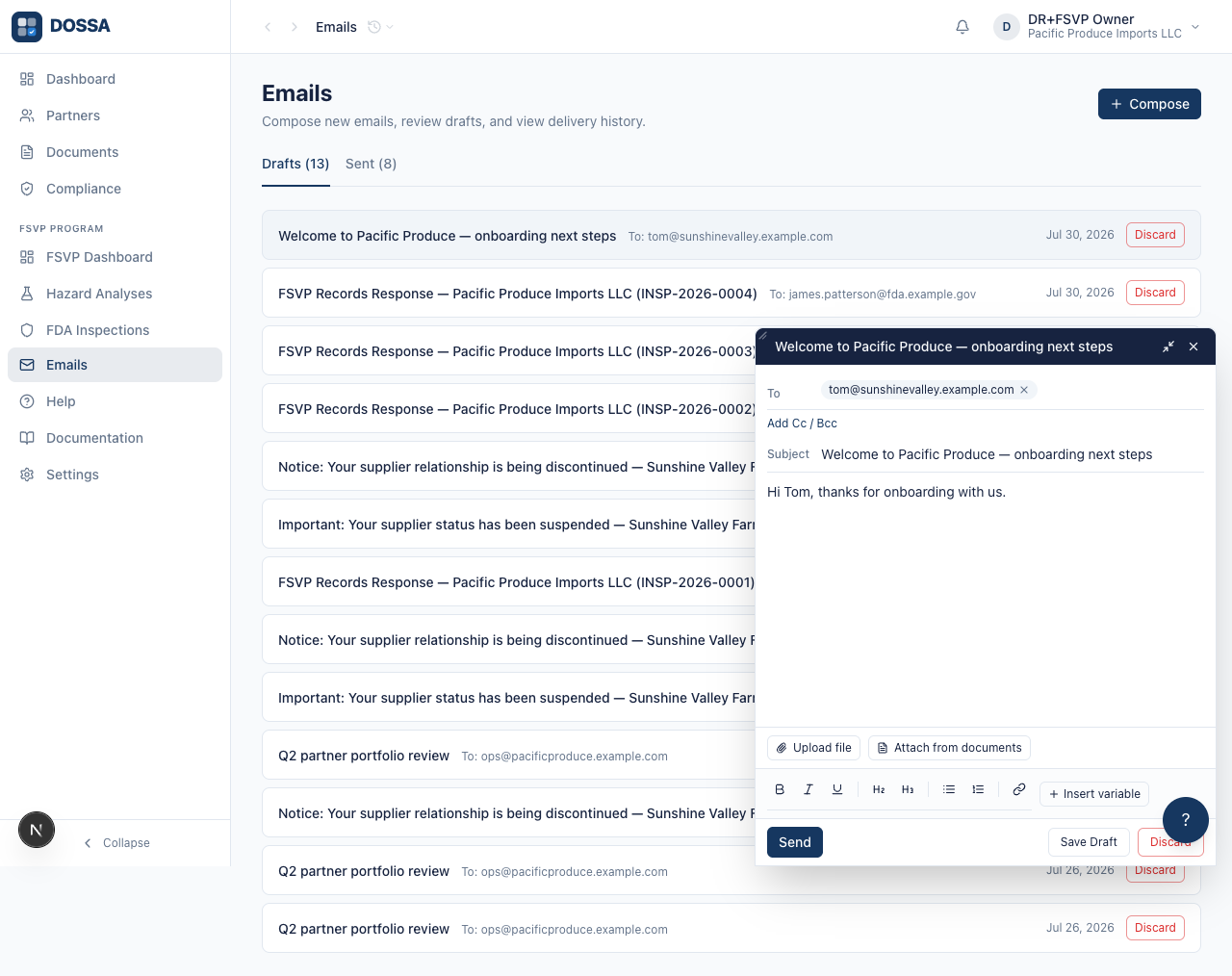
What you should see: Clicking a draft row reopens it in the compose window, ready to keep editing or send.
Send the draft via the compose window’s Send button (with confirm) and land on the Sent tab
Section titled “Send the draft via the compose window’s Send button (with confirm) and land on the Sent tab”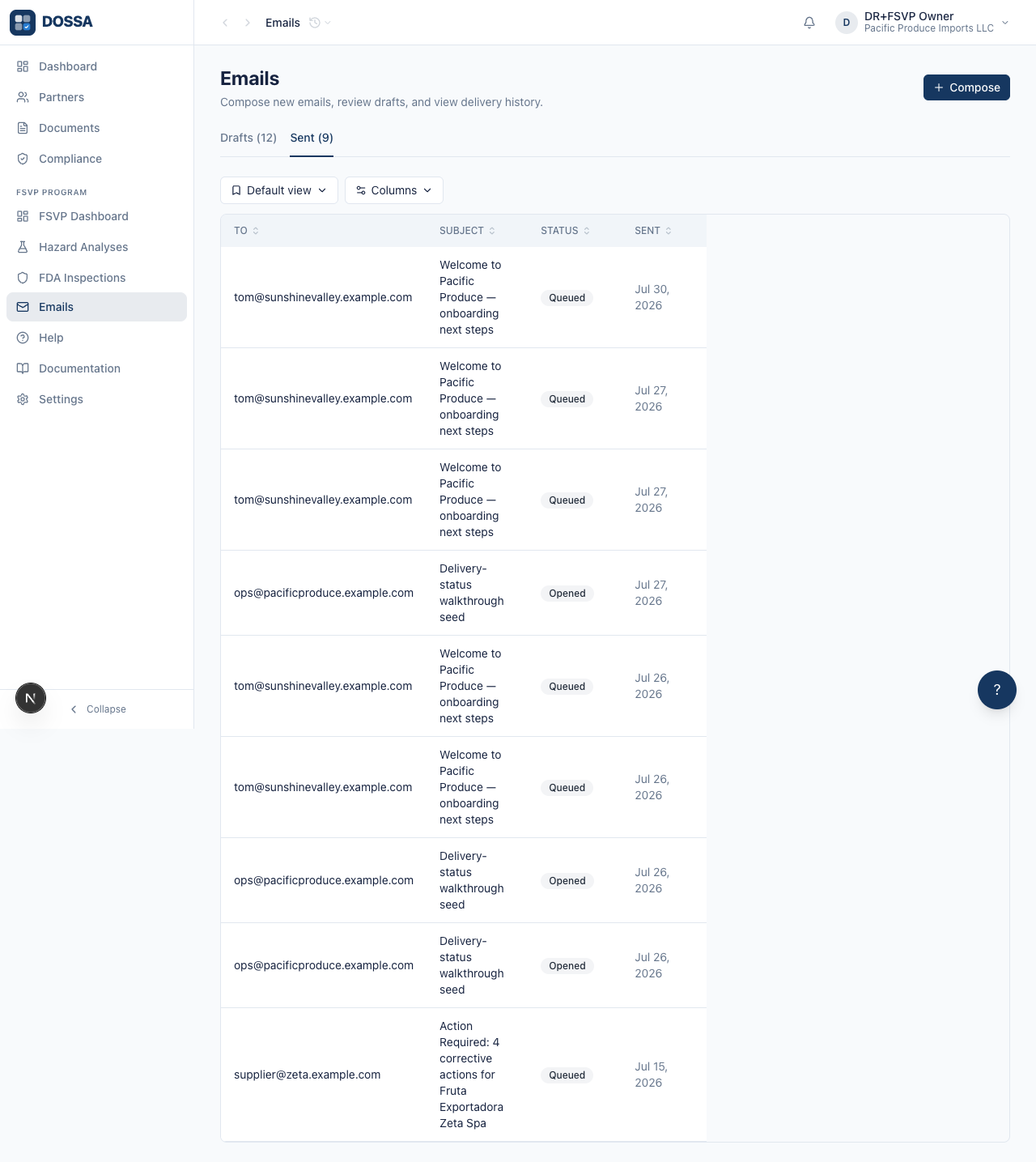
What you should see: Confirming sends the email and moves it to the Sent tab, where the new row shows a delivery status badge. In development the message is logged rather than actually delivered, so it appears with a “queued” status.
Open a sent email in read-only mode and inspect delivery status
Section titled “Open a sent email in read-only mode and inspect delivery status”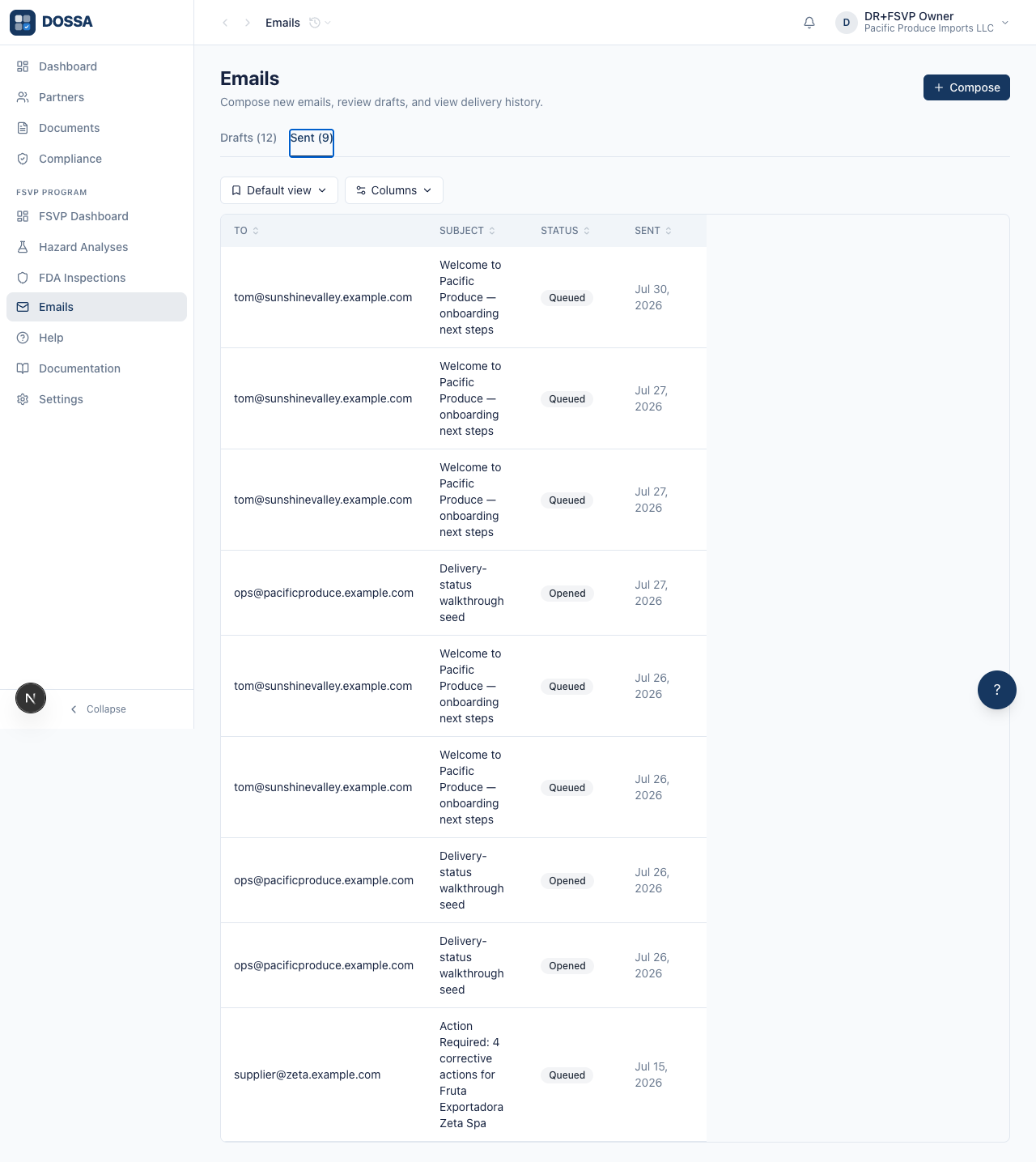
What you should see: A sent email opens read-only: instead of Send and Save, the window shows a Close button and the current delivery status. As the email provider reports back, the status updates to delivered, opened, or bounced.
Register a product on the partner (FSVP add-on only)
Section titled “Register a product on the partner (FSVP add-on only)”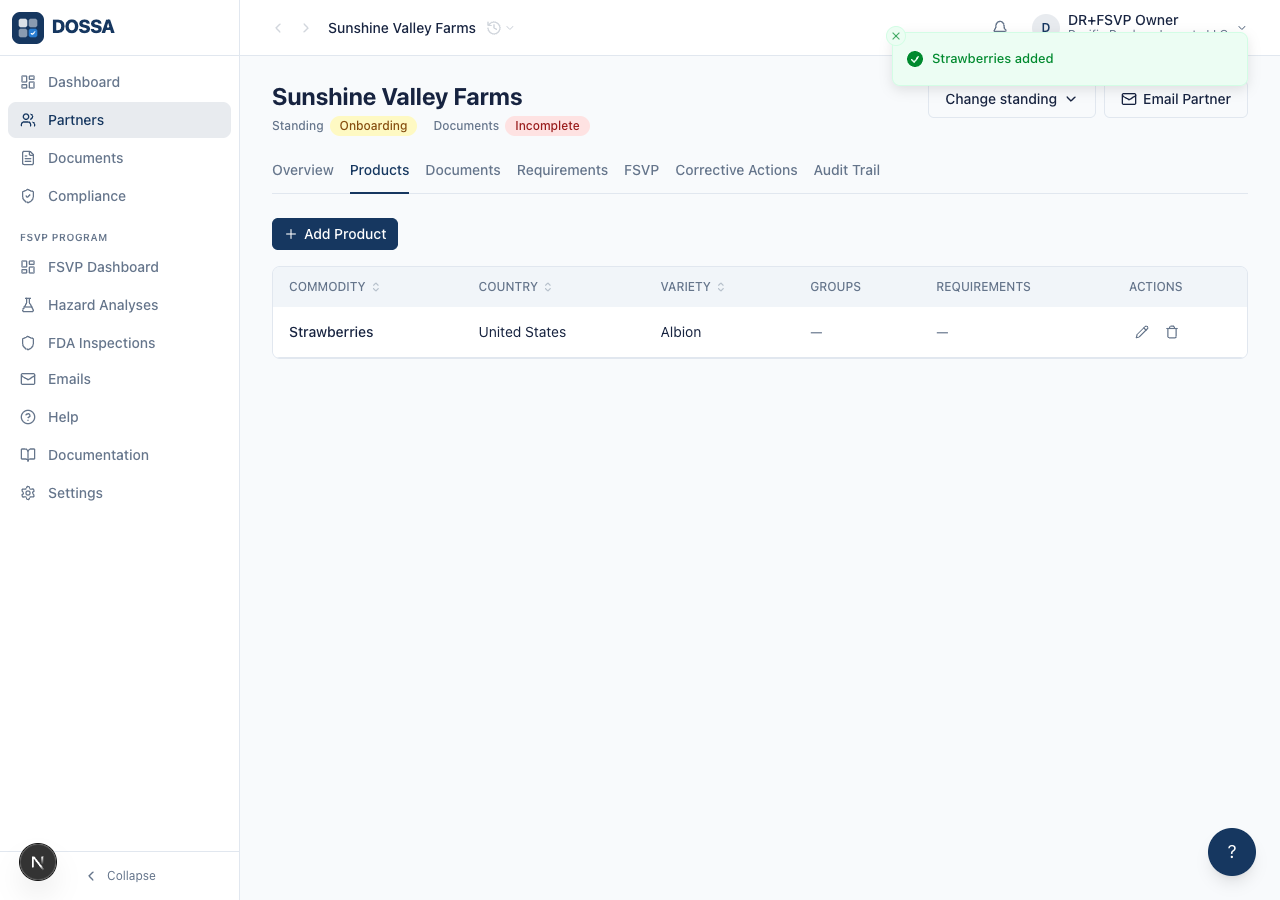
What you should see: The product is registered and listed on the Products tab. Because Products are FSVP-contributed, this and the document-to-product linking step later only apply when the organization has the FSVP add-on.
Upload a Farm Food Safety Audit PDF for AI categorization
Section titled “Upload a Farm Food Safety Audit PDF for AI categorization”What you should see: The file is uploaded and the AI categorizes it against the organization’s document types, picking the best match. The document lands in “reviewing” status, awaiting verification by the Qualified Individual.
View the partner’s compliance on the Overview tab
Section titled “View the partner’s compliance on the Overview tab”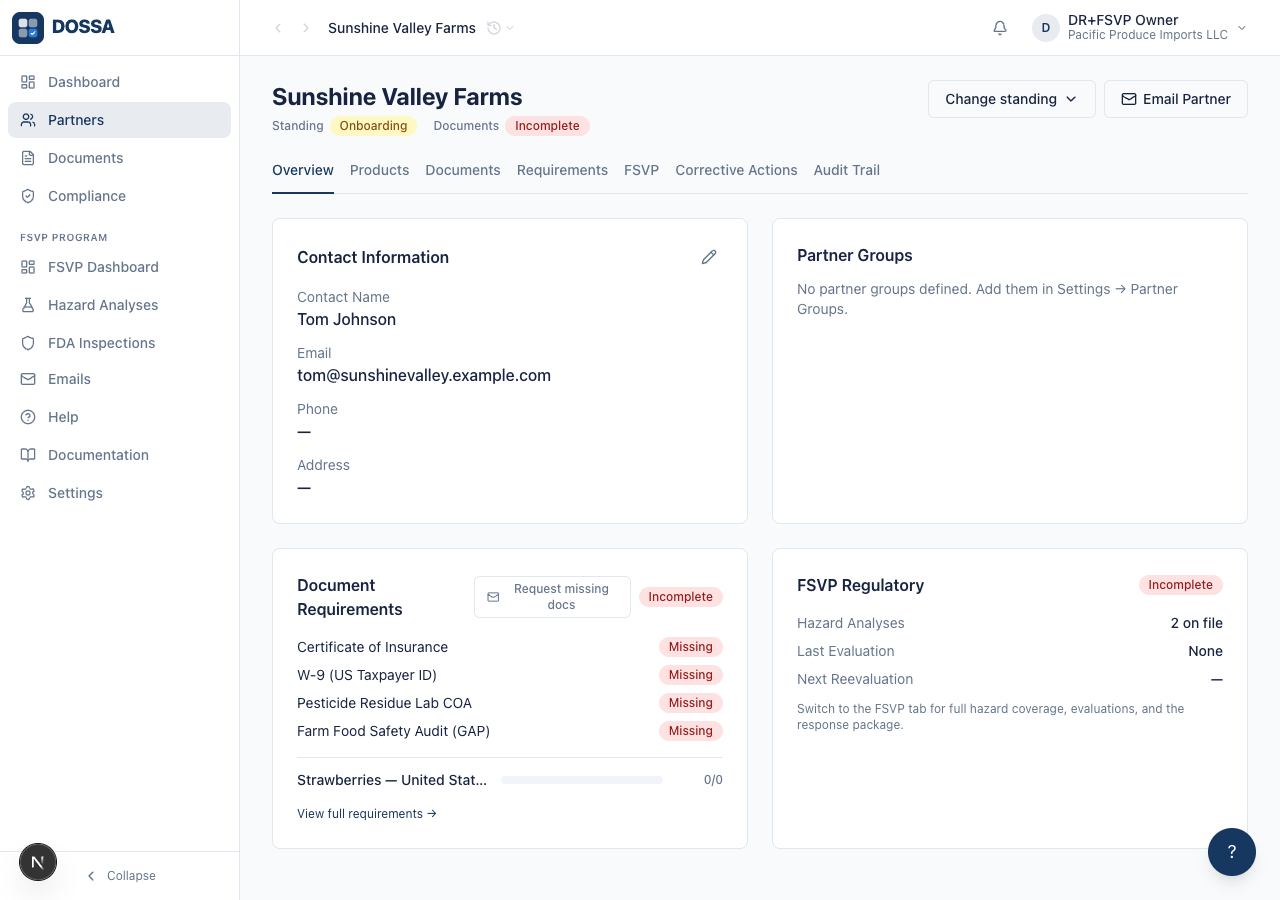
What you should see: The Overview tab shows the partner’s company details, a Contacts card, and a Document Requirements card. Contacts lists every named person at this partner — one is marked Primary (that is the address the partner list and its search read), each may carry a role such as Food Safety or Accounting, and each says whether automated reminders reach them. Contact name, email and phone are edited there rather than on the Contact Information card, so one fact has one editor. The Document Requirements card reflects which requirements have a verified document on file. On an organization with no requirements configured, the card shows nothing outstanding.
See the Request Missing Documents action on the Document Requirements card
Section titled “See the Request Missing Documents action on the Document Requirements card”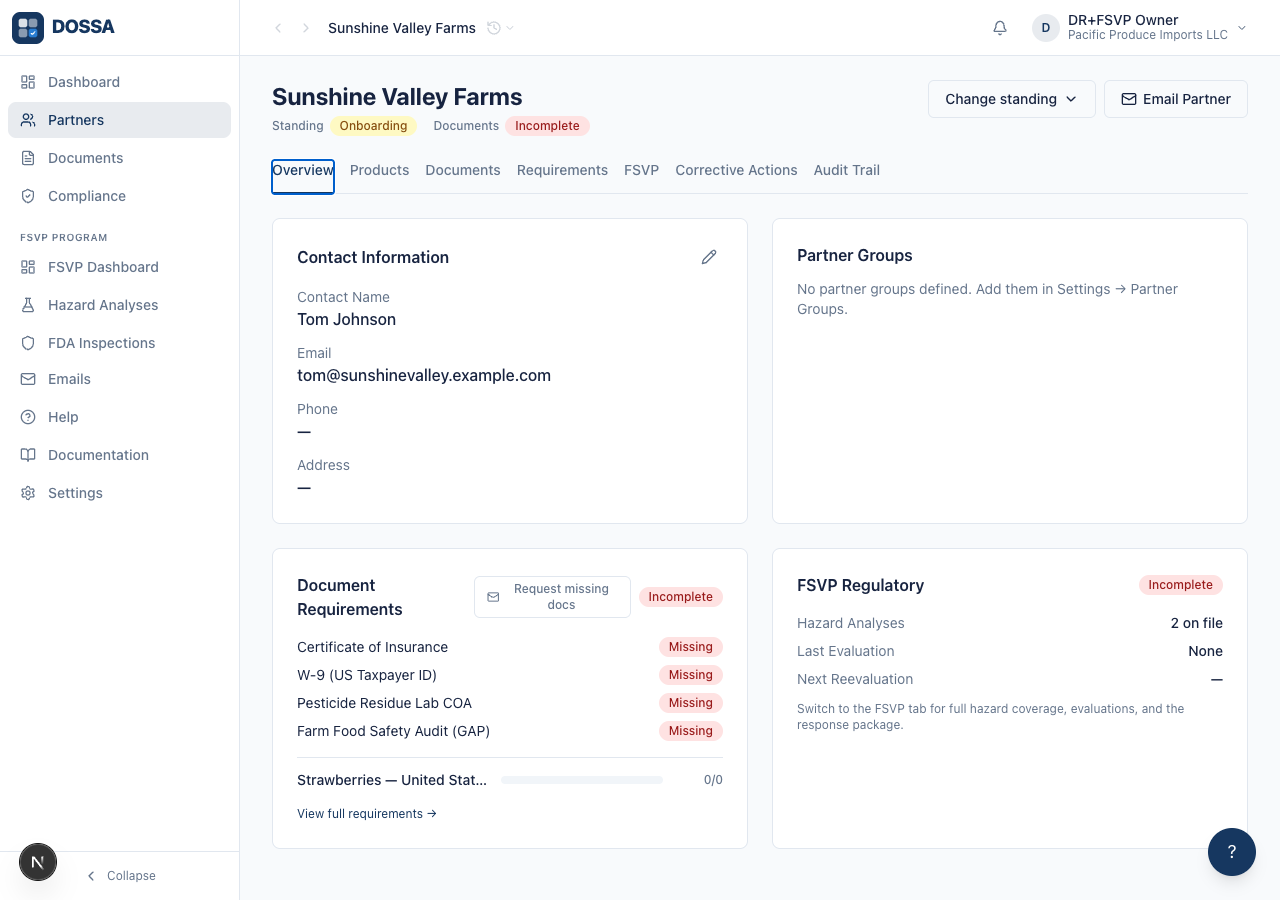
What you should see: When the partner is missing required documents, the Document Requirements card offers a “Request Missing Documents” button. Clicking it drafts an email to the partner listing the outstanding documents and opens it from a toast, ready to review and send.
Approve the partner now that it has its documents in order
Section titled “Approve the partner now that it has its documents in order”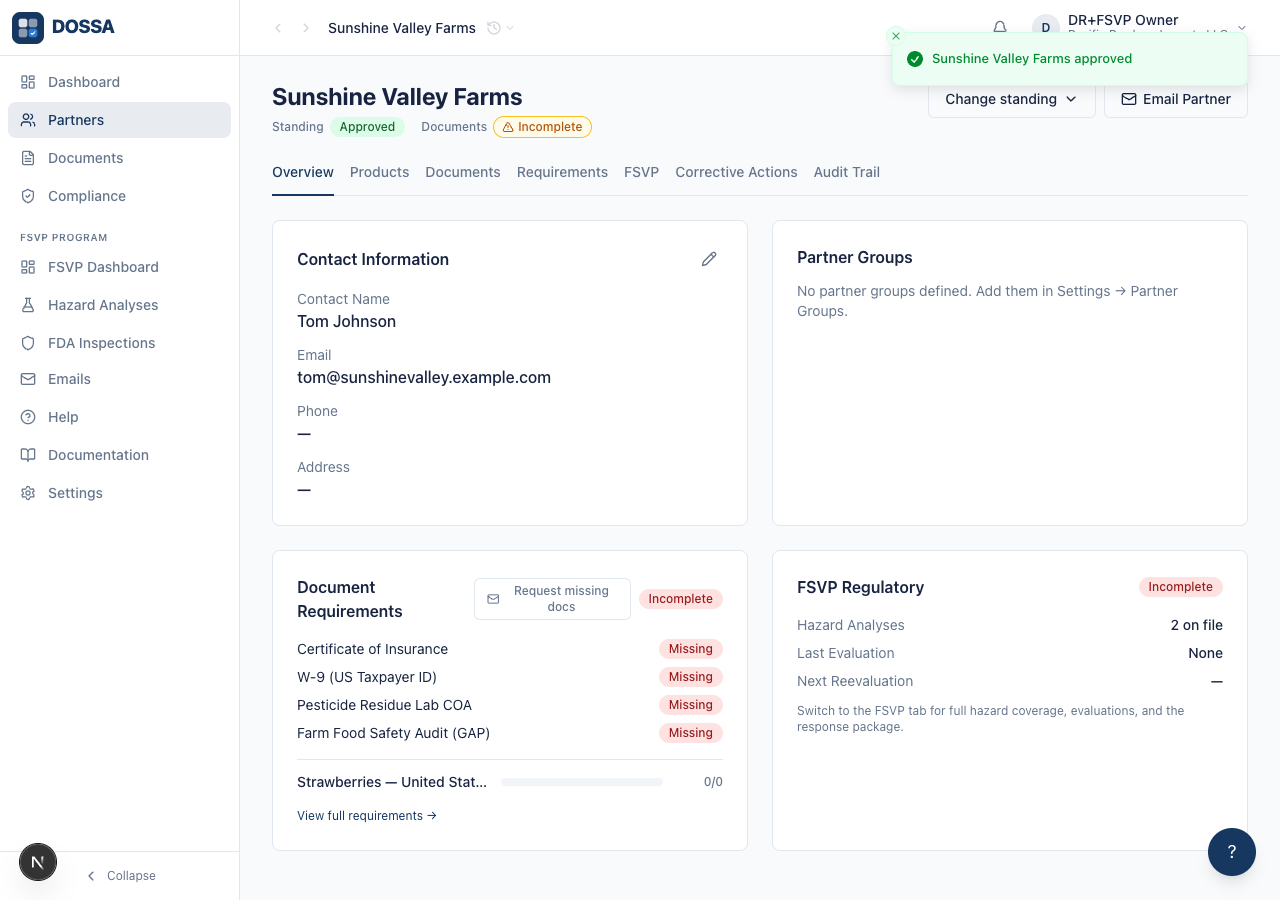
What you should see: The partner is approved. The approval is recorded in the audit trail together with a snapshot of every requirement and whether it was met at the moment of approval, giving the organization a defensible record of what was true when they signed off.
Suspend the partner with a reason and draft a notice — then open the draft from the toast
Section titled “Suspend the partner with a reason and draft a notice — then open the draft from the toast”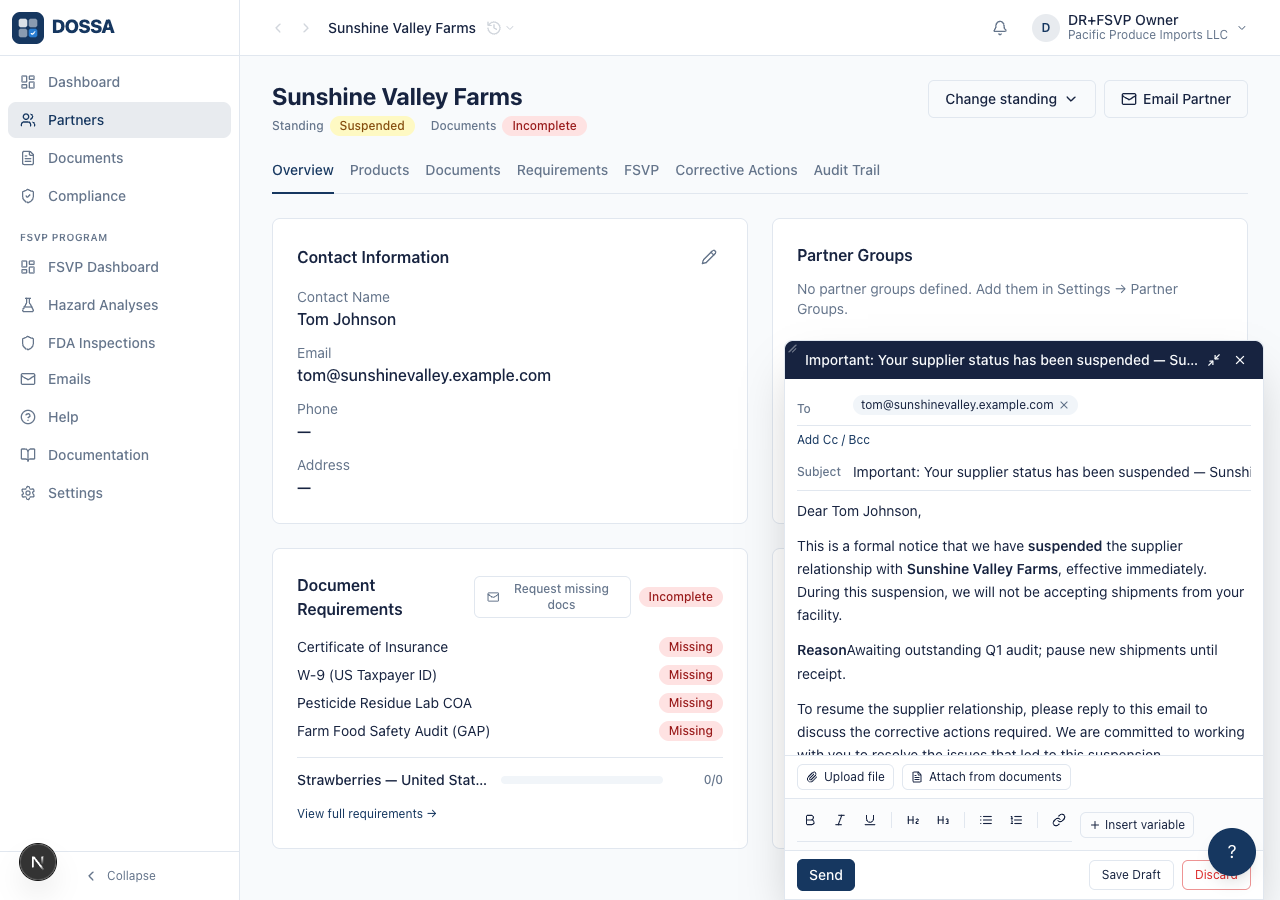
What you should see: Suspending an approved partner records the change and, when “Draft notice to partner” is left ticked, drafts a notice email to the partner. The toast’s “Open draft” action opens that draft in the compose window, ready to review and send. The reason and the from/to statuses are already filled into the notice.
Reinstate the suspended partner back to approved
Section titled “Reinstate the suspended partner back to approved”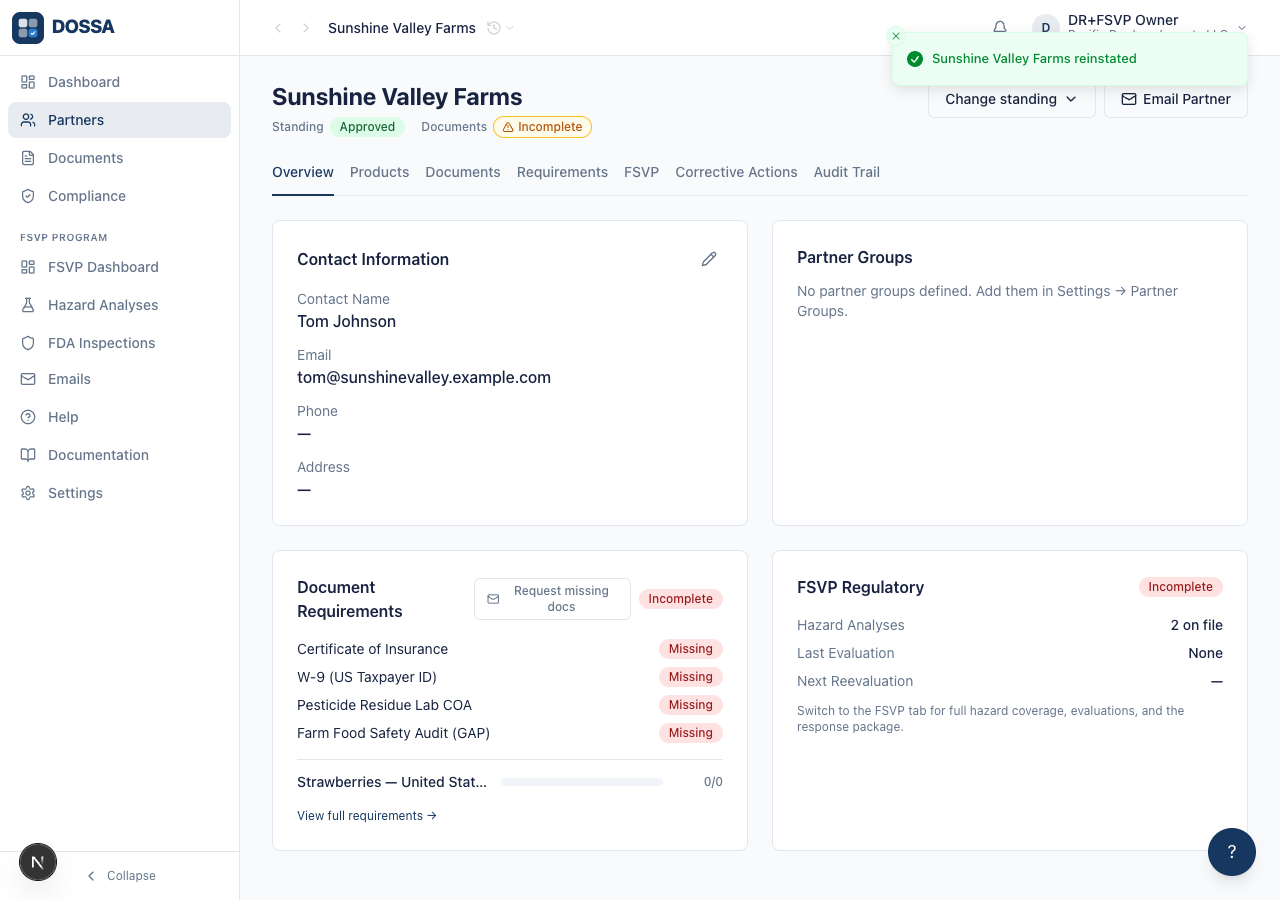
What you should see: Reinstate is the recovery path out of suspension — the partner returns to “approved” and can resume normal activity. The reinstatement is recorded in the audit trail.
Discontinue the approved partner directly (terminal state)
Section titled “Discontinue the approved partner directly (terminal state)”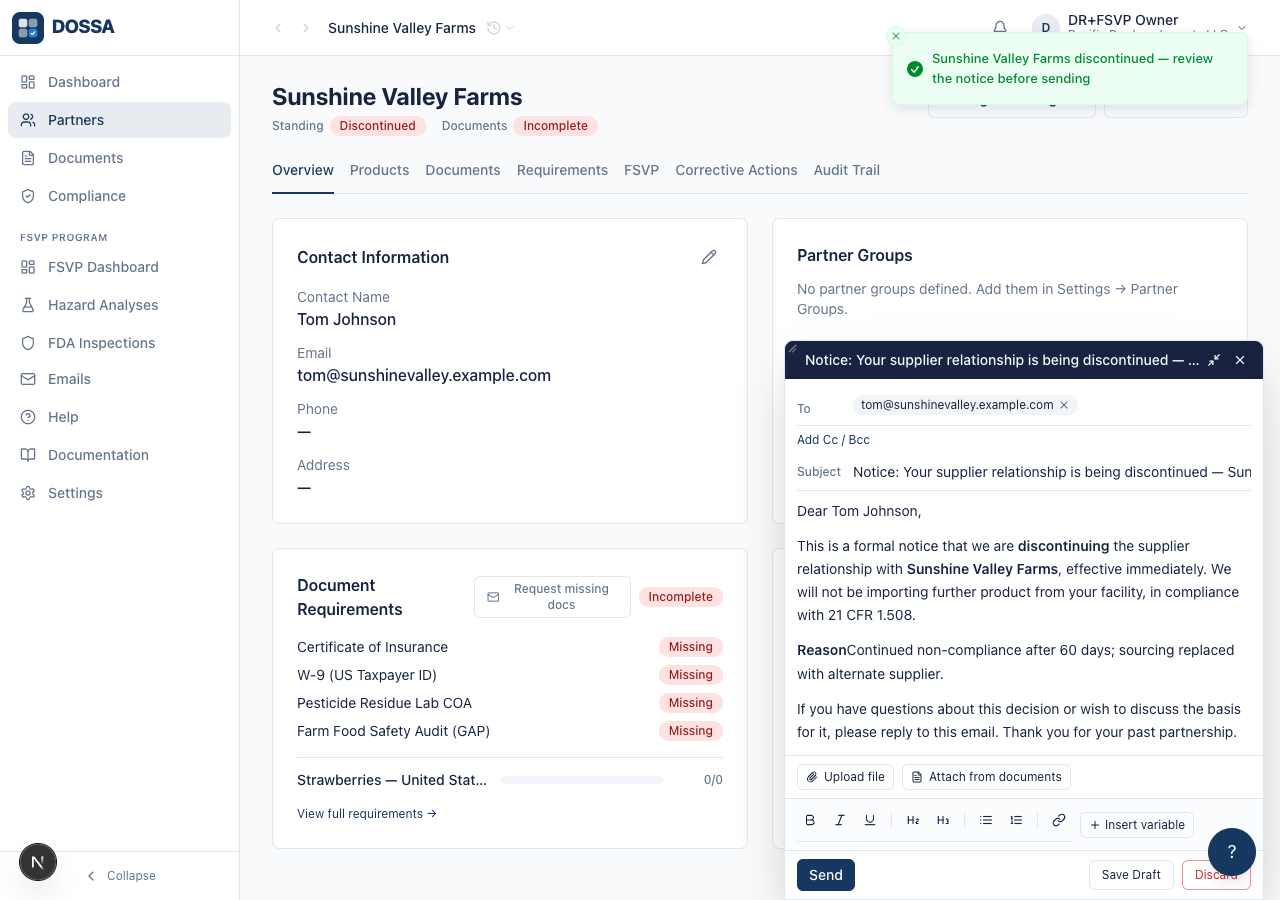
What you should see: The partner is discontinued directly from approved — no suspend-first step is needed, since Discontinue is available from approved, onboarding, and suspended alike. Once discontinued the organization stops sourcing from this partner; the only status transition left is Re-engage (inside the “Change standing” menu), which returns the partner to onboarding to start the relationship over. The discontinuation and its reason are captured in the audit trail (21 CFR 1.508).
Verify the Audit Trail tab renders entries for the partner’s lifecycle
Section titled “Verify the Audit Trail tab renders entries for the partner’s lifecycle”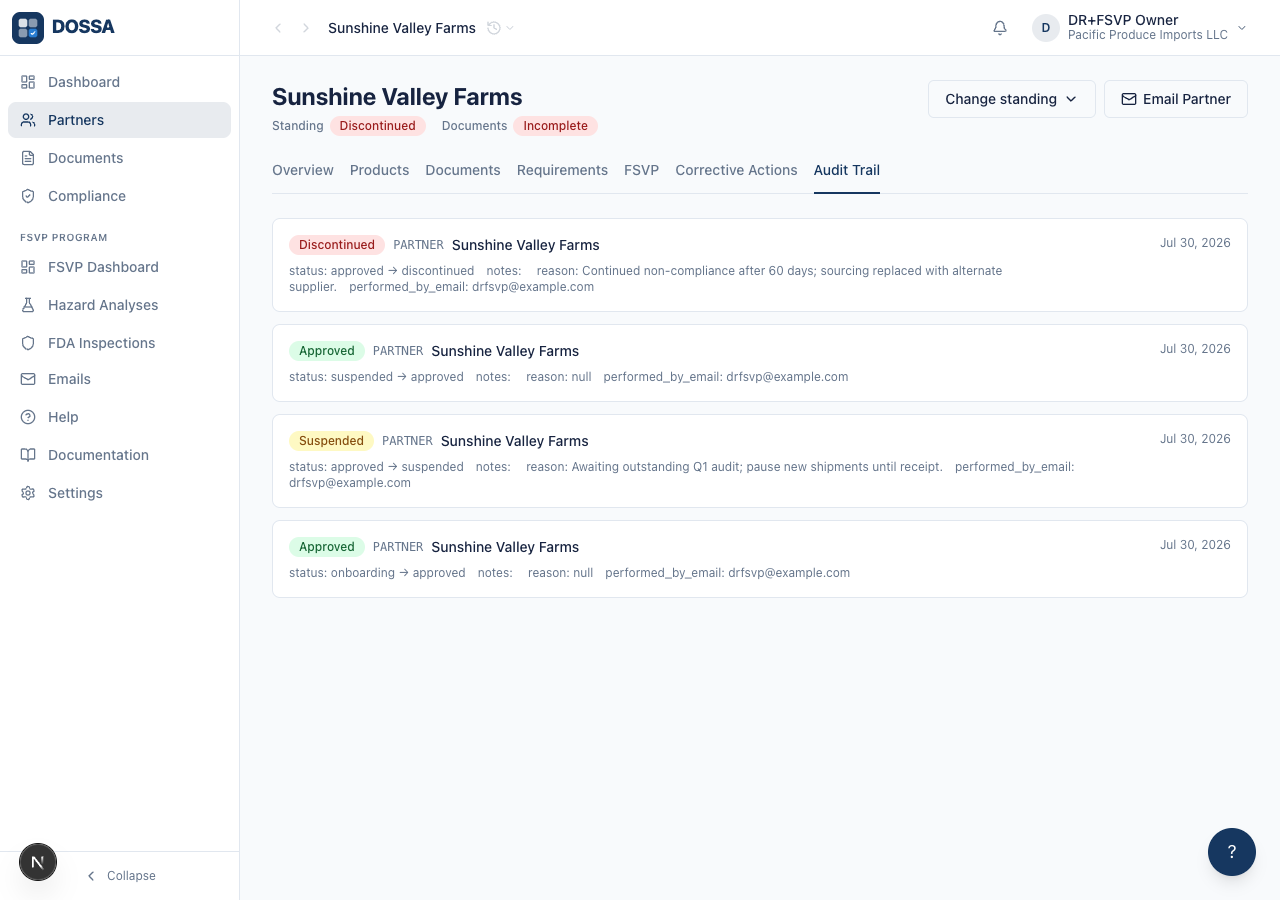
What you should see: Audit Trail tab lists entries for the partner — status transitions, document verifications, email sends. Every state-changing action is logged for FSVP record-keeping (21 CFR 1.510).