
Report a Bug or Request a Feature
How a user sends feedback to the team from anywhere in the app: opening the help widget, switching to the feedback form, choosing whether it is a bug, a feature request, or a question, describing it (optionally attaching a screenshot), submitting it, and then tracking its status and the team’s reply under “My requests” in the Help Center.
Who: Compliance Manager
Open the feedback form from the help widget.
Section titled “Open the feedback form from the help widget.”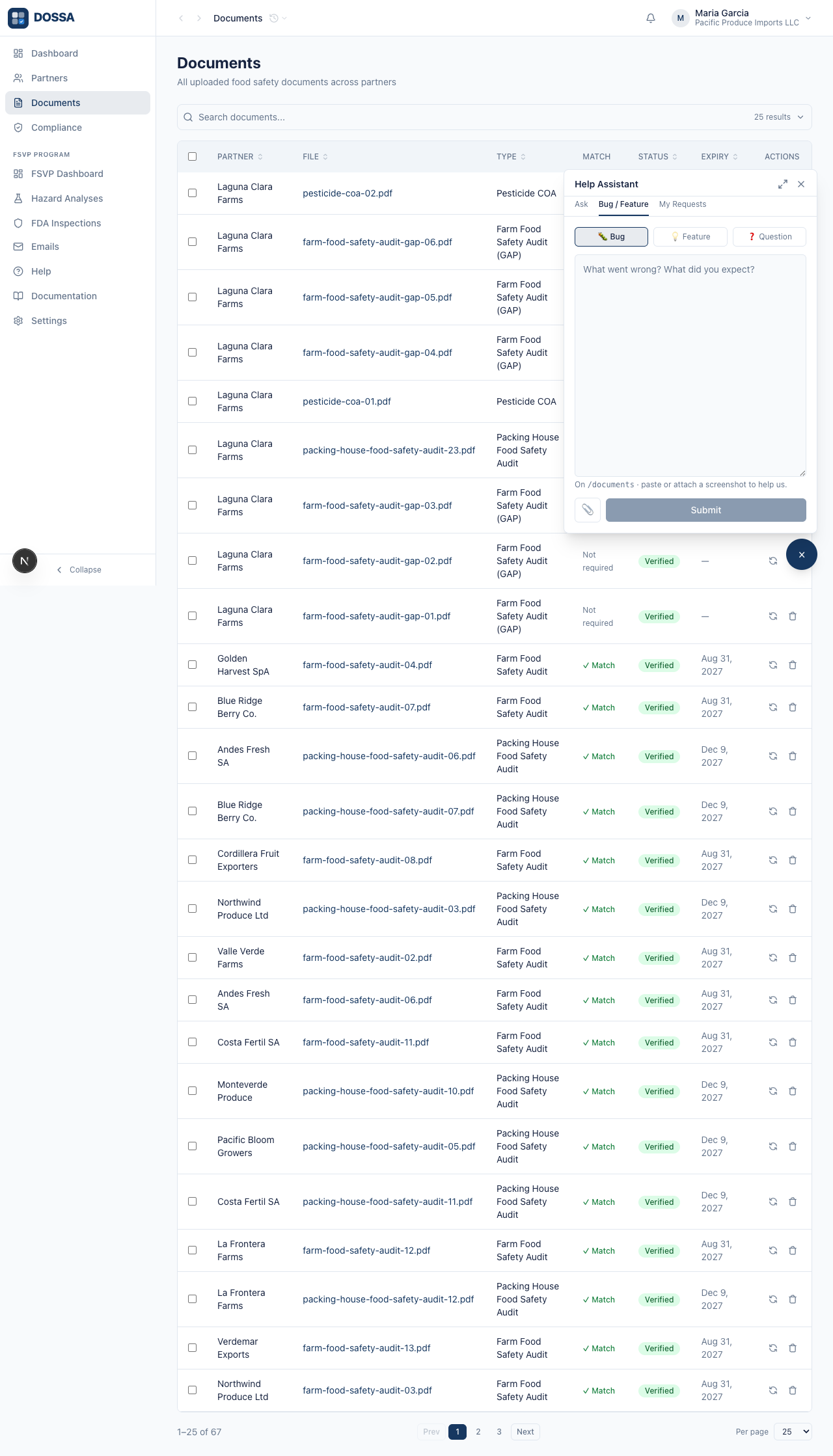
What you should see: The help panel switches to a “Send feedback” form. Three type buttons — ”🐛 Bug”, ”💡 Feature”, and ”❓ Question” — sit at the top (Bug selected by default), above a large message box and a paperclip (attach) button next to a “Submit” button. A note reminds you which page you are on so the team has context.
Choose a type, describe the feedback, and submit it.
Section titled “Choose a type, describe the feedback, and submit it.”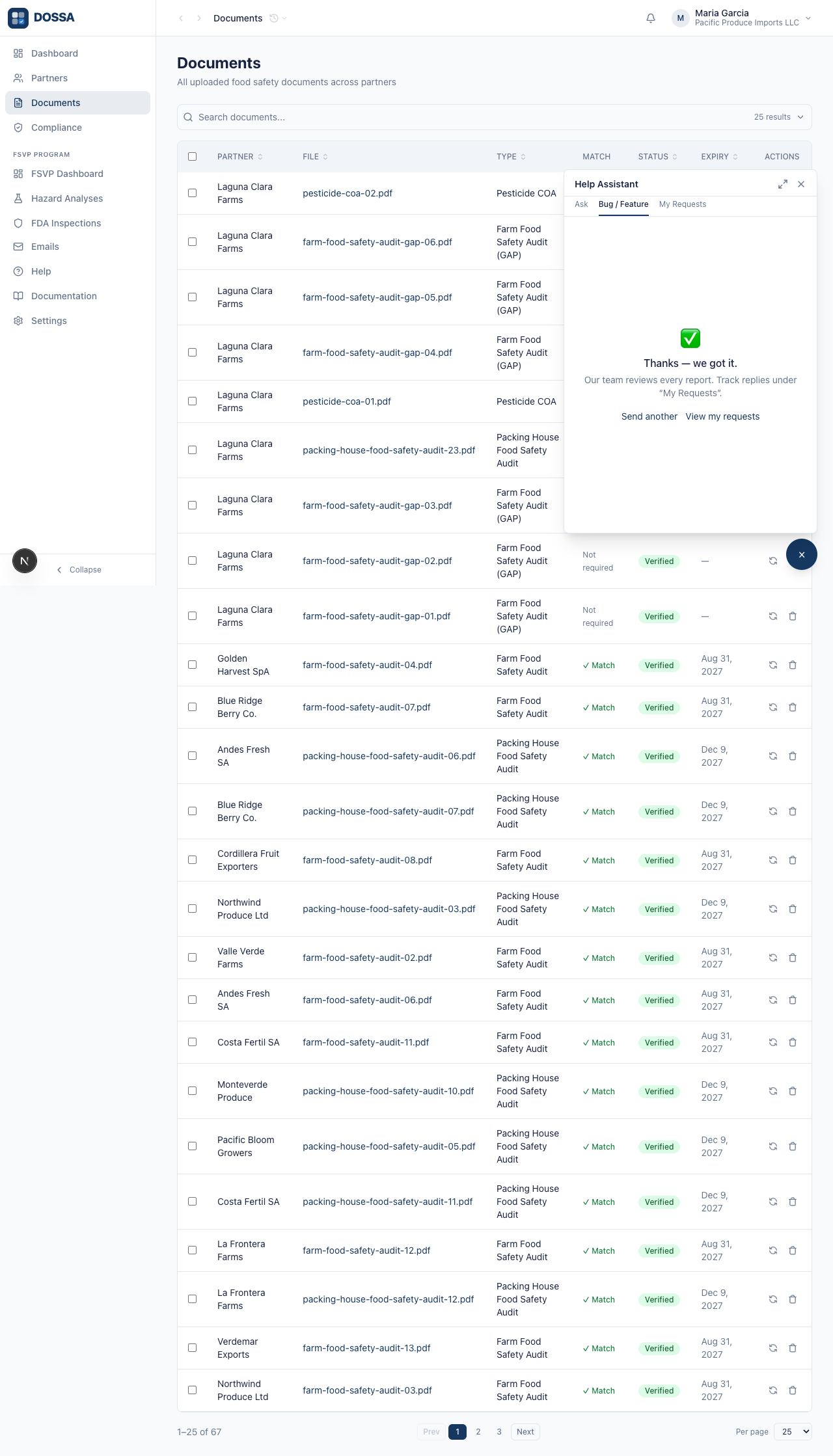
What you should see: After you submit, the form is replaced by a confirmation — a green check with “Thanks — we got it.” and a note that the team reviews every report and that you can track replies in Help. A “Send another” link lets you file more feedback right away.
Track the request and read the team’s reply
Section titled “Track the request and read the team’s reply”
What you should see: The “My requests” tab lists the feedback you have submitted. Each item shows its type (Bug, Feature, or Question), the message, the page it came from, and a status badge (for example “new”, “planned”, or “resolved”). When the team replies, their answer appears inline under the item in a “Reply from our team” panel. If you have not submitted anything yet, a friendly empty state points you to the help widget.