
Getting Help
How a user gets help inside the app. The “Help” menu opens the assistant in full-screen mode with three tabs — Ask a question (an AI assistant grounded in these guides that links its sources and can read a screenshot you paste), Report a Bug / Request Feature, and My Requests (where you track what you submitted and the team’s replies). A separate “Documentation” menu opens this full documentation site.
Who: Compliance Manager
Open the Help assistant from the sidebar
Section titled “Open the Help assistant from the sidebar”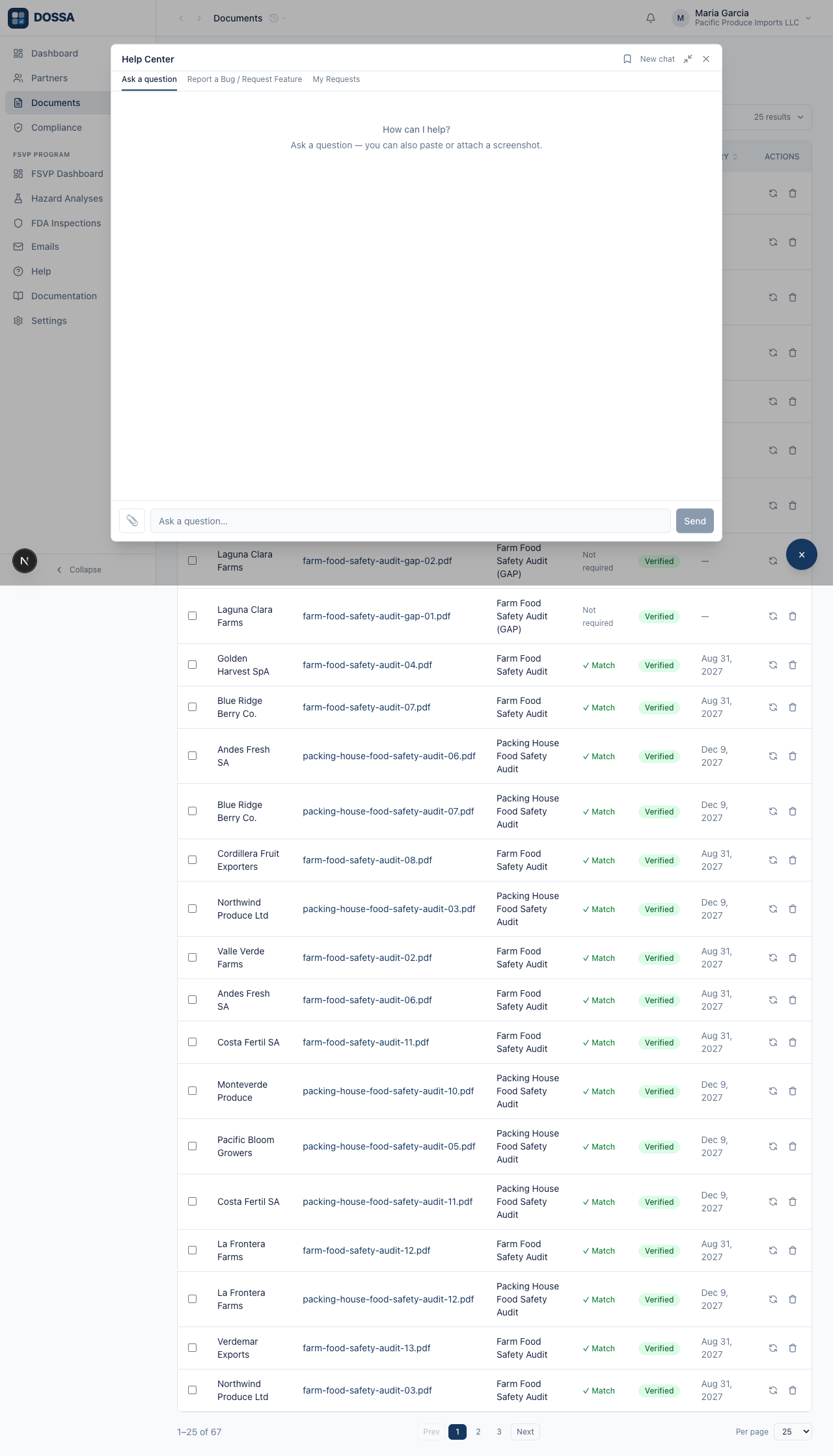
What you should see: The Help Center opens in full-screen mode with three tabs — “Ask a question”, “Report a Bug / Request Feature”, and “My Requests”. It greets you on the Ask-a-question tab, where you can type a question or paste/attach a screenshot, with a paperclip (attach) button and a Send button.
Ask the AI assistant a question
Section titled “Ask the AI assistant a question”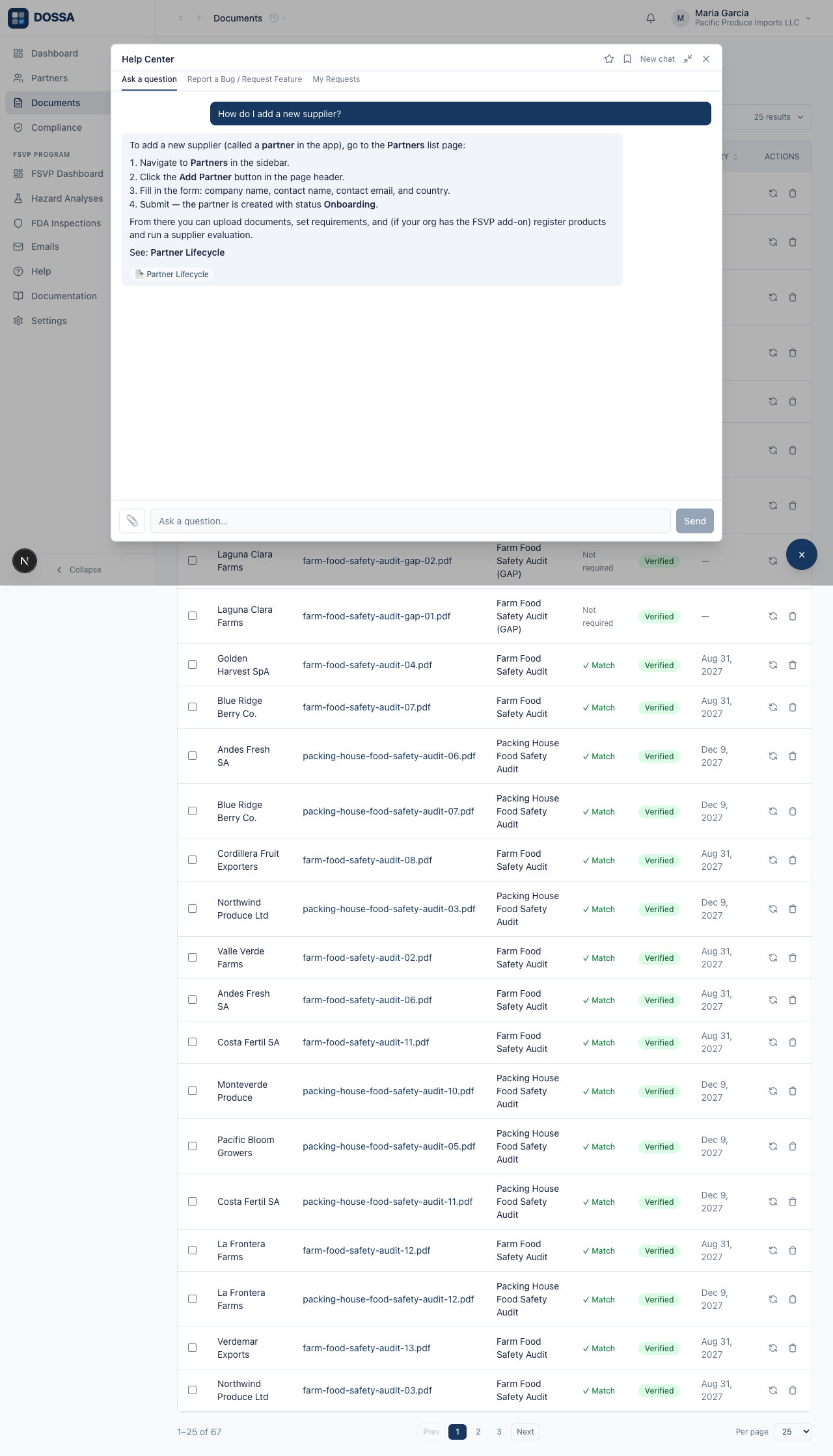
What you should see: The assistant replies with step-by-step guidance drawn only from the product’s own documentation, and shows the articles it drew from as tappable links below the answer (for example “Partner Lifecycle”). You can keep asking follow-ups, paste a screenshot of a screen you have a question about, or pin a conversation to revisit it later.
Report a bug or request a feature
Section titled “Report a bug or request a feature”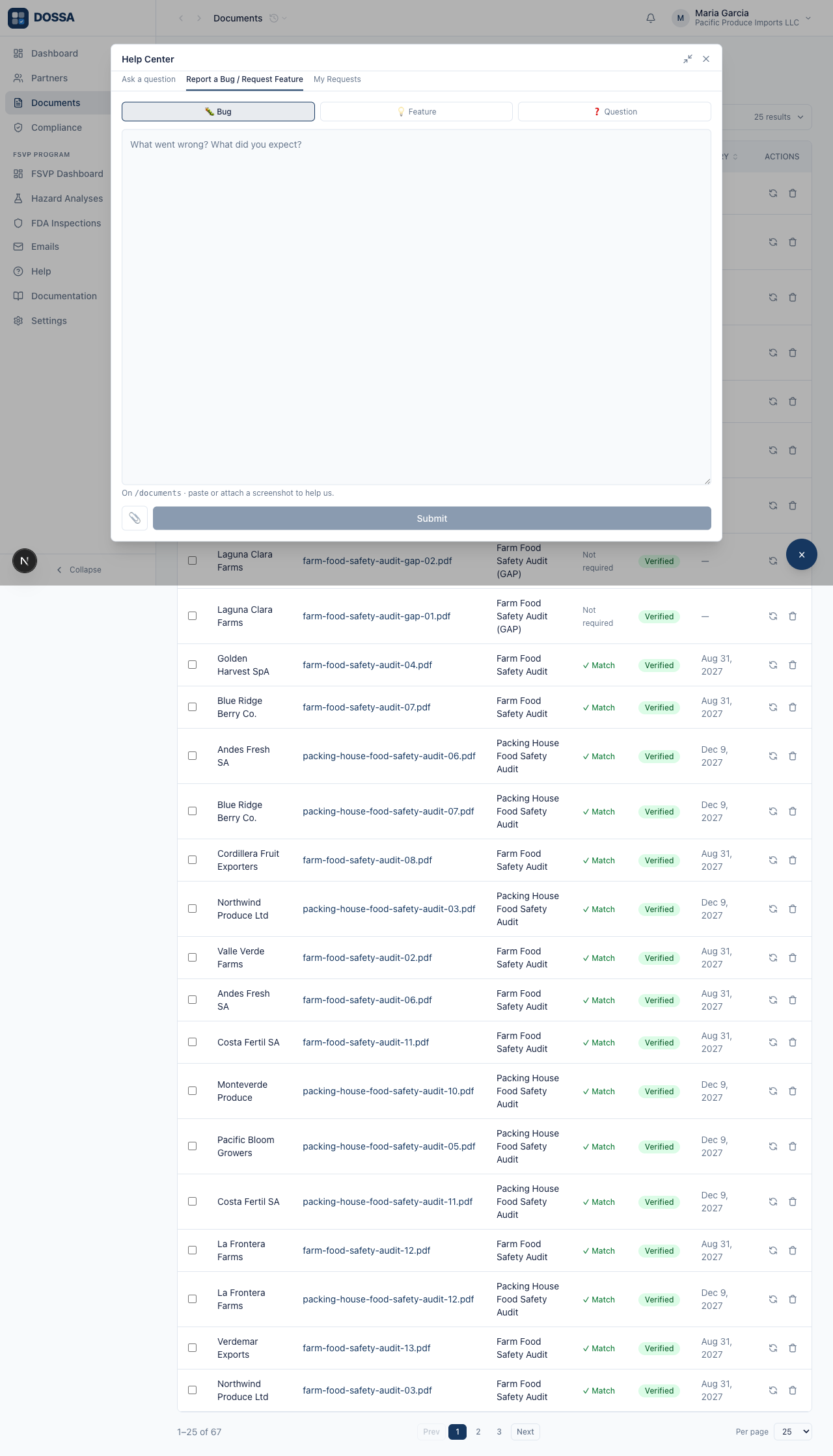
What you should see: The feedback form lets you pick a type — 🐛 Bug, 💡 Feature, or ❓ Question — describe it, and paste or attach a screenshot. It automatically records the page you were on so the team has context. After you submit, you get a confirmation and can track the item under “My Requests”.
Track your submitted requests and the team’s replies
Section titled “Track your submitted requests and the team’s replies”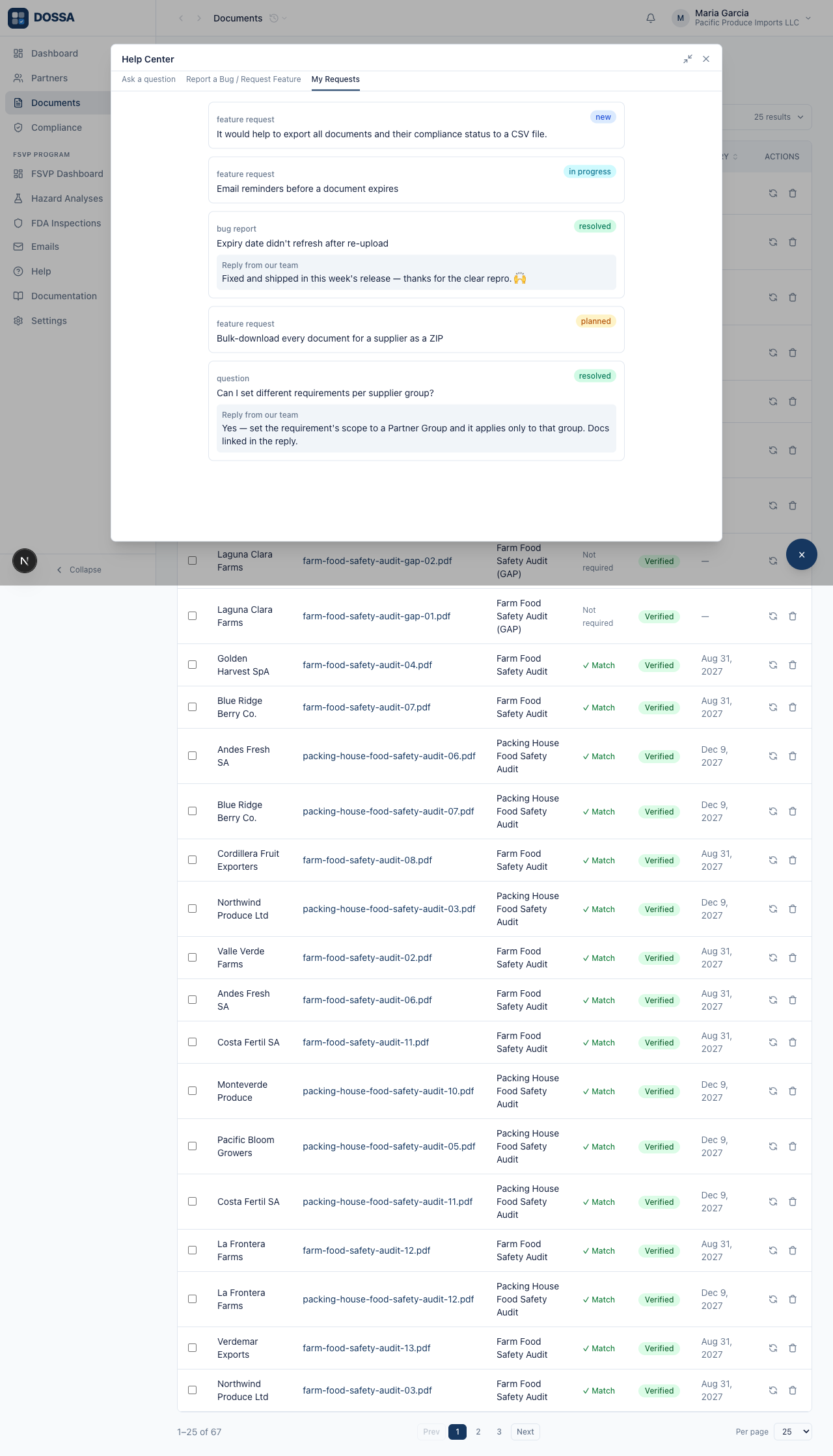
What you should see: The “My Requests” tab lists the bug reports and feature requests you have submitted, each with a status badge (for example “new”, “planned”, or “resolved”). When the team replies, their answer appears inline under the item. For the full guides, the separate “Documentation” menu opens this documentation site.