
Organization Setup
Day-1 owner workflow that takes a newly provisioned org through the configuration every other workflow assumes is in place. Covers: company information, team invitations + role assignment, org email signature, per-user email signature, and FSVP regulatory settings (QI + importer). Outputs a fully-configured organization with at least one invited teammate, two configured email signatures (org + per-user), and QI / importer details for FSVP forms.
Who: Owner / Admin (the person who registered the org) · Regulation: 21 CFR 1.503 — Qualified Individual (QI) identification and credentials are required for any FSVP-entitled org. The remaining setup steps are platform-internal configuration, not regulatory.
Open Settings to begin configuration
Section titled “Open Settings to begin configuration”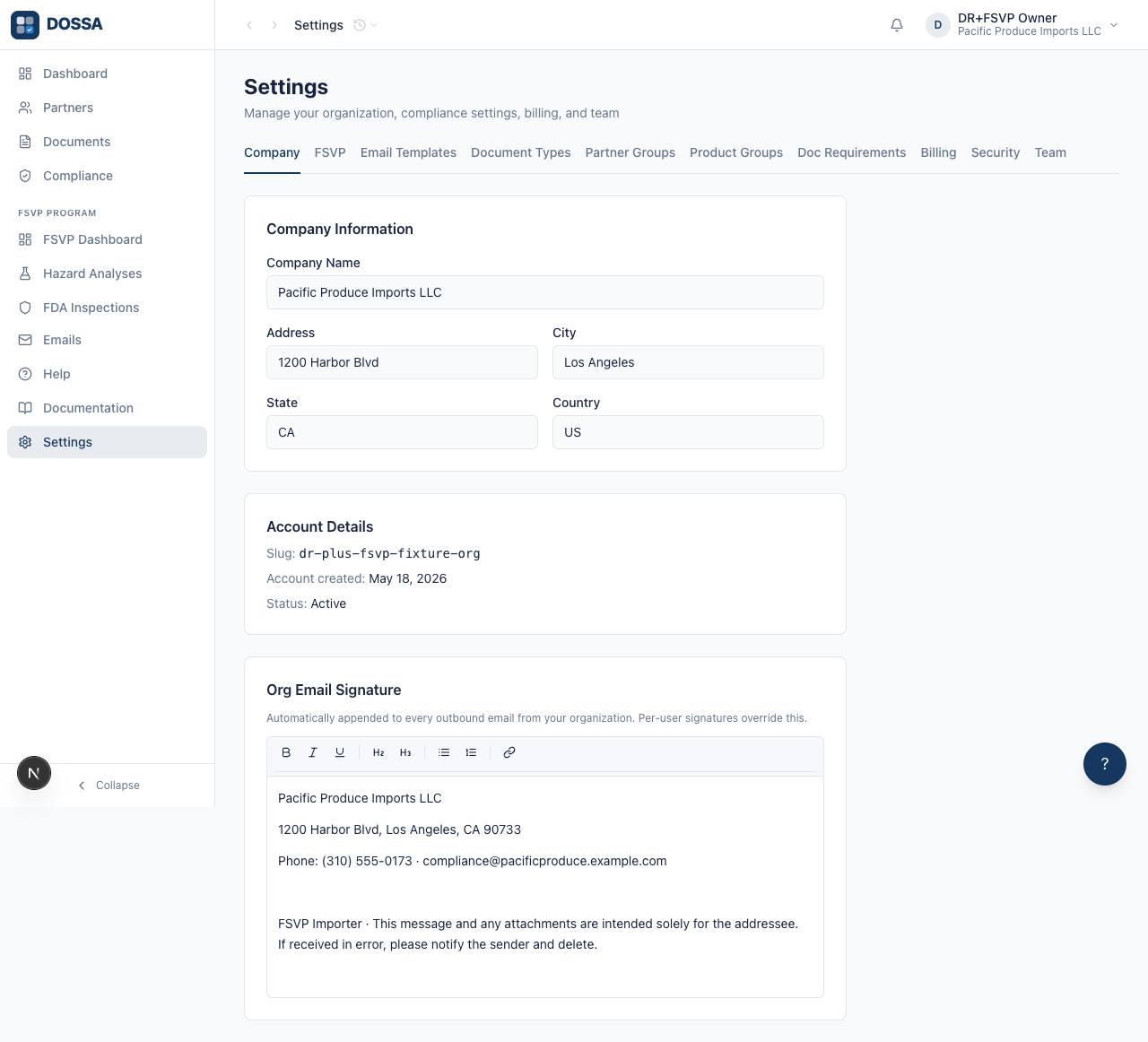
What you should see: Settings page loads with the Company tab pre-selected. All seven tabs are visible — note that the FSVP tab is only useful when the FSVP plugin is entitled (the org carries it by default in this workflow).
Complete the Company Information form and the org-wide email signature, then save both together
Section titled “Complete the Company Information form and the org-wide email signature, then save both together”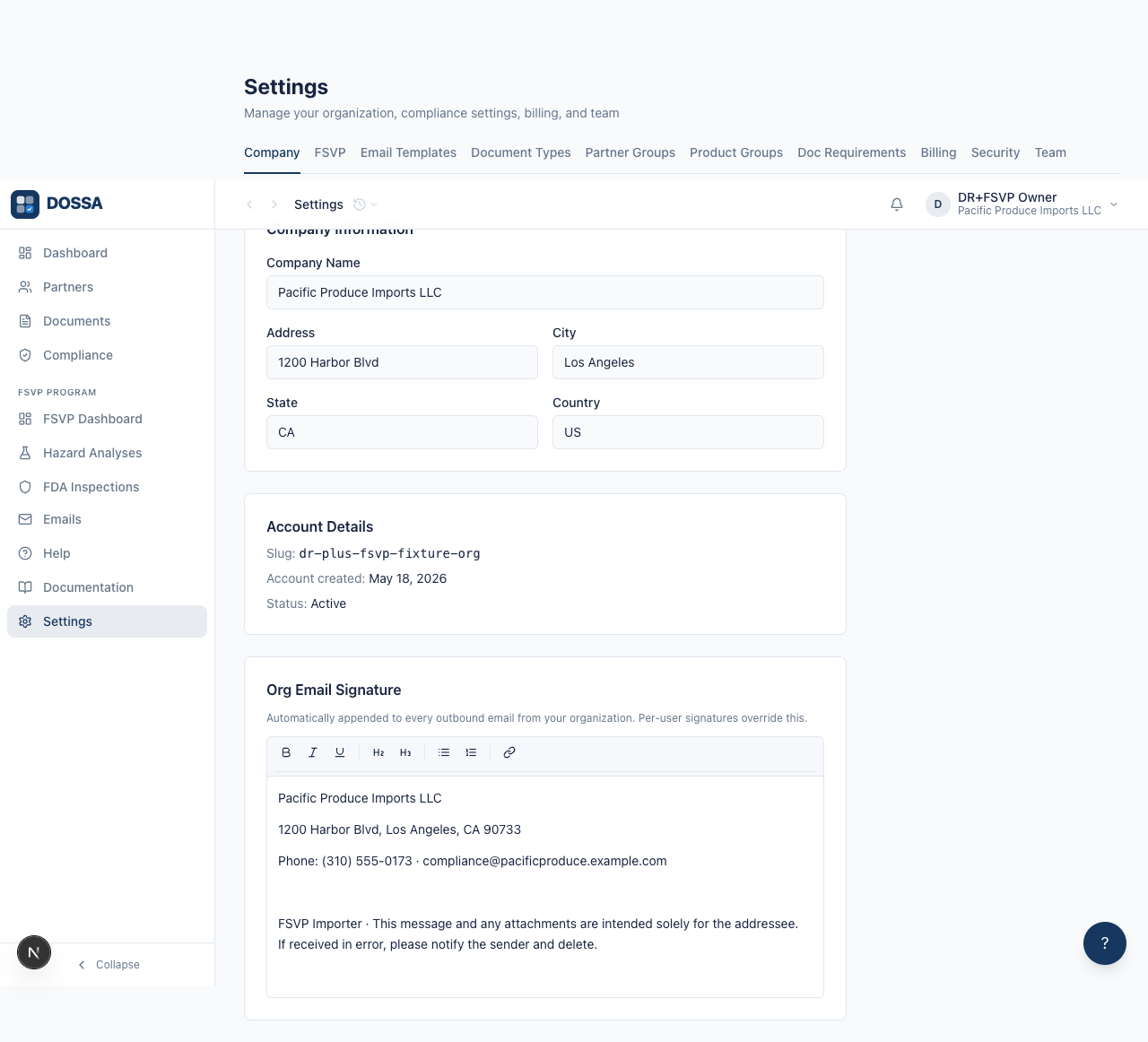
What you should see: Company details and the org-wide signature are saved together. The slug is generated automatically from the company name and shown in the Account Details card. From this point on, every outbound email from the organization carries this signature footer unless the sender has set a personal one.
Switch to the Team tab to invite teammates and configure personal signature
Section titled “Switch to the Team tab to invite teammates and configure personal signature”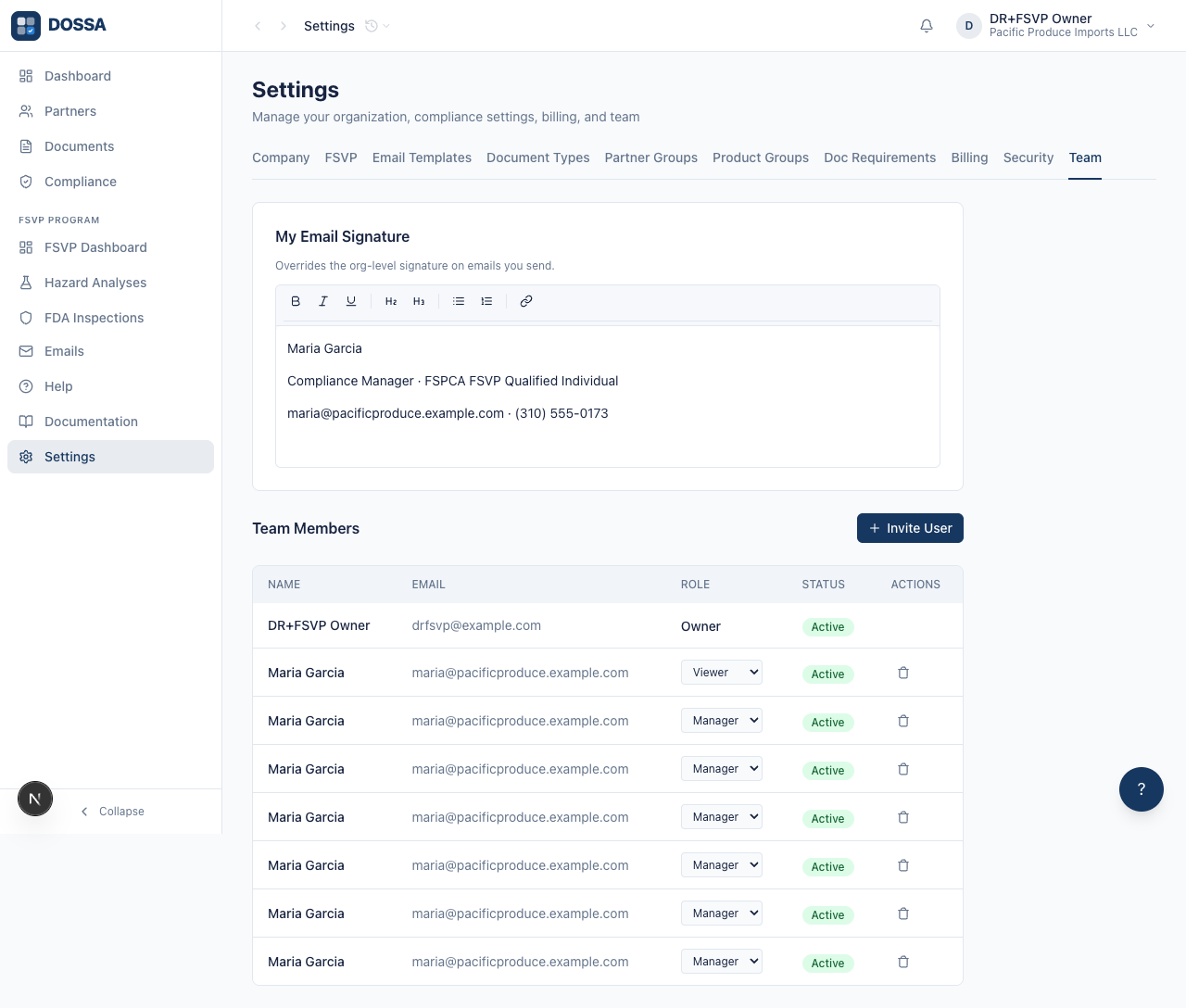
What you should see: Team tab loads with two sections: the personal “My Email Signature” override block at the top, and the Team Members table with the Invite User button below. The owner row shows the Owner role as plain text — the owner cannot be downgraded or deactivated from this table.
Invite a teammate and assign their role
Section titled “Invite a teammate and assign their role”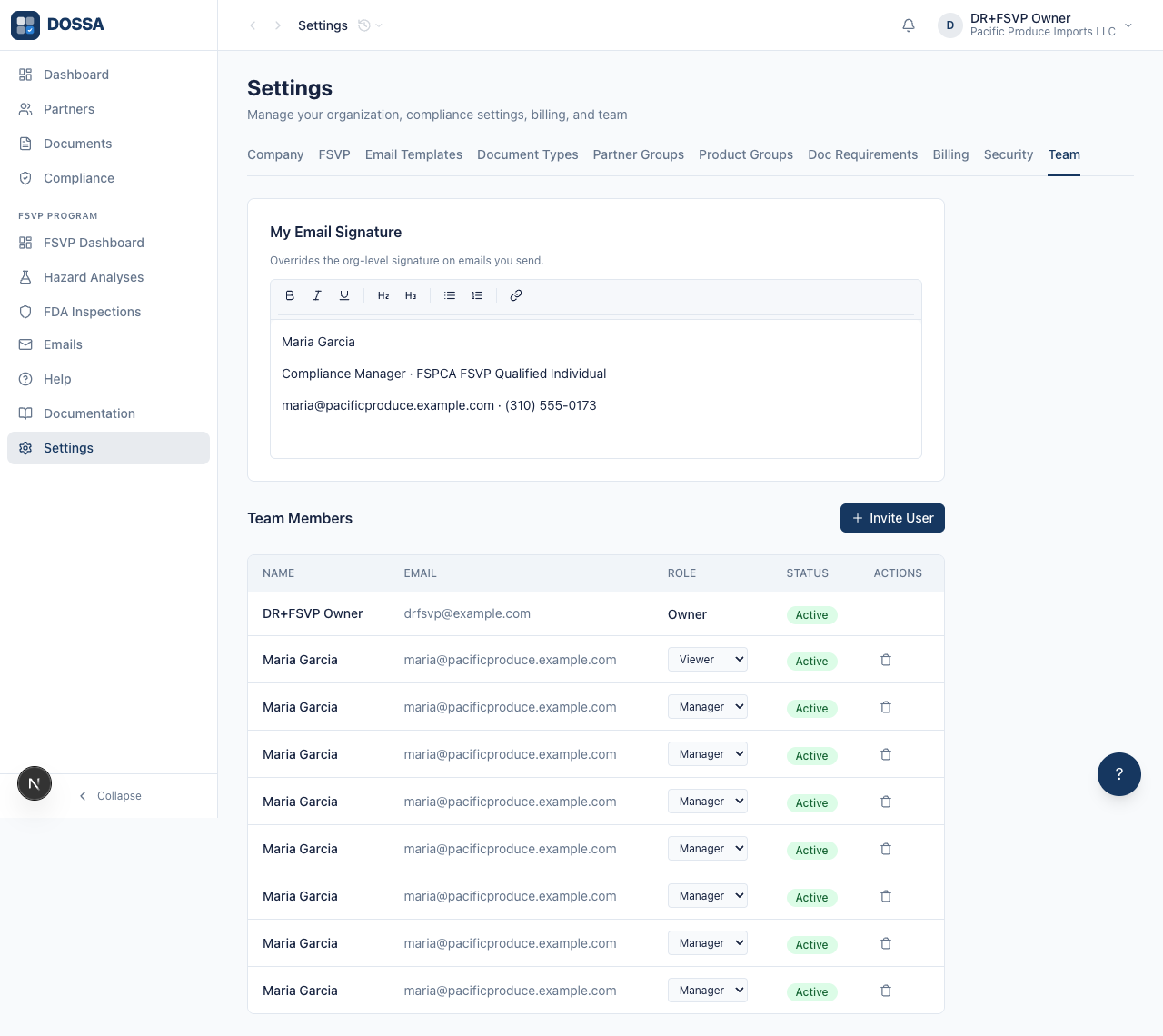
What you should see: The teammate is created and (in production) an invite email is sent through the platform’s email pipeline. In dev mode the email is intercepted but the new member still appears in the Team Members table with the Manager role.
Open the FSVP settings tab (only when the FSVP plugin is entitled)
Section titled “Open the FSVP settings tab (only when the FSVP plugin is entitled)”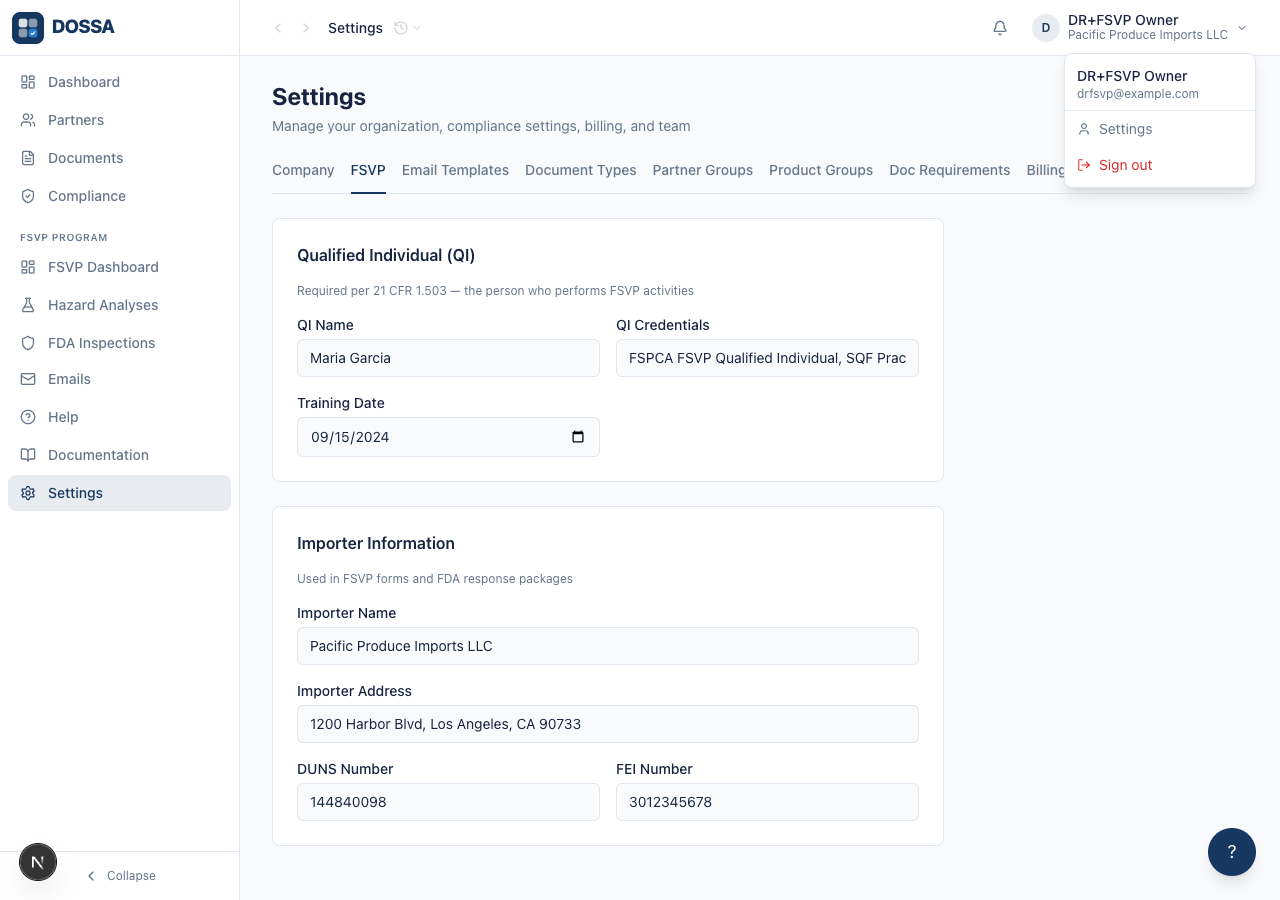
What you should see: FSVP-specific settings tab loads. The QI Name, QI Credentials, and Training Date fields are filled in here once and then auto-fill into hazard analyses, evaluations, and FDA response packages downstream. The Importer fields auto-fill into the FSVP PDF reports.
Fill the QI + importer fields required for FSVP forms
Section titled “Fill the QI + importer fields required for FSVP forms”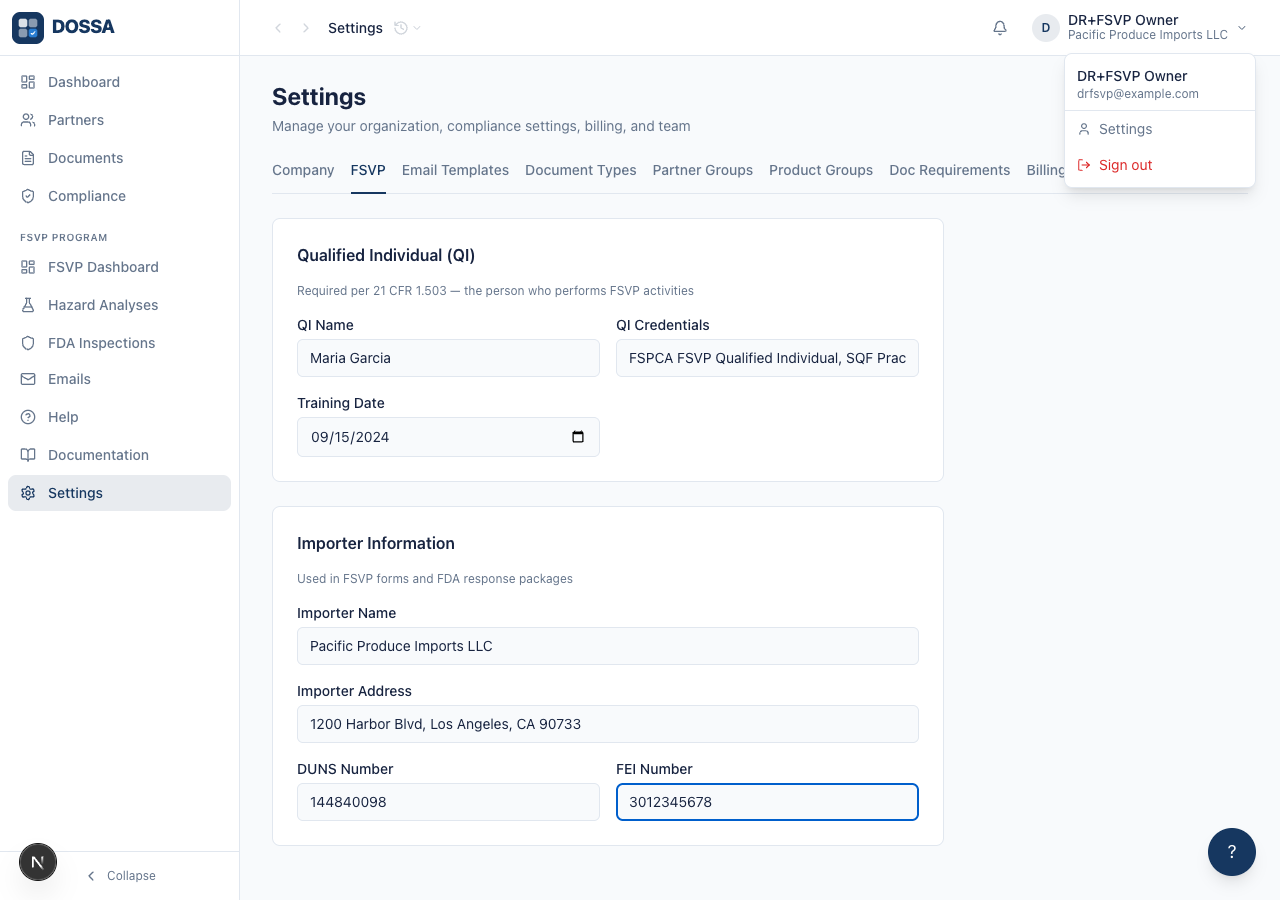
What you should see: The QI and Importer details are saved on the organization. Every downstream FSVP workflow (hazard analyses, supplier verification, FDA inspection response) reads these values rather than asking the user to re-enter them.