
Document Types Setup
Owner / Compliance Manager setup workflow for defining the catalog of Document Types the org will collect from partners. Covers the full Document Types capability: importing from the seed library, creating a custom type with AI assistance (describe, generate proposal, refine, test against a sample, save), editing a type’s match criteria, and deleting an unused type. This is the first workflow to run when configuring an org — it unblocks every downstream flow (document requirements, partner uploads, AI categorization). On a brand-new org the catalog starts empty; the seed library and the AI-assisted creation flow are the two ways to populate it. The audit fixture already has a seeded catalog, so this run demonstrates extending and editing an existing one.
Who: Owner / Compliance Manager · Regulation: No direct regulatory citation. Document Types are the org-defined vocabulary the AI categorizer uses to recognize supplier-uploaded files. FSVP supplier verification (21 CFR 1.505-1.506) downstream relies on this catalog being populated, but the act of defining it is org-internal configuration.
Open the Document Types tab in Settings and review the existing catalog
Section titled “Open the Document Types tab in Settings and review the existing catalog”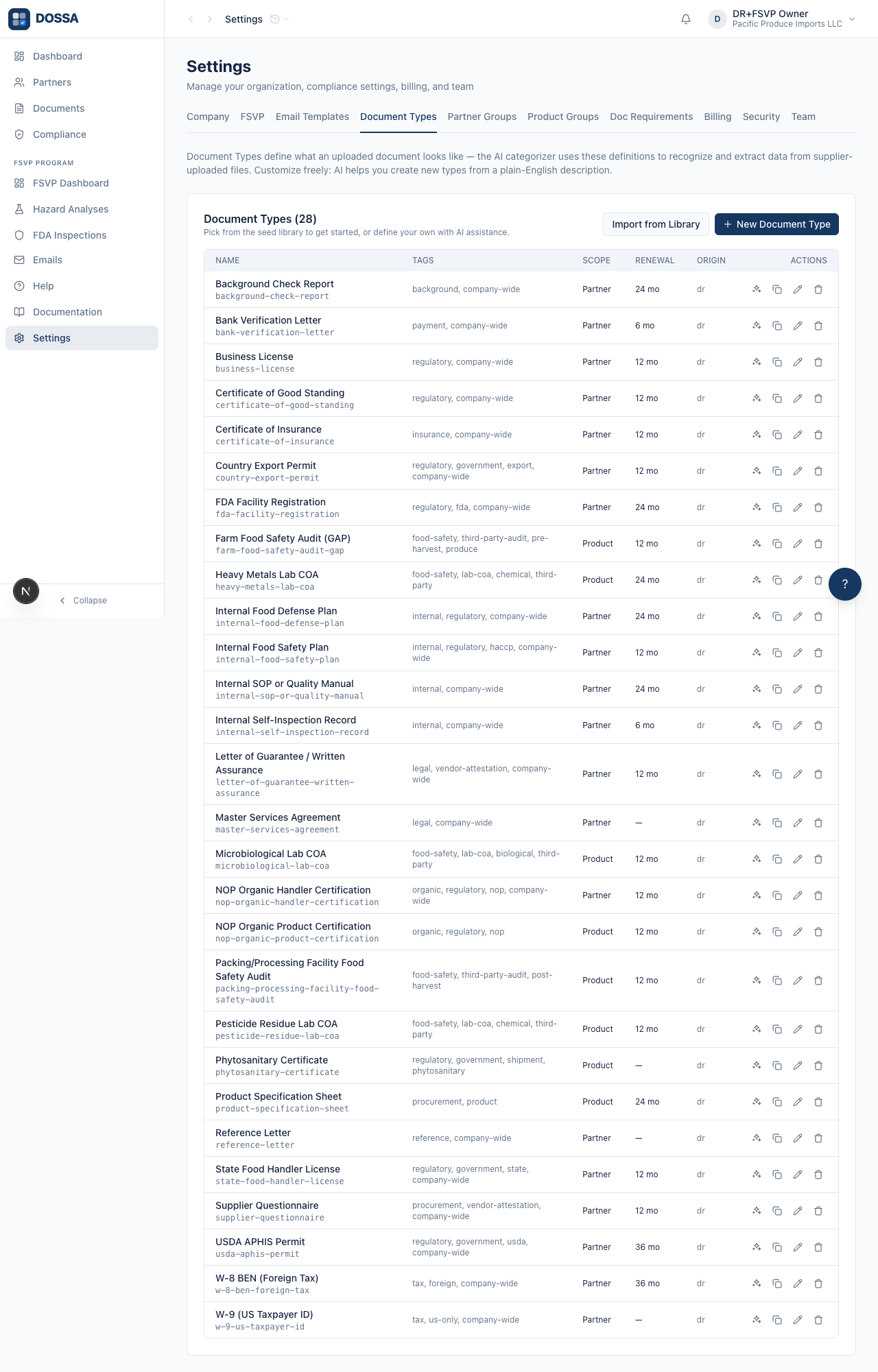
What you should see: Document Types tab loads showing the populated catalog. The header count reflects the types already in the org, and the table lists each one with its Origin (a library group name for imported types, “custom” for hand-built ones). Two CTAs sit in the header row — “Import from Library” (data-action=“import-from-library”) to add more from the seed library and “New Document Type” (data-action=“new-document-type”) to define one with AI assistance.
Open the Import from Library wizard
Section titled “Open the Import from Library wizard”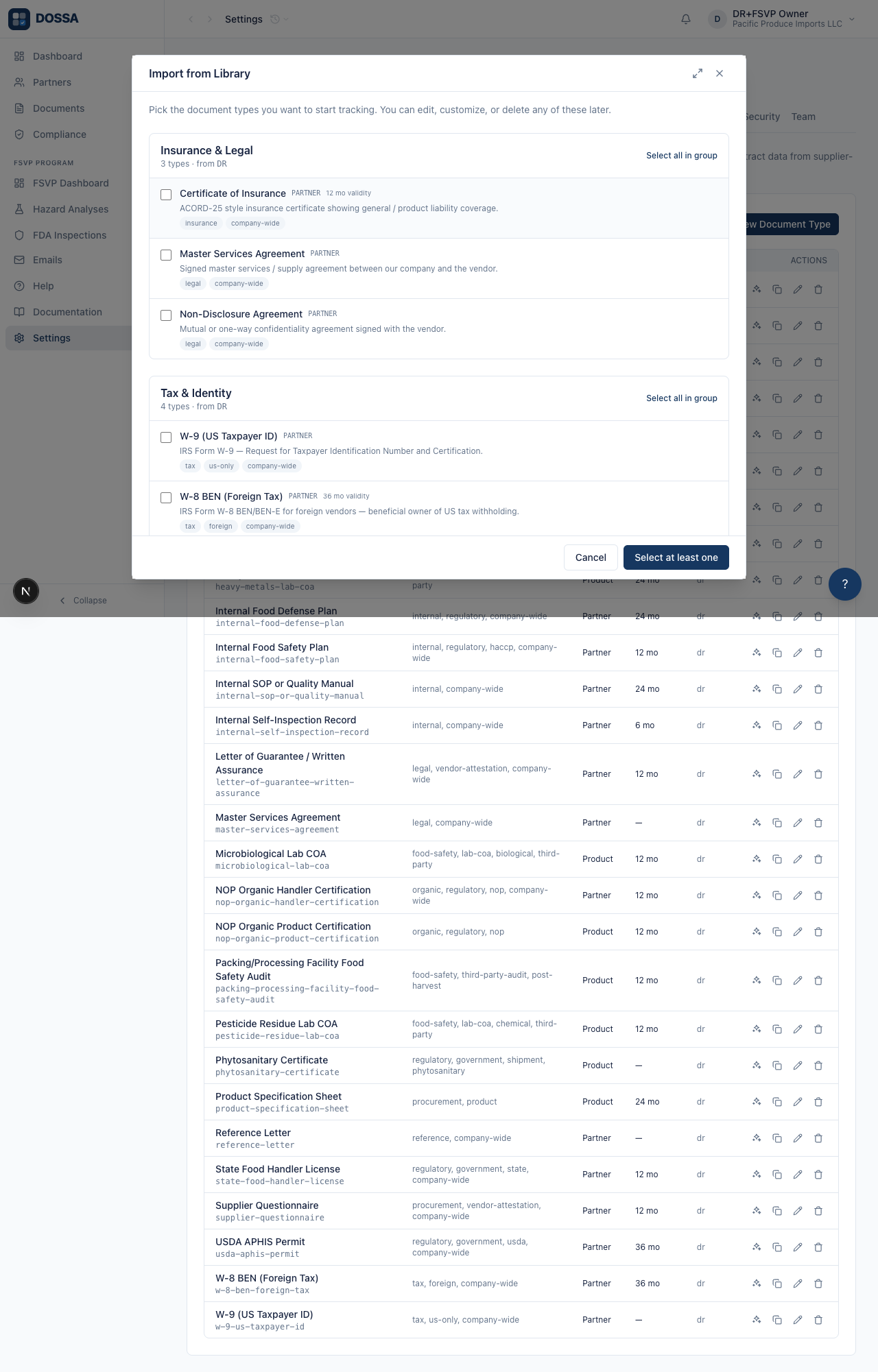
What you should see: Seed library wizard opens with all four library groups. Each group lists its document types; every row shows the type name, the scope (partner or product), validity months, a short description, and tags. The submit button reads “Select at least one” until you check at least one type, then updates to “Import N types”.
Open wizard and bulk-select the Insurance & Legal group
Section titled “Open wizard and bulk-select the Insurance & Legal group”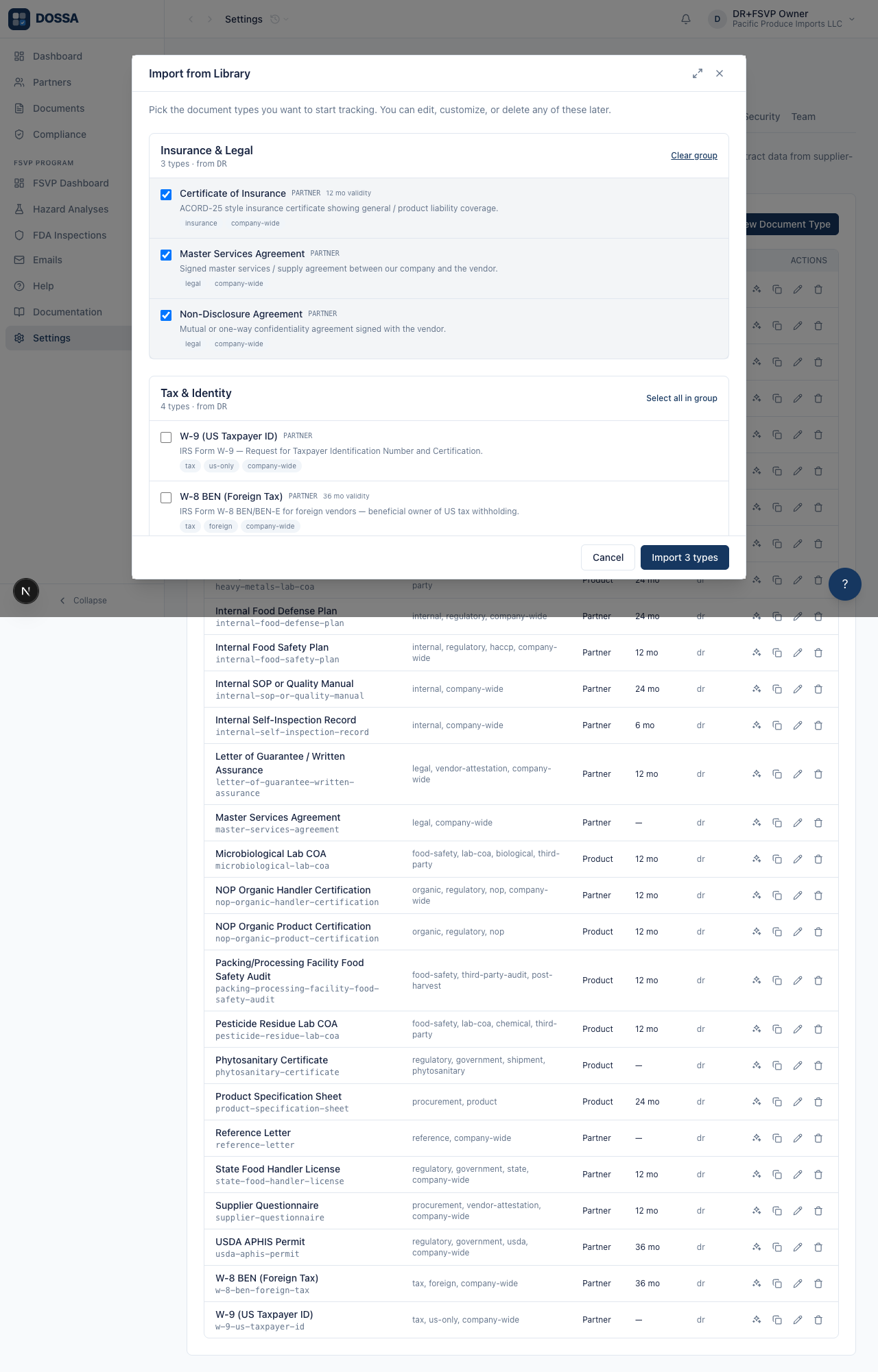
What you should see: Every type under “Insurance & Legal” (Certificate of Insurance, Master Services Agreement, Non-Disclosure Agreement) is selected. Bulk toggle is reversible — clicking again would clear the group.
Open wizard and add a few individual types via per-type checkboxes
Section titled “Open wizard and add a few individual types via per-type checkboxes”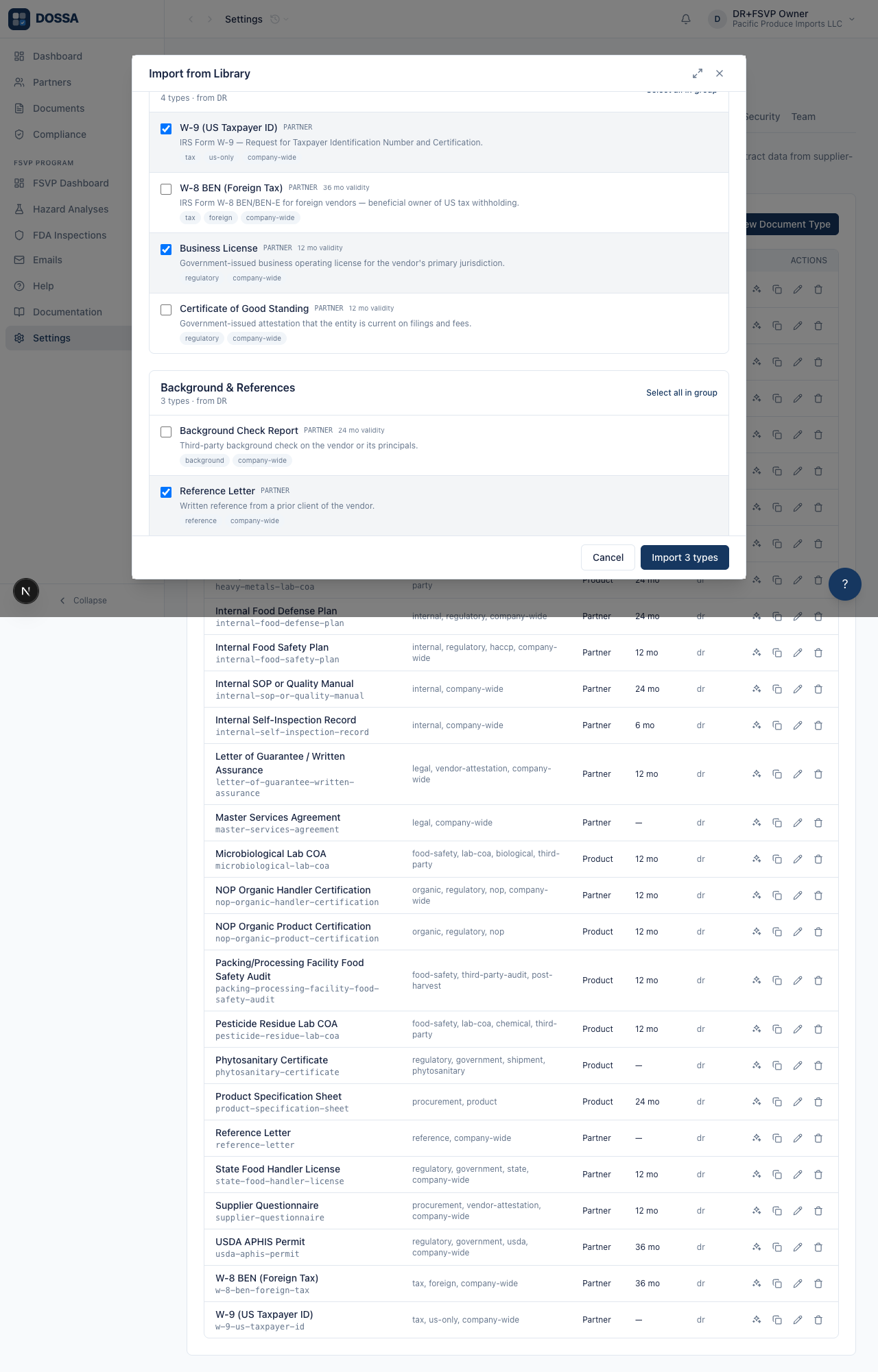
What you should see: Per-type selection: three individual rows checked. The submit button’s count updates live as each row toggles.
Open wizard and bulk-select the Food Safety group
Section titled “Open wizard and bulk-select the Food Safety group”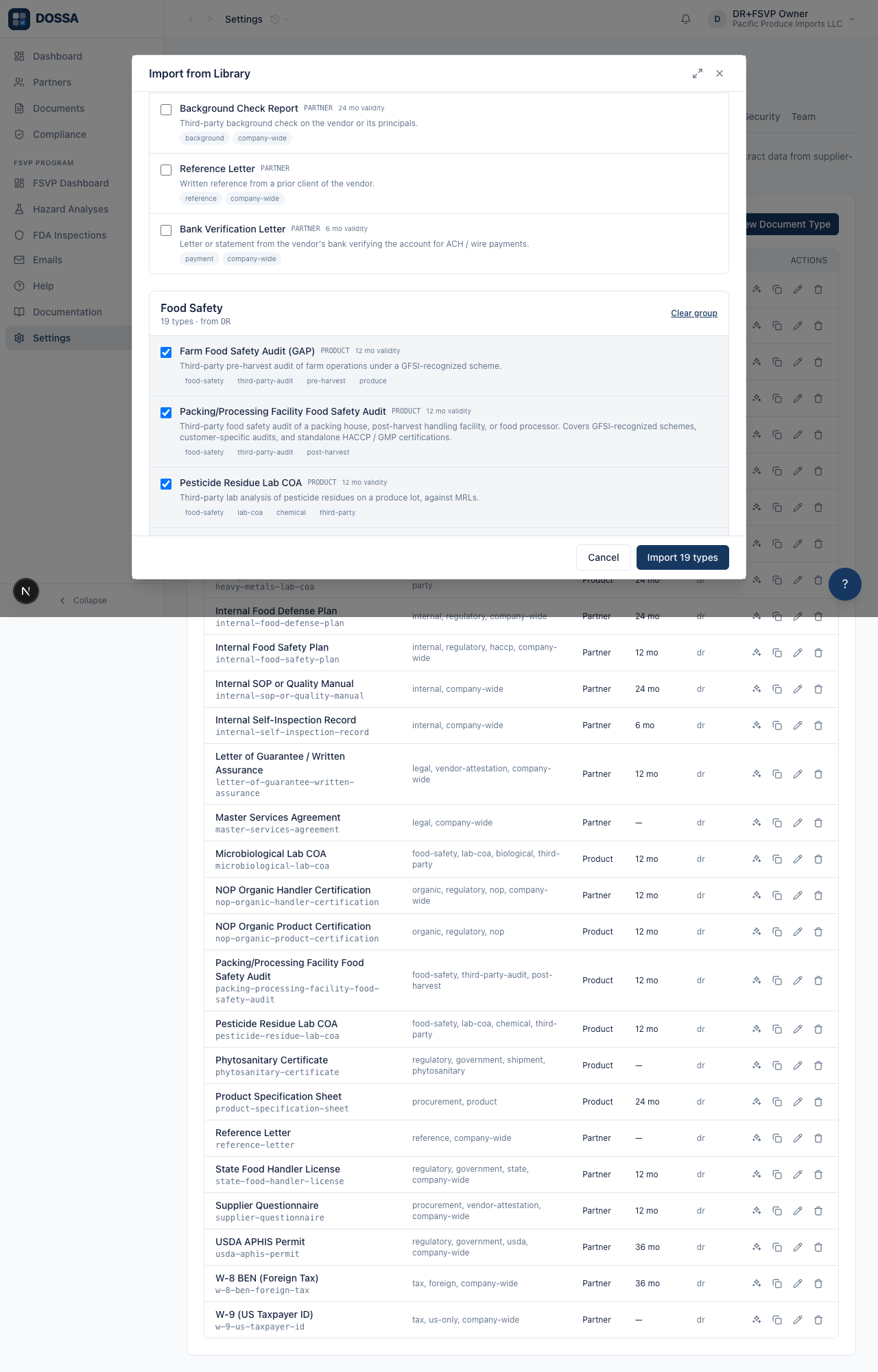
What you should see: Every type in the Food Safety group (audit certificates, certificates of analysis, organic certificates, government compliance documents, and the like) is queued. Food Safety is one of the four library groups that ship with the foundation product — it is the document vocabulary the AI categorizer recognizes, available to any org.
Open wizard, pick types, submit — types appear in the catalog
Section titled “Open wizard, pick types, submit — types appear in the catalog”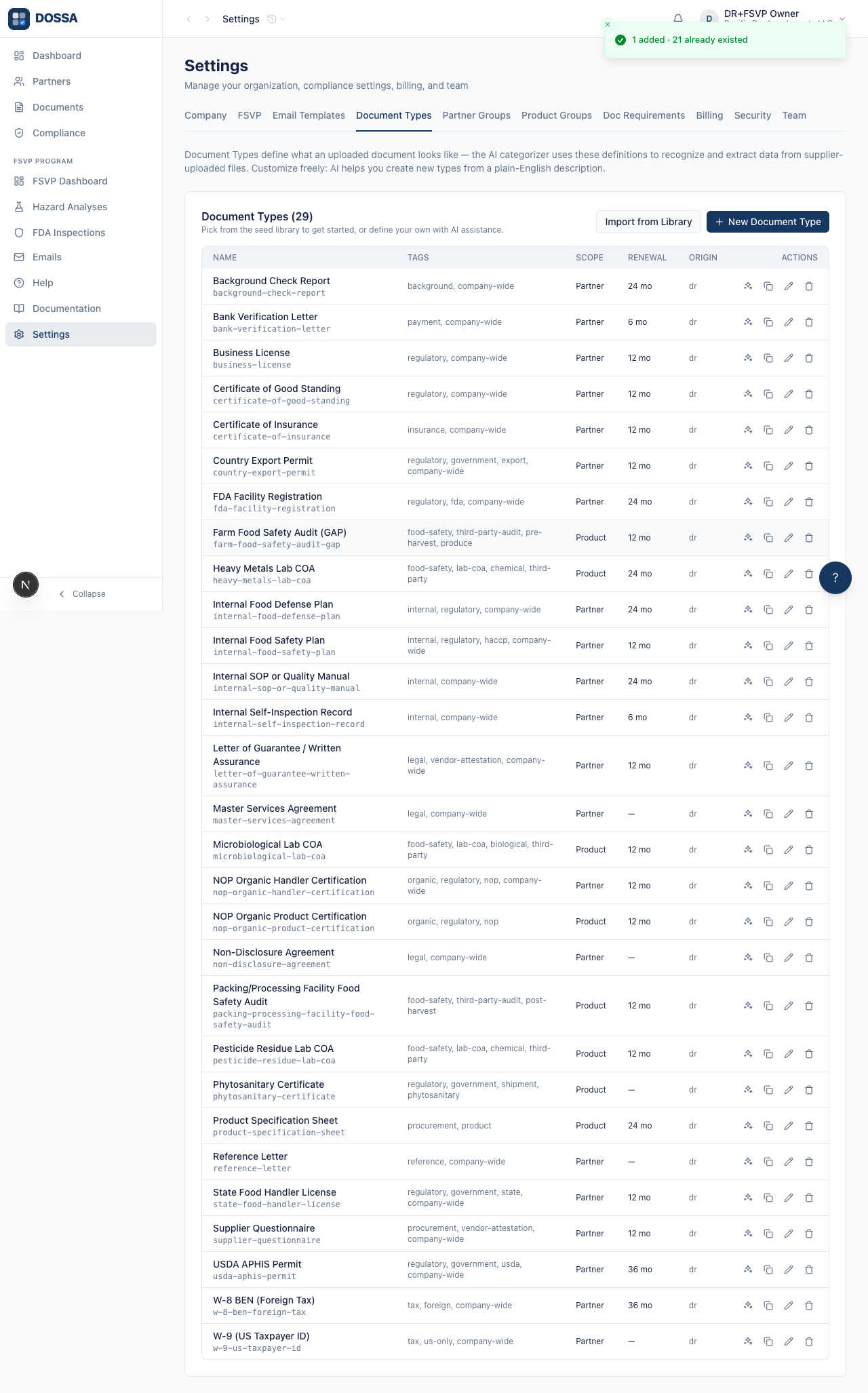
What you should see: Wizard closes and a success toast confirms how many were added (for example “9 document types added”, or “5 added · 4 already existed” if some overlap a prior import). The Document Types table now lists every imported type, with the Origin column showing the library group each came from.
Open the AI-assisted Create Document Type modal
Section titled “Open the AI-assisted Create Document Type modal”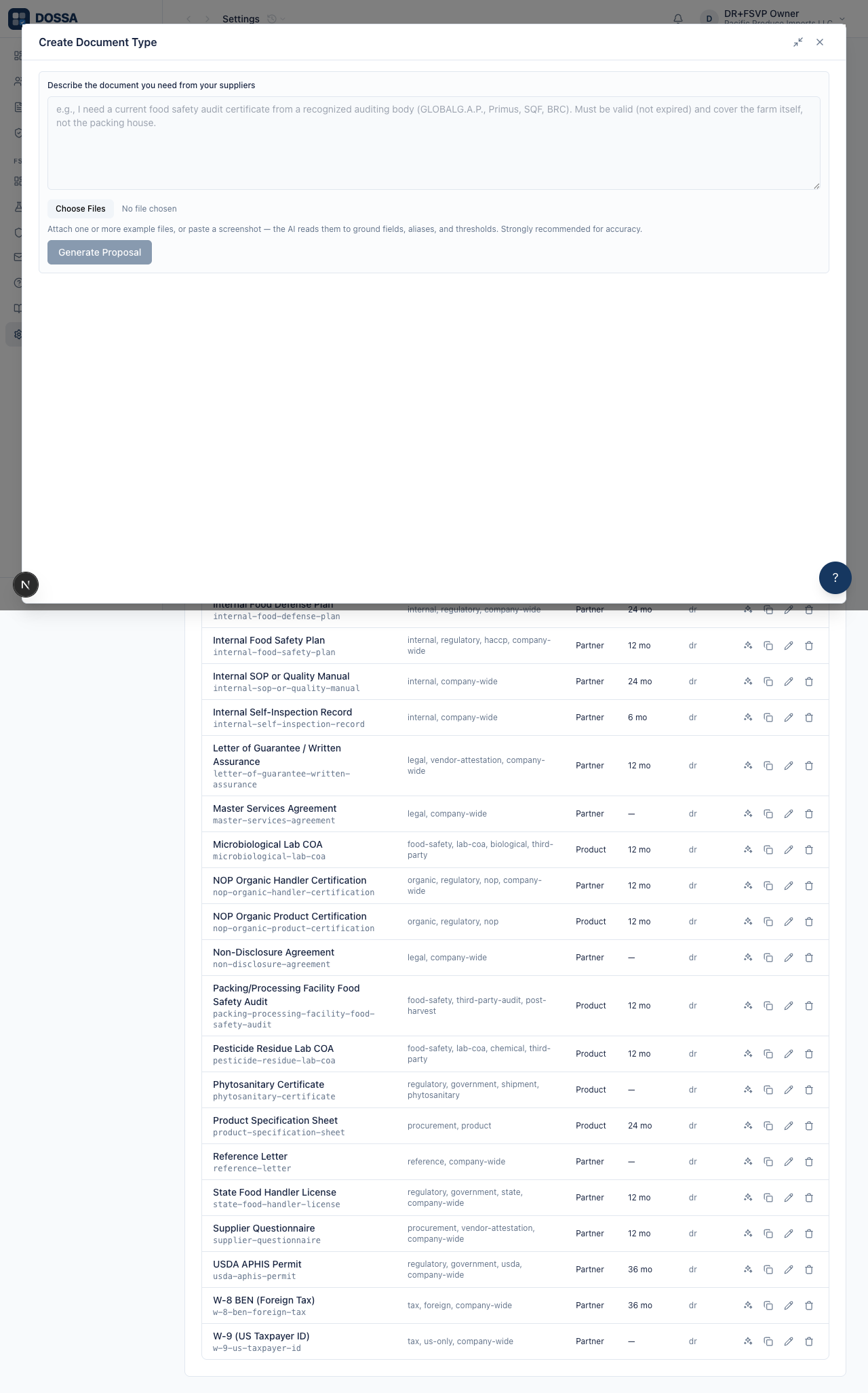
What you should see: The Create Document Type panel opens in its starting state — a description box and an “Attach files” button for optional example files. Attached files appear as removable chips below the button. The full editable proposal form only appears after the AI generates a draft from your description.
Type a plain-English description of the document you need
Section titled “Type a plain-English description of the document you need”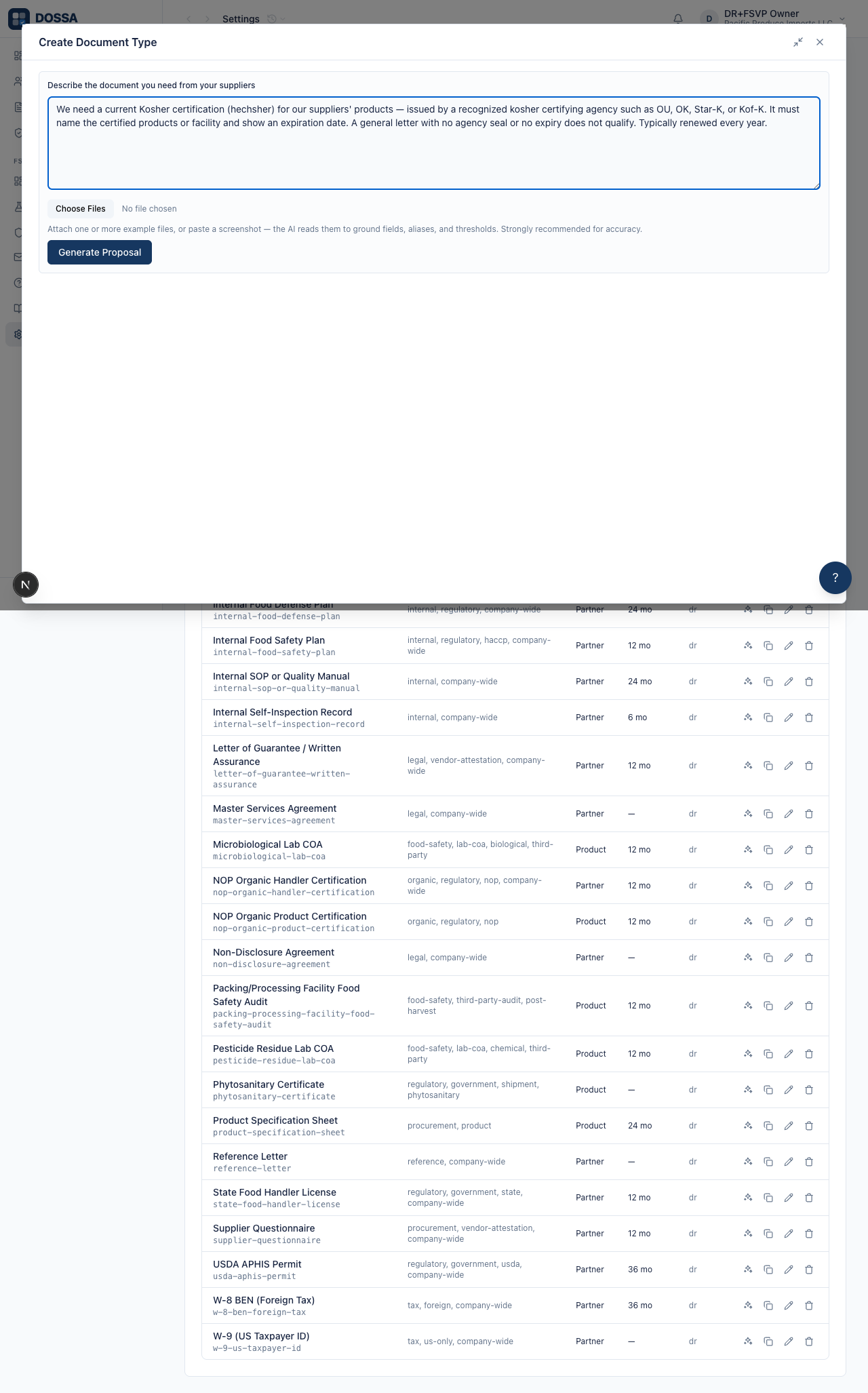
What you should see: The description box now holds the plain-English request. The next step sends it to the AI, which drafts a complete document type for you to review.
Generate the AI proposal and review the pre-filled form
Section titled “Generate the AI proposal and review the pre-filled form”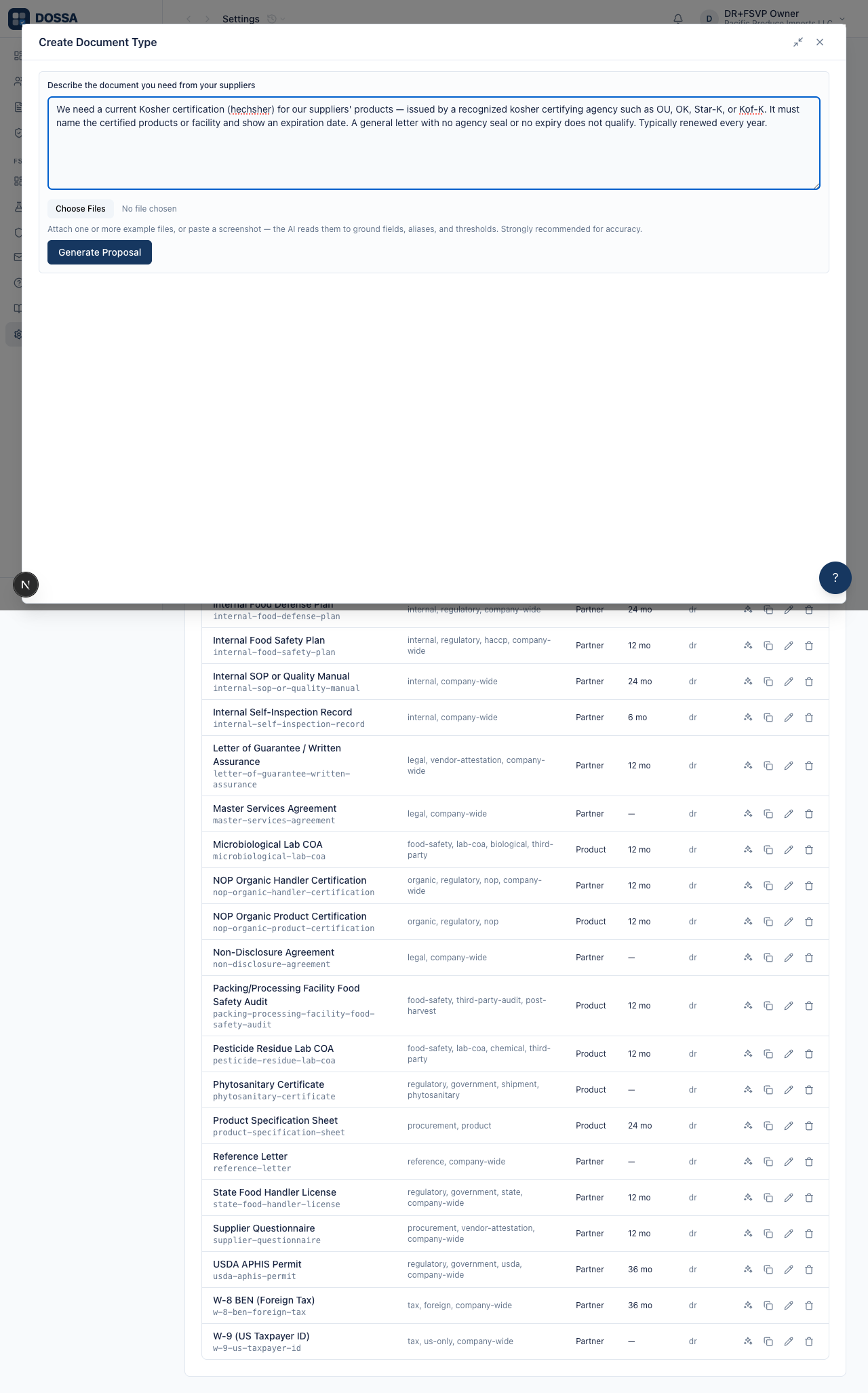
What you should see: The AI returns a complete, editable draft. The form now shows a Name, Description, Aliases, Tags, Renewal (months), Scope, and Verification Source, plus an “AI rationale” note explaining the draft. A “Show advanced” link reveals the AI match criteria, disqualifiers, extract fields, and validity rules. Every field is editable before saving.
Save the AI-drafted custom document type into the catalog
Section titled “Save the AI-drafted custom document type into the catalog”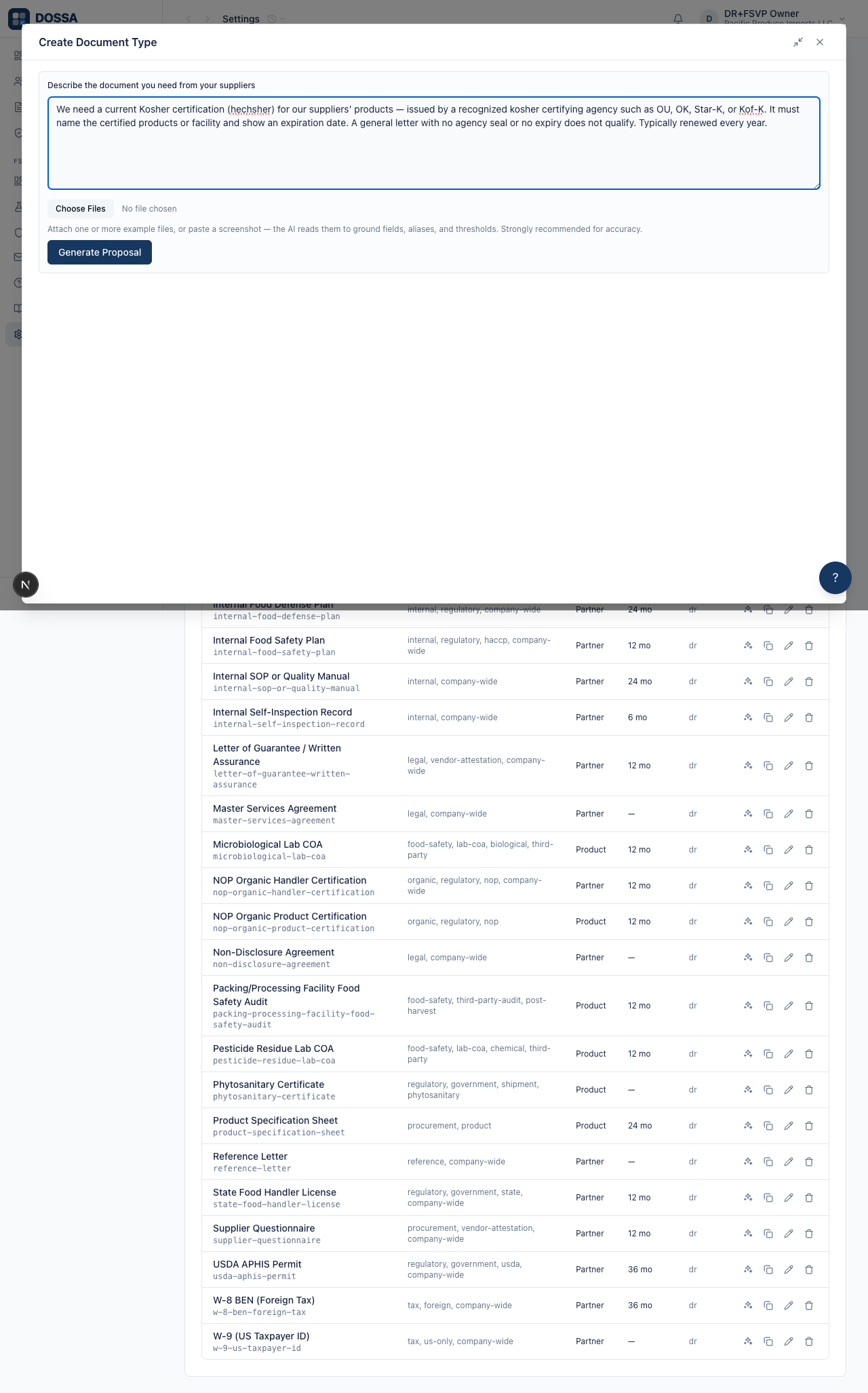
What you should see: The panel closes, a “Document type created” toast appears, and the new type is added to the Document Types table. Its Origin column reads “custom” (versus a library group name for imported types), and it can now be referenced from a Document Requirement in the next workflow.
Edit an imported type’s match criteria after the fact
Section titled “Edit an imported type’s match criteria after the fact”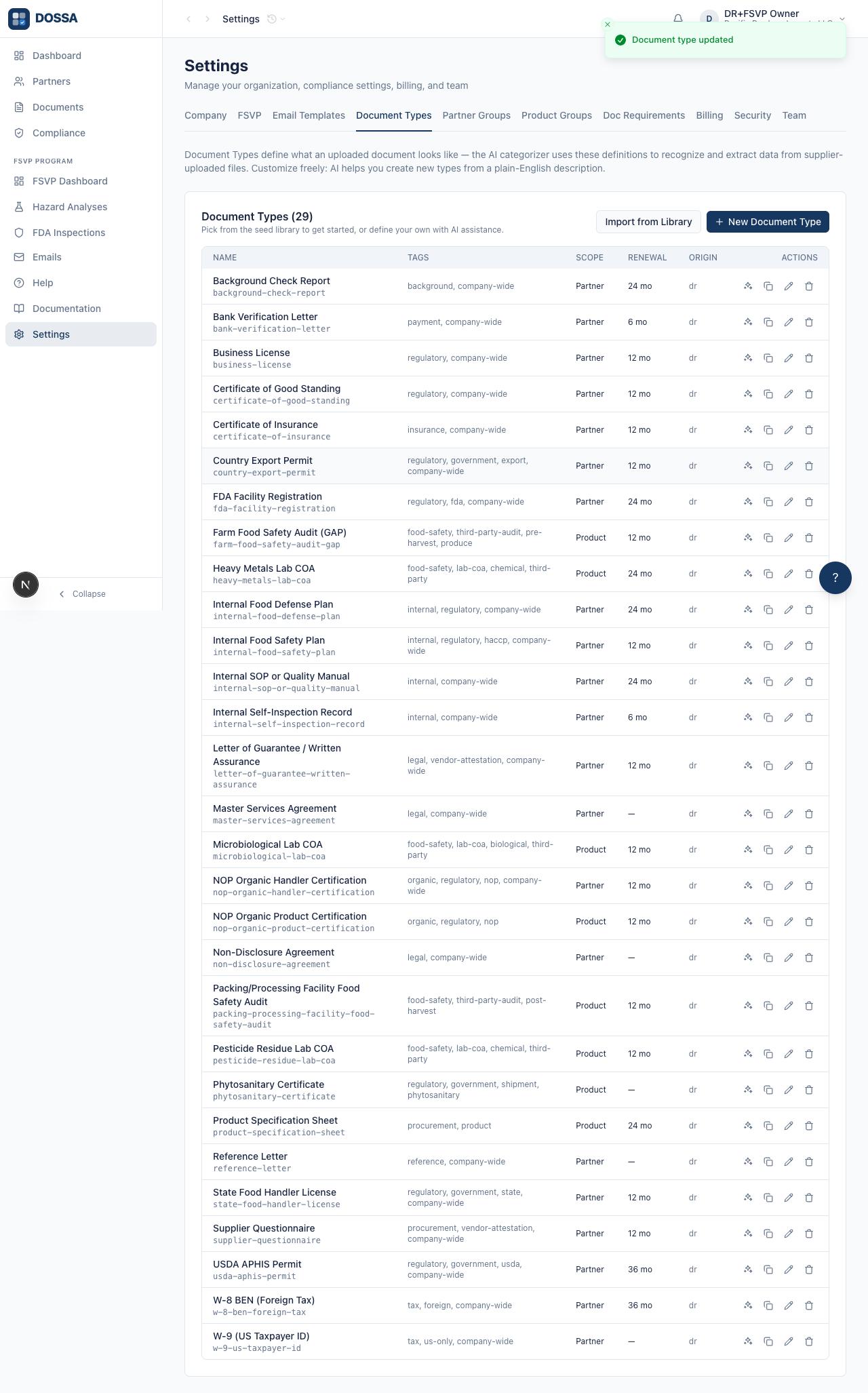
What you should see: Library types are fully editable. Importing a type does not lock it — you can override its match criteria, aliases, tags, and more. After saving, the panel closes, a “Document type updated” toast appears, and the catalog reflects the change. The Origin label is preserved (it records which library group the type came from, not whether it has been customized).
Delete a Document Type the org will not use
Section titled “Delete a Document Type the org will not use”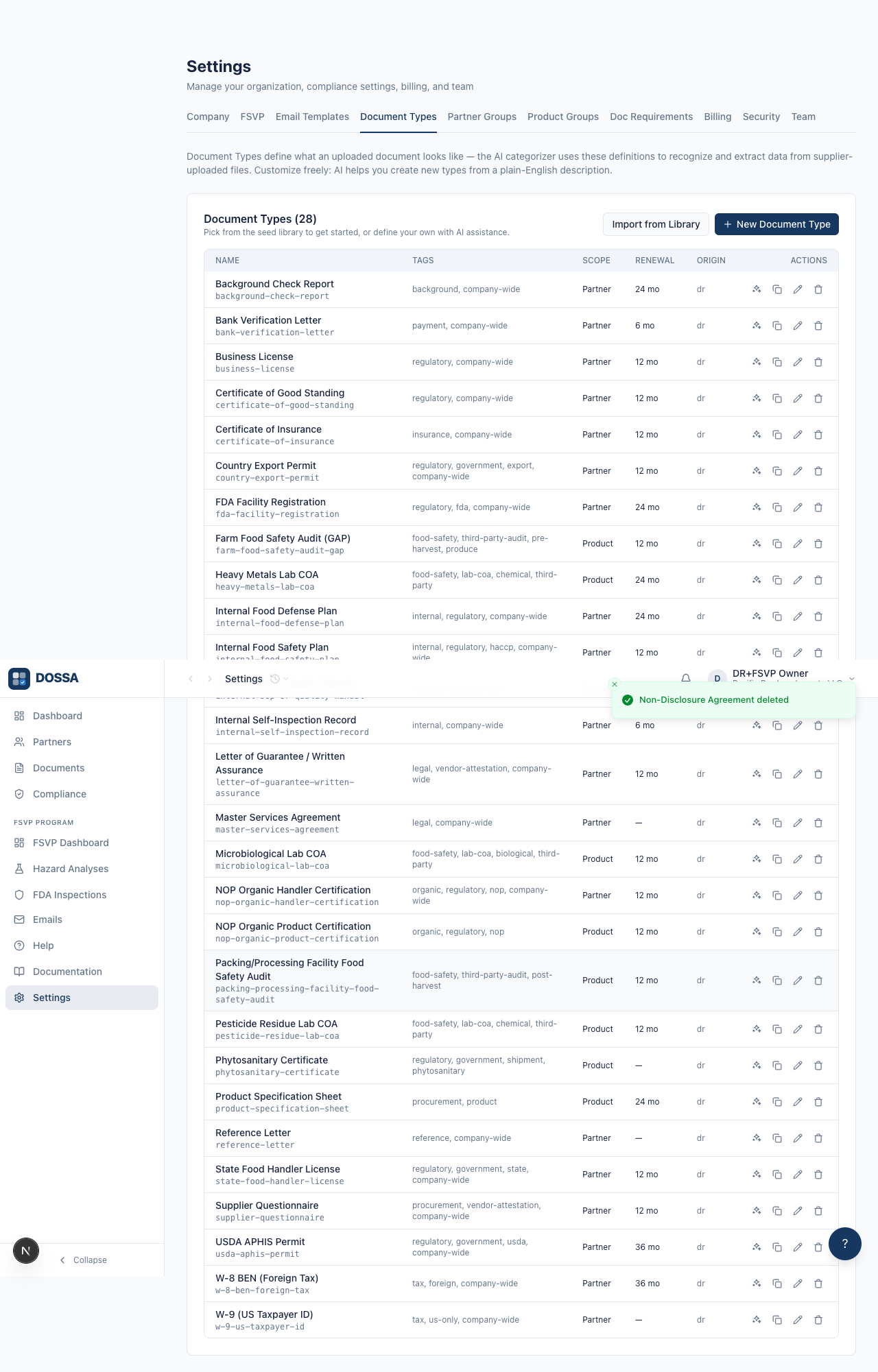
What you should see: Deleting always goes through the in-app confirmation dialog, never a browser pop-up. The type is removed only when nothing references it — if any partner document or document requirement still uses the type, the delete is refused and an explanatory message appears instead. Since the Non-Disclosure Agreement was just imported and never referenced, it is removed cleanly and disappears from the catalog.