
Hazard Analysis (FSVP)
QI workflow for creating and refining a regulatory hazard analysis per 21 CFR 1.504. Covers the Hazard Analyses list, the New Analysis form, creating an analysis with AI research, reviewing the FDA data summary and hazard lines, editing a hazard line, adding a hazard line by hand, re-running AI research, and seeing how an analysis covers a partner’s products. Running AI Research again on an analysis that already has hazard lines replaces the existing FDA data summary and all hazard lines with a fresh analysis. The platform shows a confirmation that warns what will be lost before doing so.
Who: Qualified Individual (QI) — typically the Owner with FSPCA training · Regulation: 21 CFR 1.504 — Hazard analysis. Each food, form and country must have an HA identifying biological, chemical (including radiological), and physical hazards reasonably likely to occur, with control rationale grounded in FDA data (Bad Bug Book, Draft Guidance Appendix 1).
Open the Hazard Analyses list page
Section titled “Open the Hazard Analyses list page”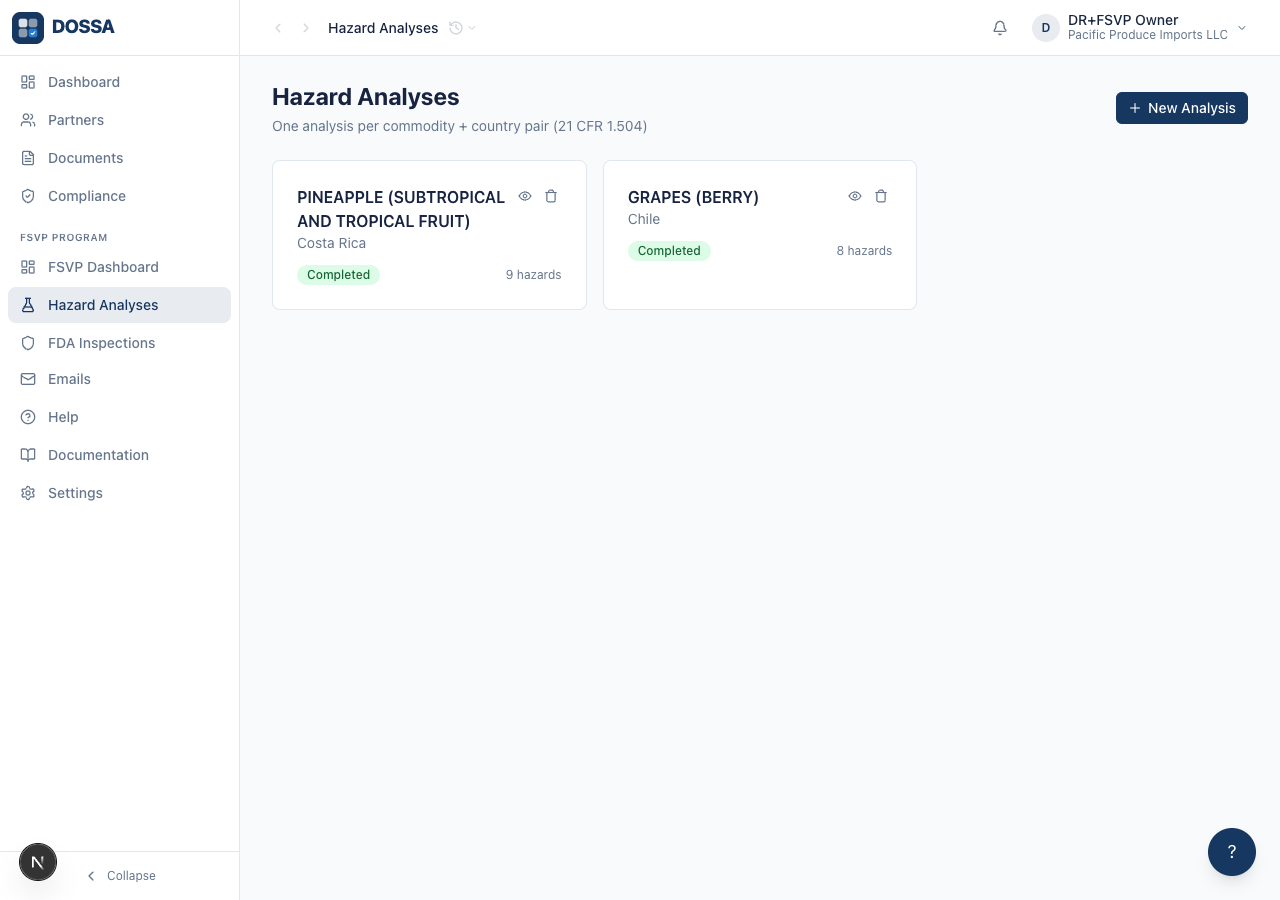
What you should see: Hazard analyses are listed as cards in a one-, two-, or three-column grid. Each card shows the commodity, country, a status badge, the hazard count, and View and Delete buttons. When there are none yet, the empty-state card offers its own “New Analysis” button so you can start without leaving the page.
Open the New Analysis form
Section titled “Open the New Analysis form”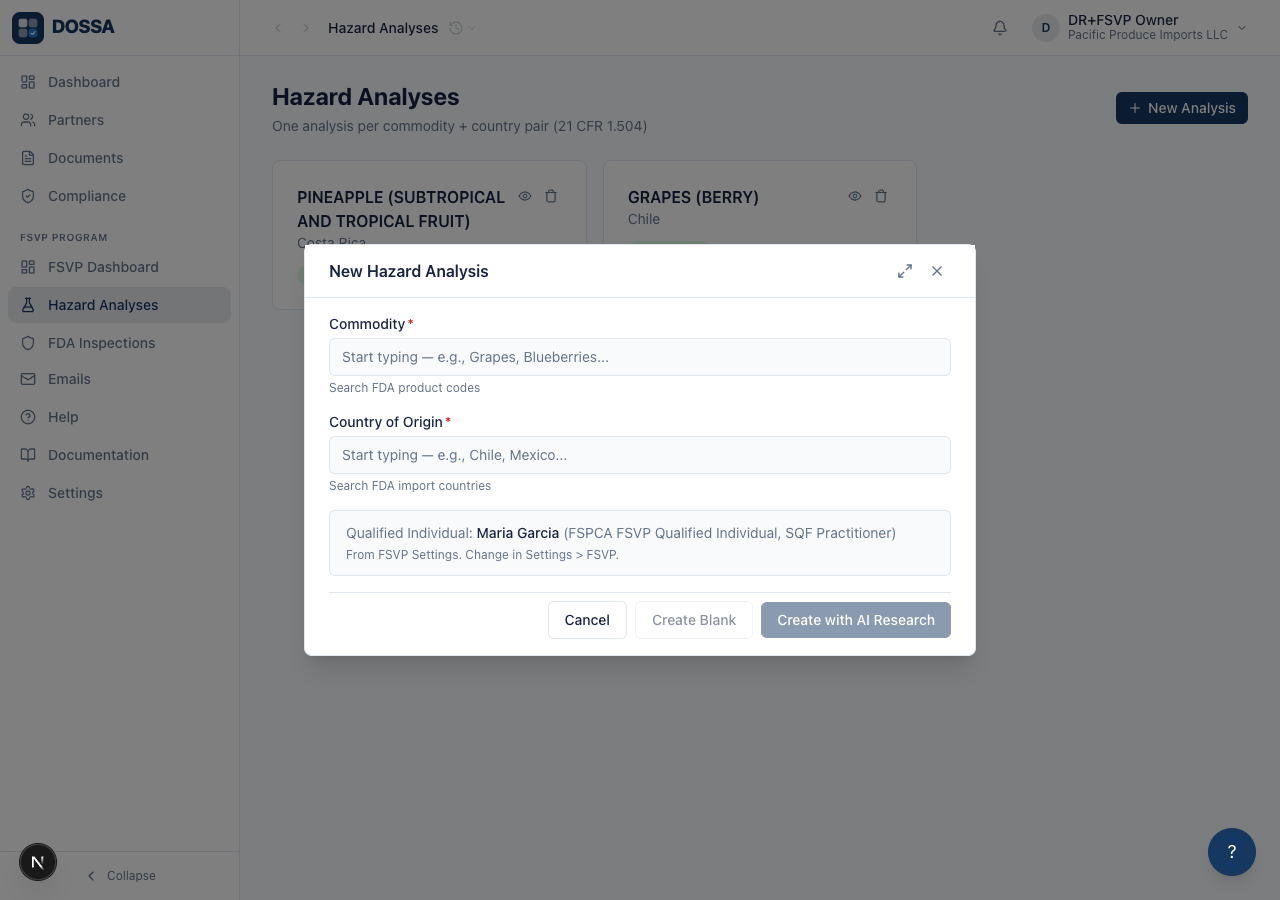
What you should see: The form pre-fills the Qualified Individual from FSVP Settings so you never retype it. You name the food, pick its Food Category and Form, and pick a country of origin. Category decides which FDA hazard tables the research is given, and Form — fresh, frozen, dried, juiced — is part of what makes this a distinct type of food under 21 CFR 1.504(a), so fresh and frozen get separate analyses. Then choose how to create it: “Create Blank” starts an empty analysis, while “Create with AI Research” runs the AI hazard research without leaving the form and shows its progress inside it.
Open the New Analysis modal, pick the product it analyses, then food, category, form and country
Section titled “Open the New Analysis modal, pick the product it analyses, then food, category, form and country”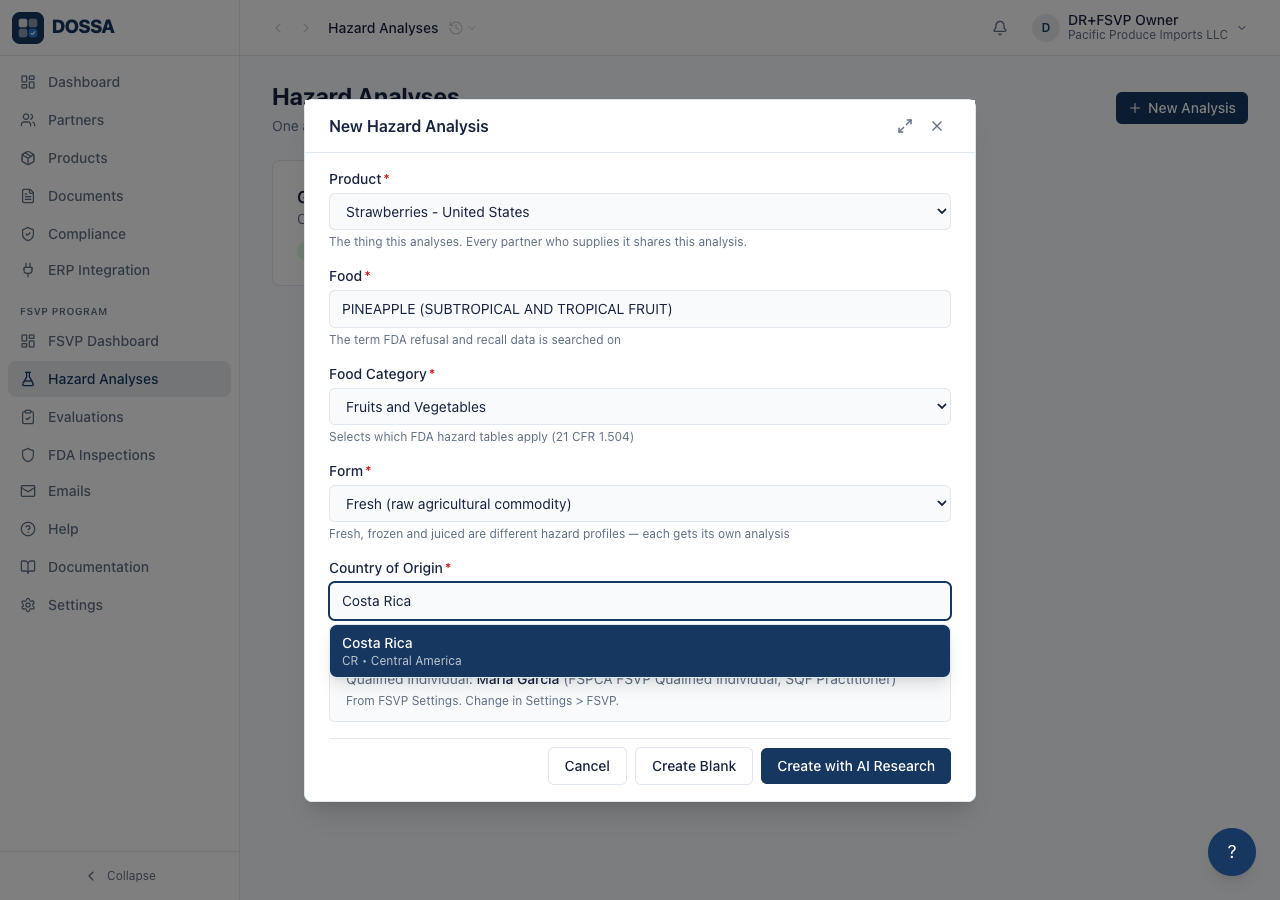
What you should see: The Food and Country fields suggest matches from FDA reference data as you type — foods use standard FDA product descriptions (for example “PINEAPPLE (SUBTROPICAL AND TROPICAL FRUIT)”) and countries use their standard names. Food Category and Form are dropdowns, and all four are required: an analysis with no category is given no FDA hazard tables at all, which the research prompt reports as work the qualified individual must finish rather than guessing from a table for a different food. Each analysis must be a unique food, form and country for your organization, so this run uses a combination the fixtures do not already cover; the workflow teardown deletes it afterward so repeat runs stay clean.
Create the analysis with AI Research so it has FDA data and hazard lines
Section titled “Create the analysis with AI Research so it has FDA data and hazard lines”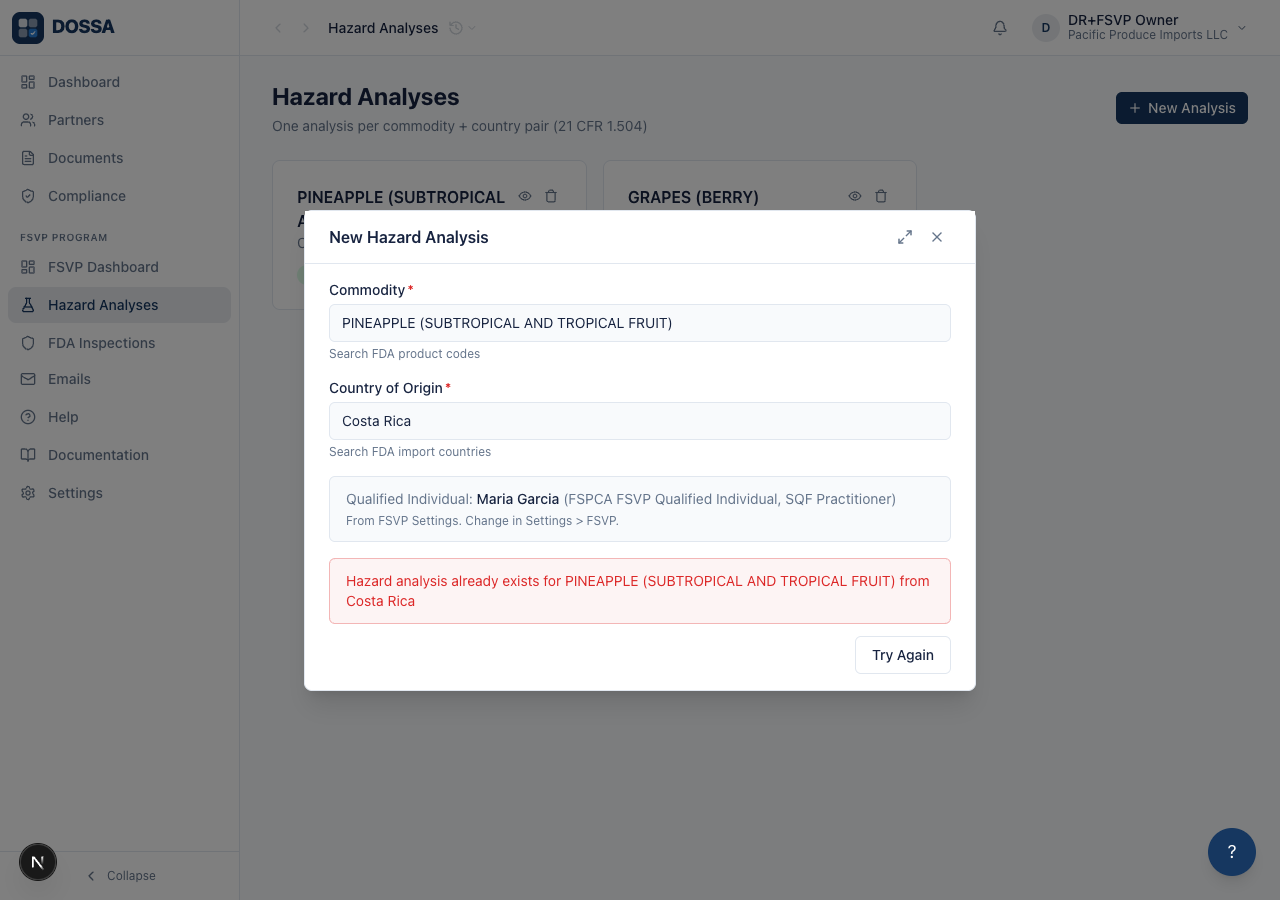
What you should see: The analysis is created and the AI hazard research runs without leaving the form. While it works, the form shows “Running AI Hazard Research…” with a note that it is querying FDA databases and may take 15-30 seconds. When it finishes, the form shows “Hazard analysis created successfully.” and a “View Hazard Analysis” button. The research fills in the FDA data summary and the hazard lines, derived from FDA data per 21 CFR 1.504(c).
Open the newly created analysis from the success message
Section titled “Open the newly created analysis from the success message”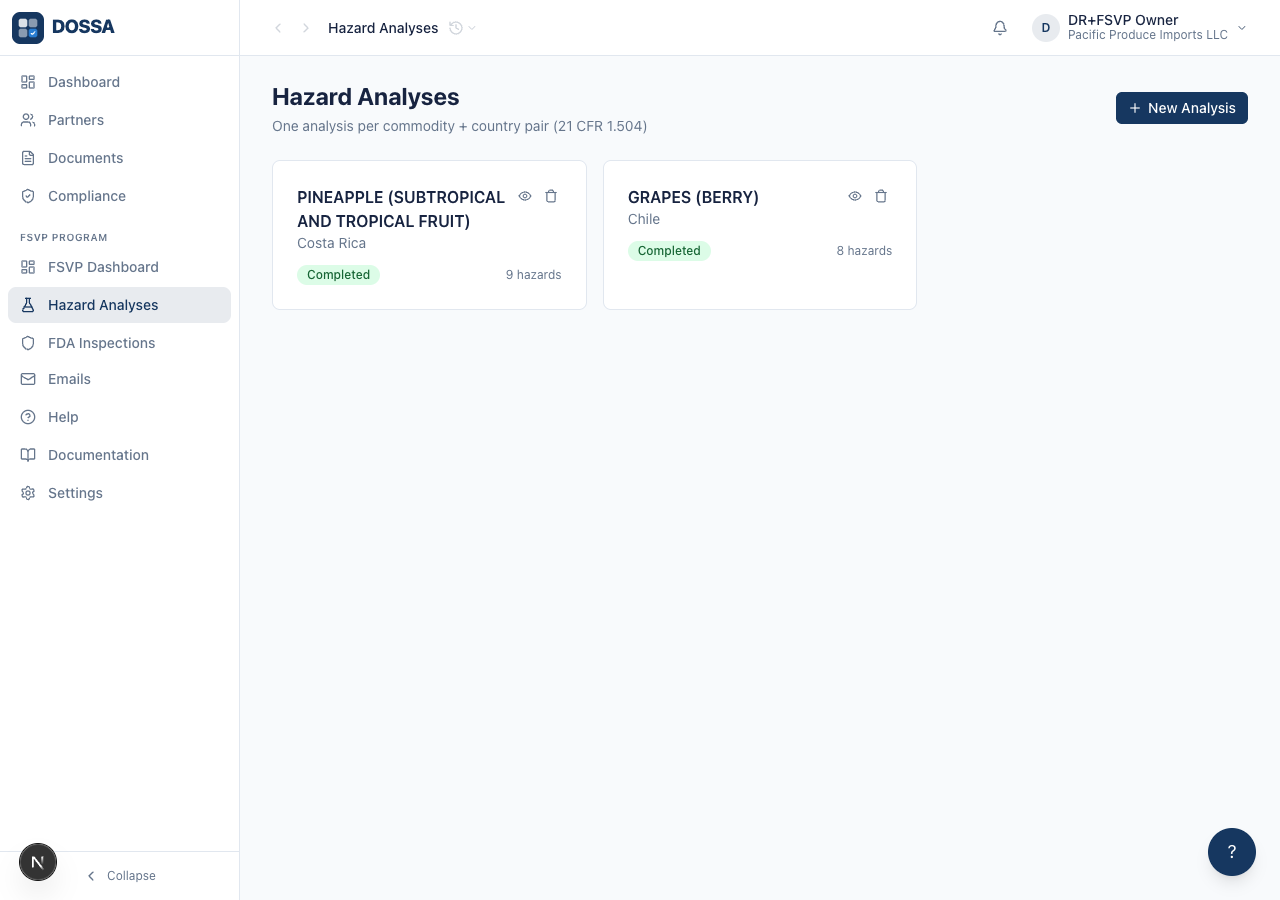
What you should see: The detail page opens showing the FDA Data Summary, the Hazard Lines table (Type, Description, Control, Controlled By, Source, Justification), the Edit and Delete buttons, the status badge, and the “Run AI Research” and “Add Hazard” buttons.
Verify the AI-generated hazard lines table renders
Section titled “Verify the AI-generated hazard lines table renders”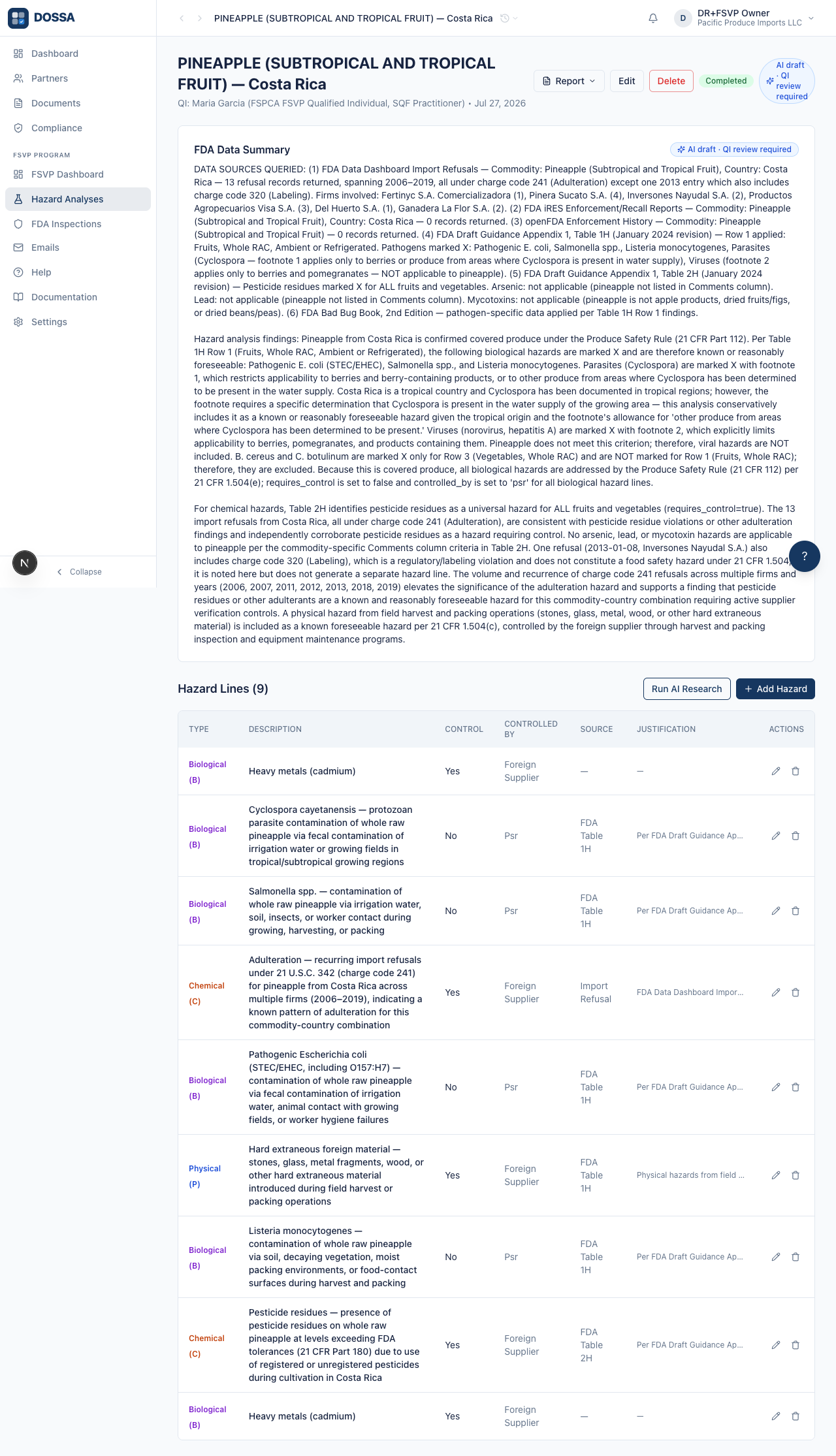
What you should see: The Hazard Lines table lists the AI-generated hazards with their type, description, whether control is required, who controls them, the FDA source, and the justification. Per 21 CFR 1.504(c) these are derived from FDA data, and each justification cites its FDA source so the Qualified Individual can defend the determinations to an FDA inspector.
Edit a hazard line’s justification and save the change
Section titled “Edit a hazard line’s justification and save the change”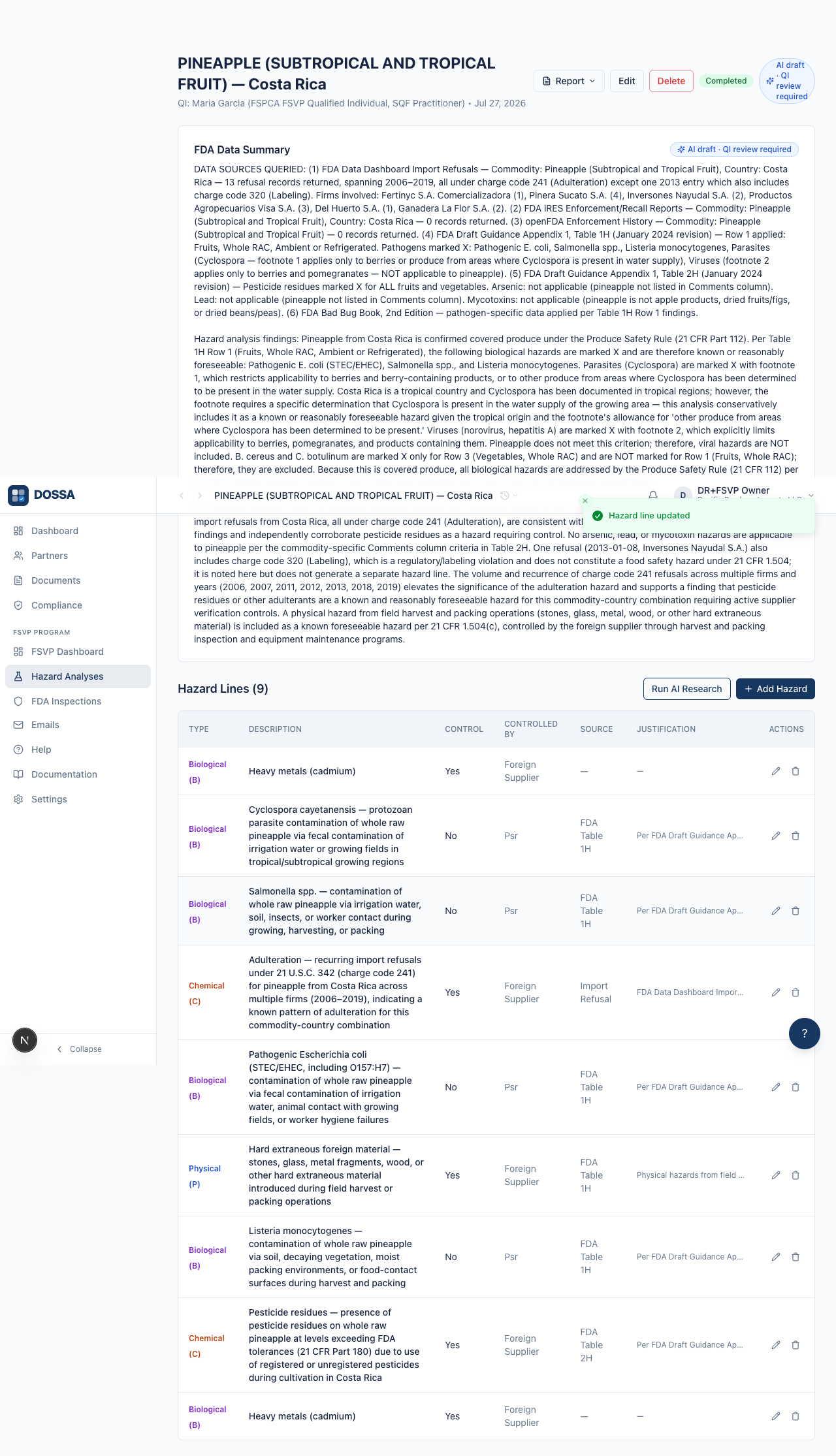
What you should see: The Edit Hazard Line panel opens with the line’s type, description, whether it requires control, justification, and source filled in. The Justification field is a roomy text area (with a maximize button for fullscreen) so the Qualified Individual has space to write a multi-paragraph rationale citing the relevant CFR and FDA sources. Saving with “Save Changes” updates the line and shows a “Hazard line updated” confirmation.
Add a hazard line by hand
Section titled “Add a hazard line by hand”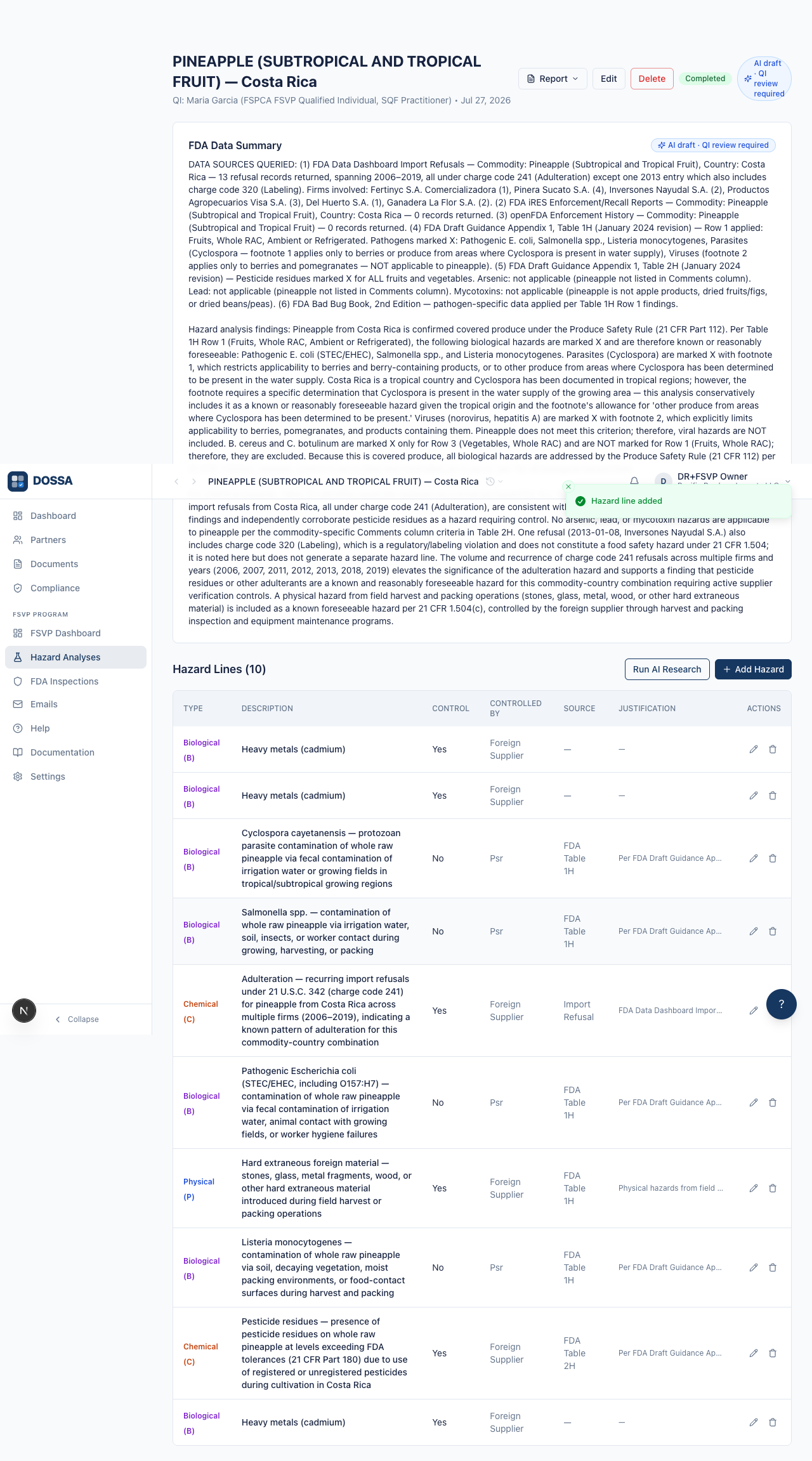
What you should see: The Add Hazard Line form lets you pick the hazard type (Biological, Chemical, or Physical), who controls it, a description, a justification, and an FDA source. After you enter a description and click “Add Hazard”, the line is saved with a “Hazard line added” confirmation and appears in the table alongside the AI-generated hazards. Manual and AI hazards are treated the same way in the later supplier evaluation.
Re-run AI Research and read the warning about what it replaces
Section titled “Re-run AI Research and read the warning about what it replaces”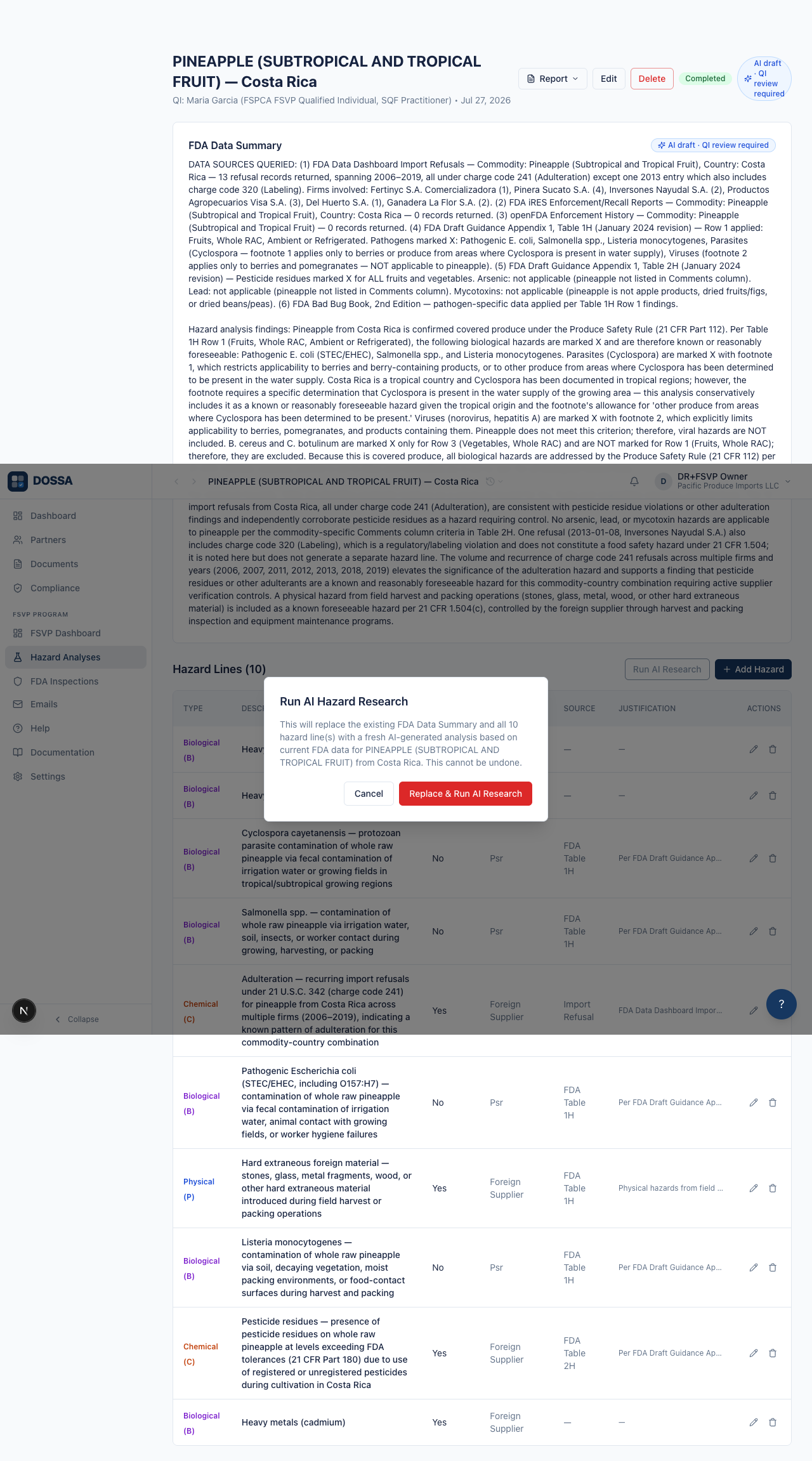
What you should see: Because the analysis already has hazard lines, clicking “Run AI Research” first asks for confirmation. The dialog spells out that it will replace the existing FDA Data Summary and all current hazard lines with a fresh AI-generated analysis for this commodity and country, and that this cannot be undone. The safe choice is “Cancel”; choosing “Replace & Run AI Research” regenerates everything.
See which hazard analyses cover a partner’s products
Section titled “See which hazard analyses cover a partner’s products”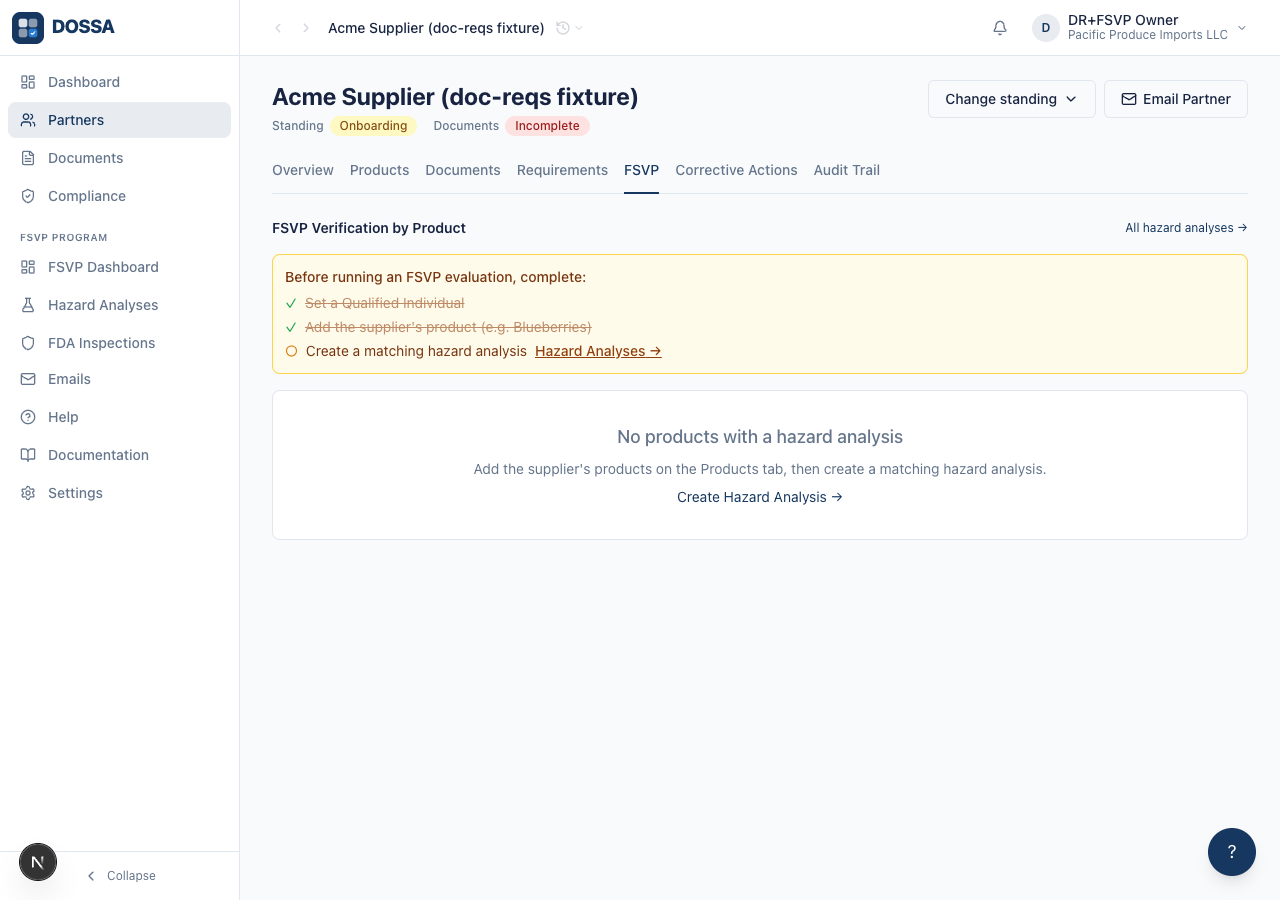
What you should see: The partner’s FSVP tab opens with a “Hazard Analysis Coverage” section at the top. It automatically lists the hazard analyses whose PRODUCT this partner supplies — matched by identity rather than by comparing commodity text, so “BLUEBERRIES (BERRY)” and “Blueberries” cannot read as different foods (ADR-021). There is nothing to link by hand. Each match is a read-only row showing the commodity and country, the hazard count, and a status badge, and links to that analysis; a “Manage All” link goes to the full Hazard Analyses list. If no analysis matches, the section says so and offers a link to create one. This automatic coverage is what lets a supplier evaluation find the right hazard analysis to verify documents against.
Open the analysis Edit form to change its details and status
Section titled “Open the analysis Edit form to change its details and status”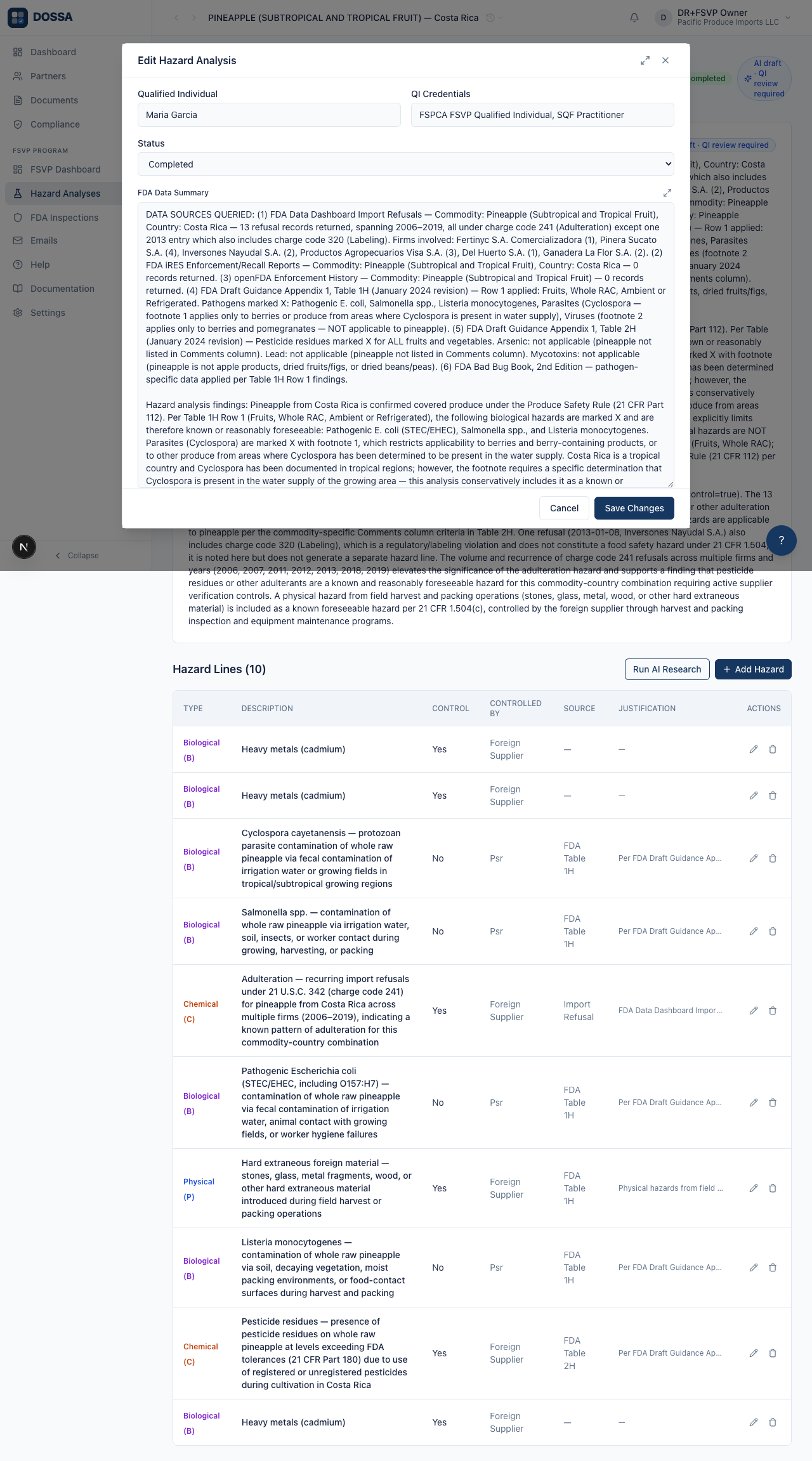
What you should see: The “Edit” button opens an Edit Hazard Analysis form where you can change the Qualified Individual and credentials, set the Status to Draft or Completed, and edit the FDA Data Summary text. Saving with “Save Changes” shows a “Hazard analysis updated” confirmation. Editing here does not re-run the AI research — only the “Run AI Research” button does that.
See the delete confirmation without removing the analysis
Section titled “See the delete confirmation without removing the analysis”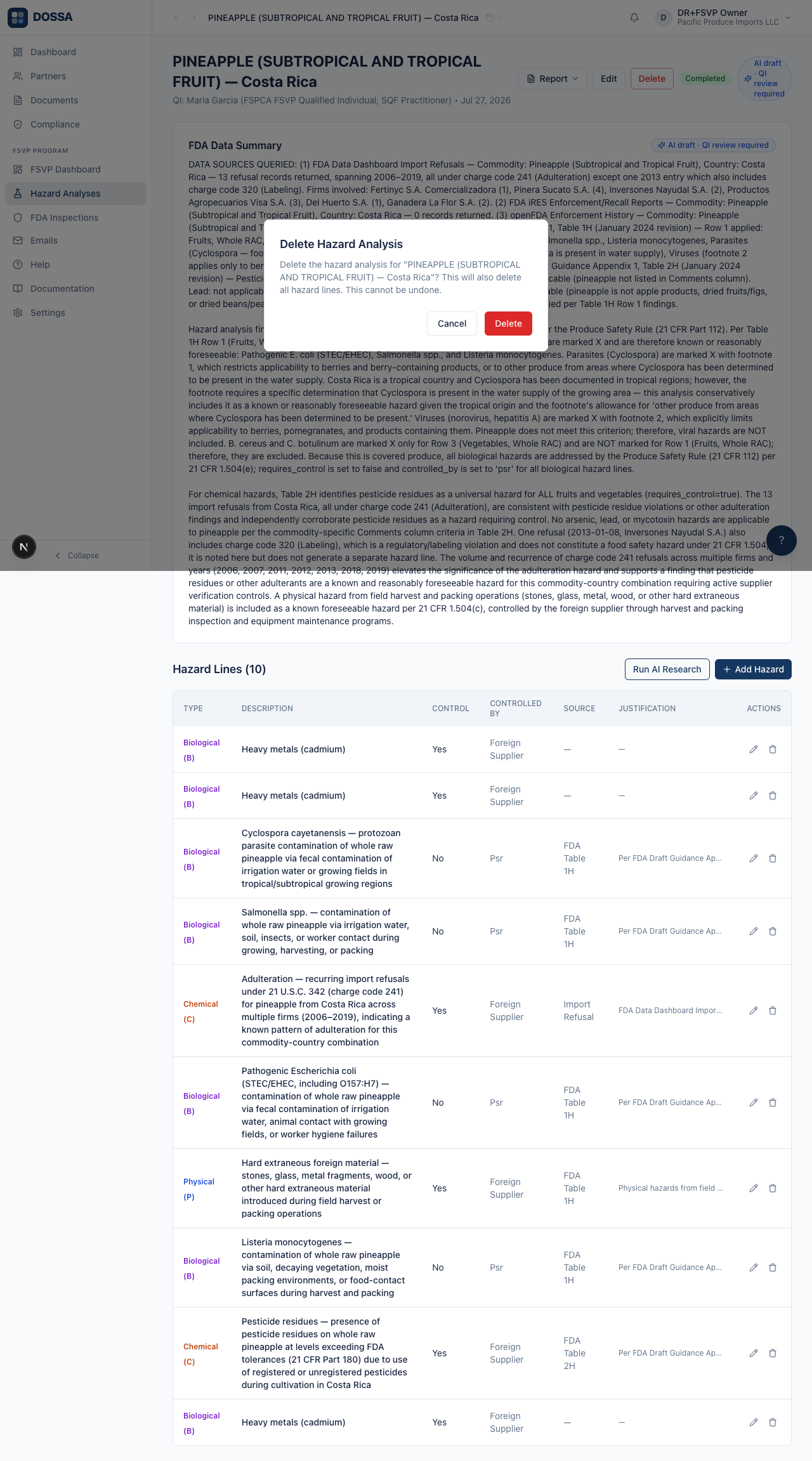
What you should see: Clicking “Delete” opens a confirmation dialog asking you to confirm deleting the analysis and warning that all its hazard lines will also be deleted and that this cannot be undone. Cancelling is the safe default. The later supplier-verification workflow relies on this analysis, so it is not actually deleted here.