
Document Requirements Setup
Owner / Compliance Manager workflow for defining the cascade of Document Requirements that drive partner compliance scoring. Covers all three requirement scopes — global (every partner), partner (one specific partner), product (one specific commodity on a partner) — plus per-partner exemptions with reason capture. Exemptions are a partner-level act only: the global list either requires a document or does not list it. Document Requirements layer on top of the Document Types catalog: each requirement points to a Document Type and scopes on two independent axes — WHO (all partners / a Partner Group / one partner) and WHAT (all products / a Product Group like Organic / one product). The cascade resolves at compliance-check time: partner overrides win over Partner Group, which win over global defaults; product-scoped requirements are checked per matching product.
Who: Owner / Compliance Manager · Regulation: Org-defined supplier approval program. The DR product itself does not encode regulatory requirements; FSVP (21 CFR 1.505) layers on hazard-driven verification activities, but the act of defining a per-partner document checklist is platform-internal SOP.
Open the Doc Requirements tab in Settings
Section titled “Open the Doc Requirements tab in Settings”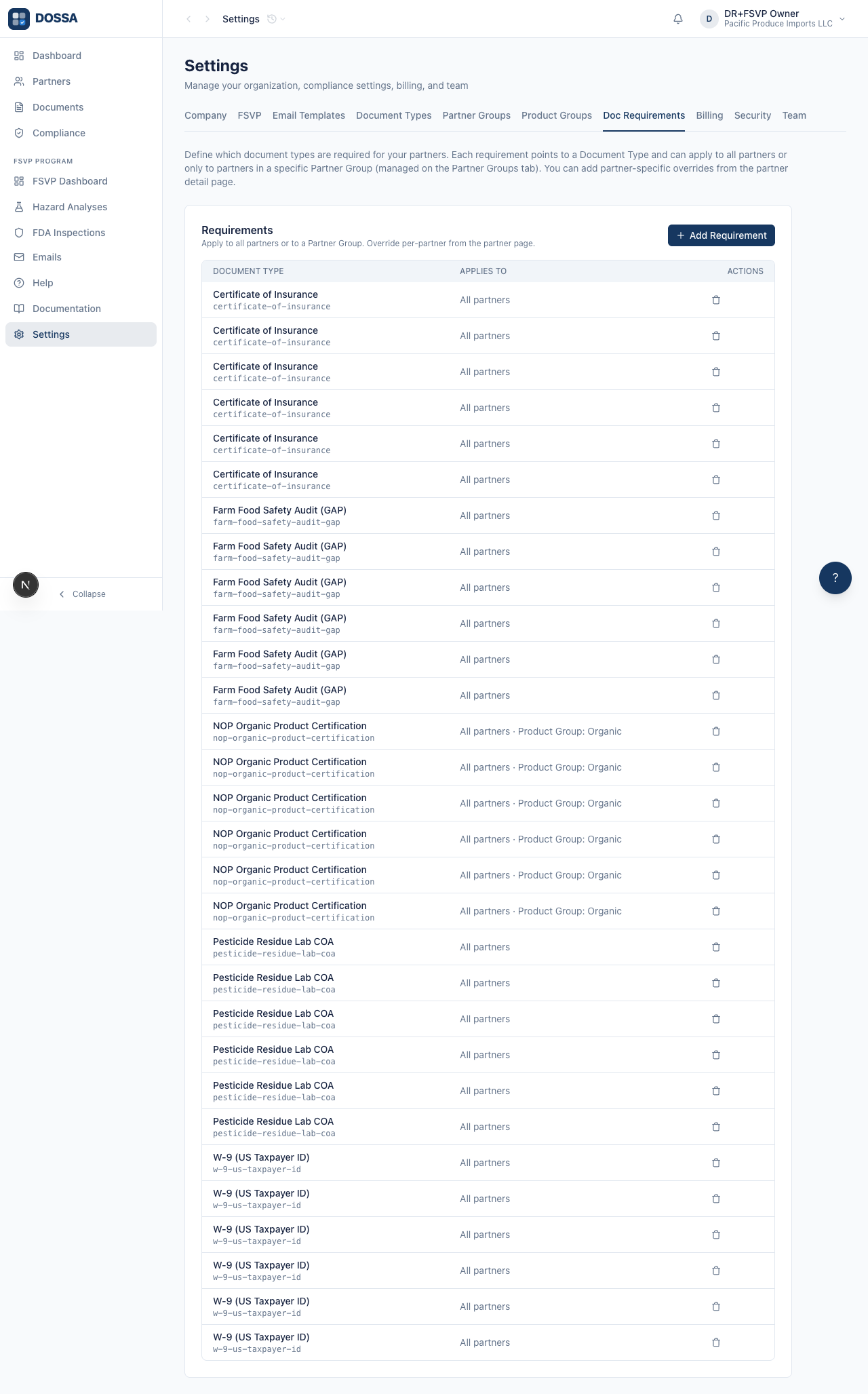
What you should see: The Doc Requirements tab loads showing the Global Requirements list. Global requirements apply to every partner. Partner-specific and product-specific overrides are configured separately on each partner’s detail page (Requirements tab), not here.
Add a Certificate of Insurance requirement that applies to every partner
Section titled “Add a Certificate of Insurance requirement that applies to every partner”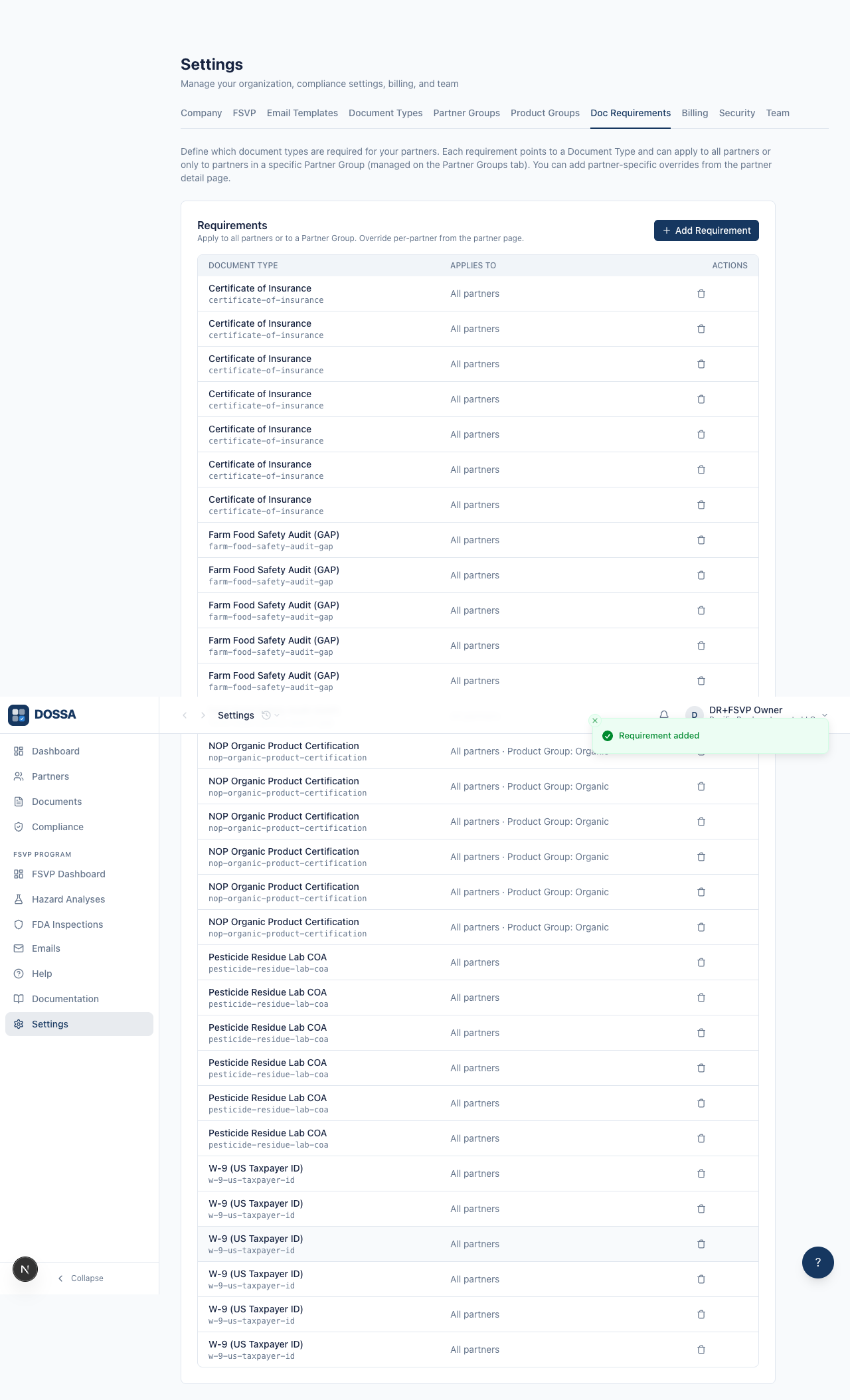
What you should see: A global Certificate of Insurance requirement is created. Every partner in the org now carries the COI as a base requirement; individual partners can be exempted later from their detail page.
Add a Master Services Agreement requirement that applies to every partner
Section titled “Add a Master Services Agreement requirement that applies to every partner”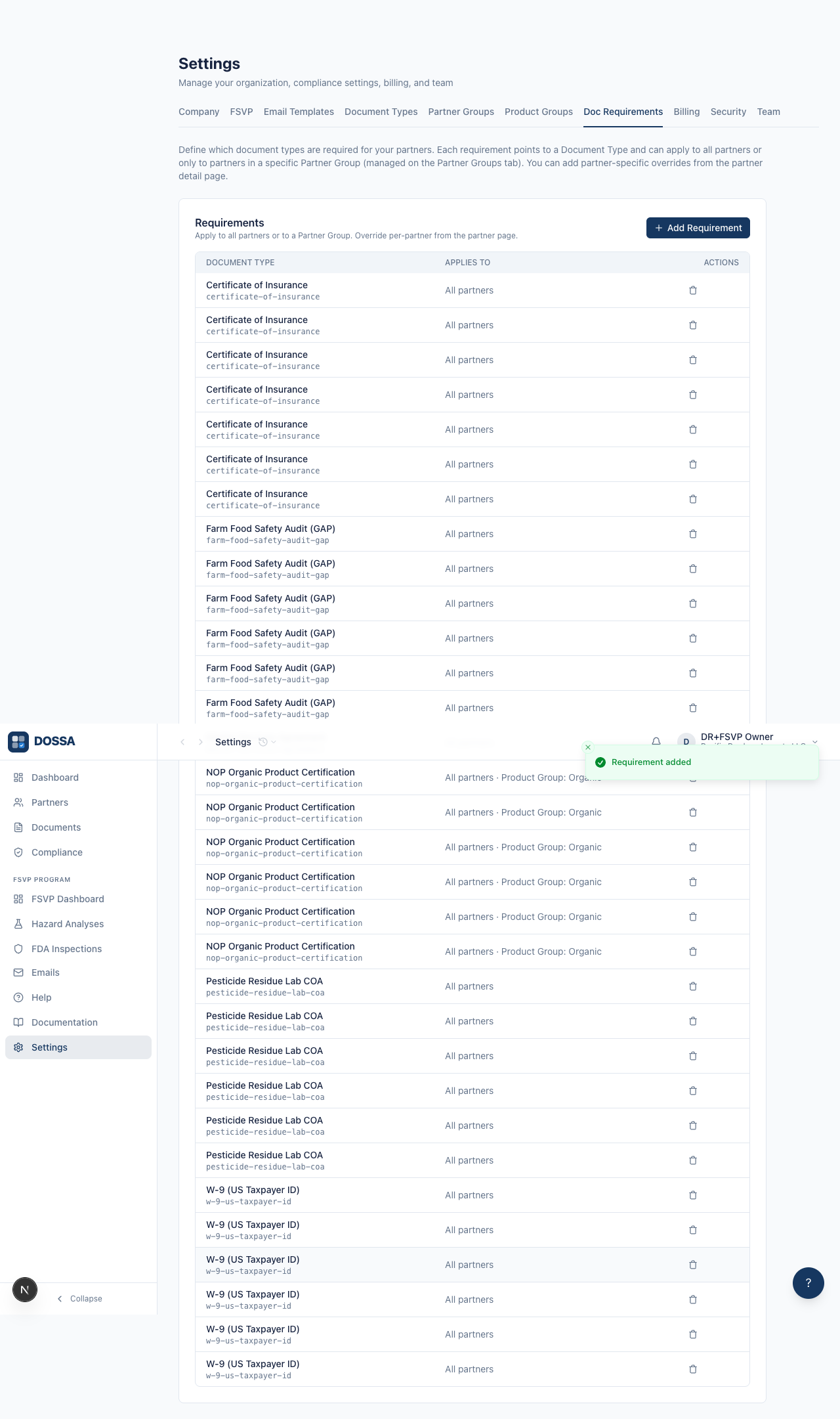
What you should see: Two global requirements now exist. The Master Services Agreement is a partner-level document, so a partner satisfies it once regardless of how many products they carry.
Add a W-9 tax form requirement to every partner
Section titled “Add a W-9 tax form requirement to every partner”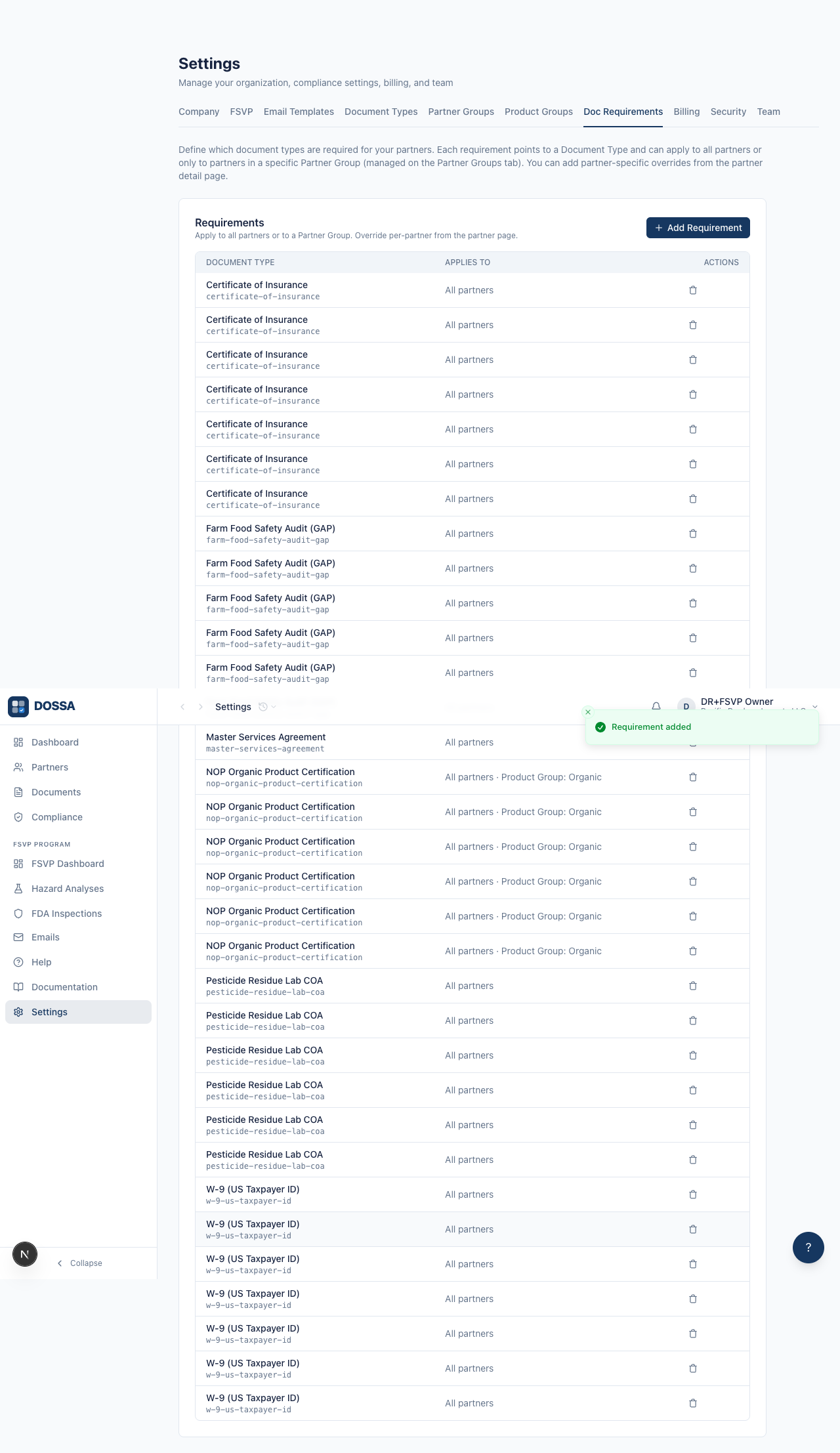
What you should see: Tax and identity coverage is in place. Partners that do not get paid under a US taxpayer ID can be exempted from this requirement on their detail page later.
Add a product-group-scoped requirement — NOP Organic Cert applies only to Organic products
Section titled “Add a product-group-scoped requirement — NOP Organic Cert applies only to Organic products”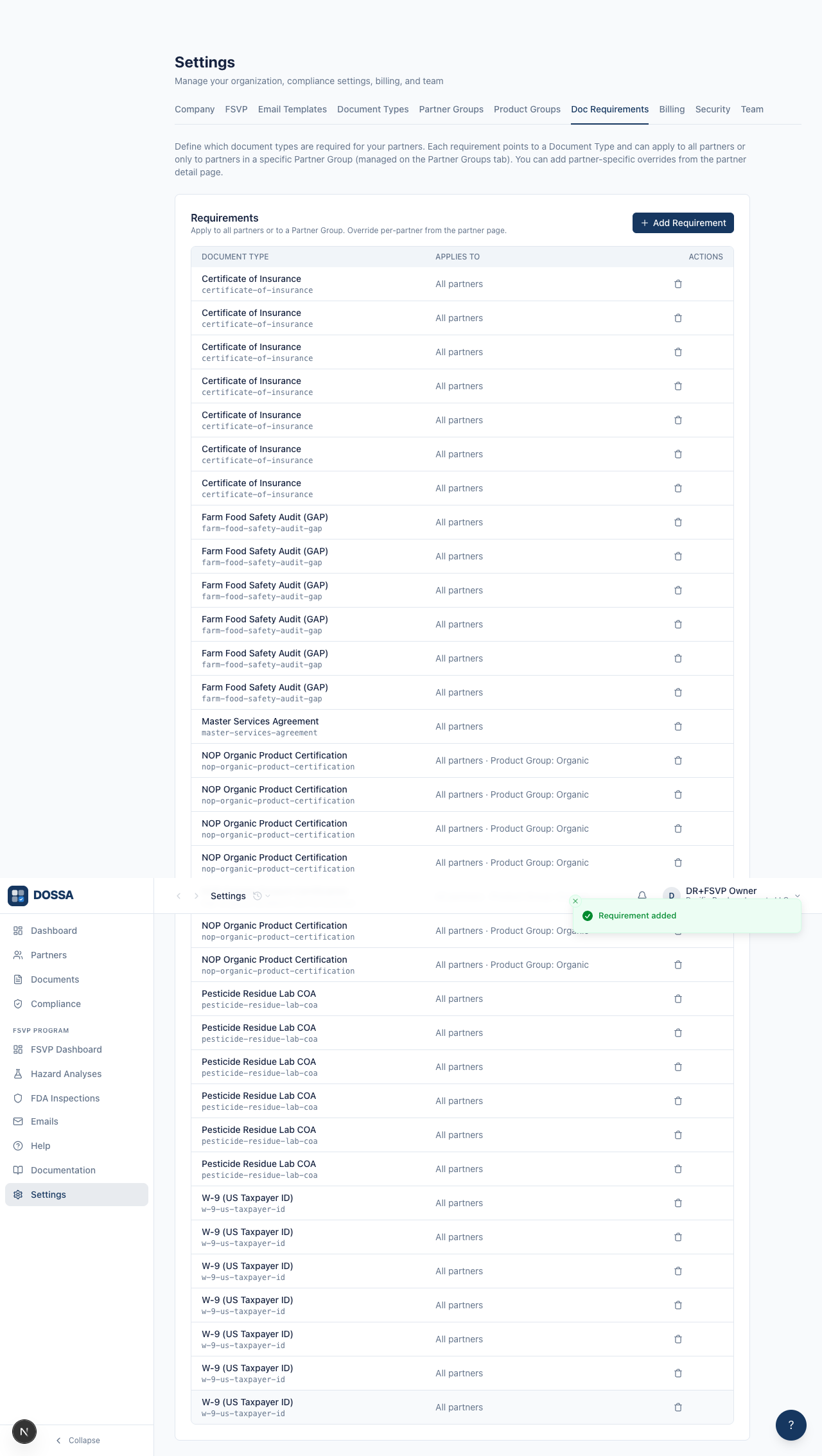
What you should see: A product-group-scoped requirement is in place. This is the cleanest way to model “organic-only” rules without splitting the requirement list per product type — compliance does the filtering automatically when it checks each product.
Add a Pesticide Residue Lab COA requirement scoped to all products
Section titled “Add a Pesticide Residue Lab COA requirement scoped to all products”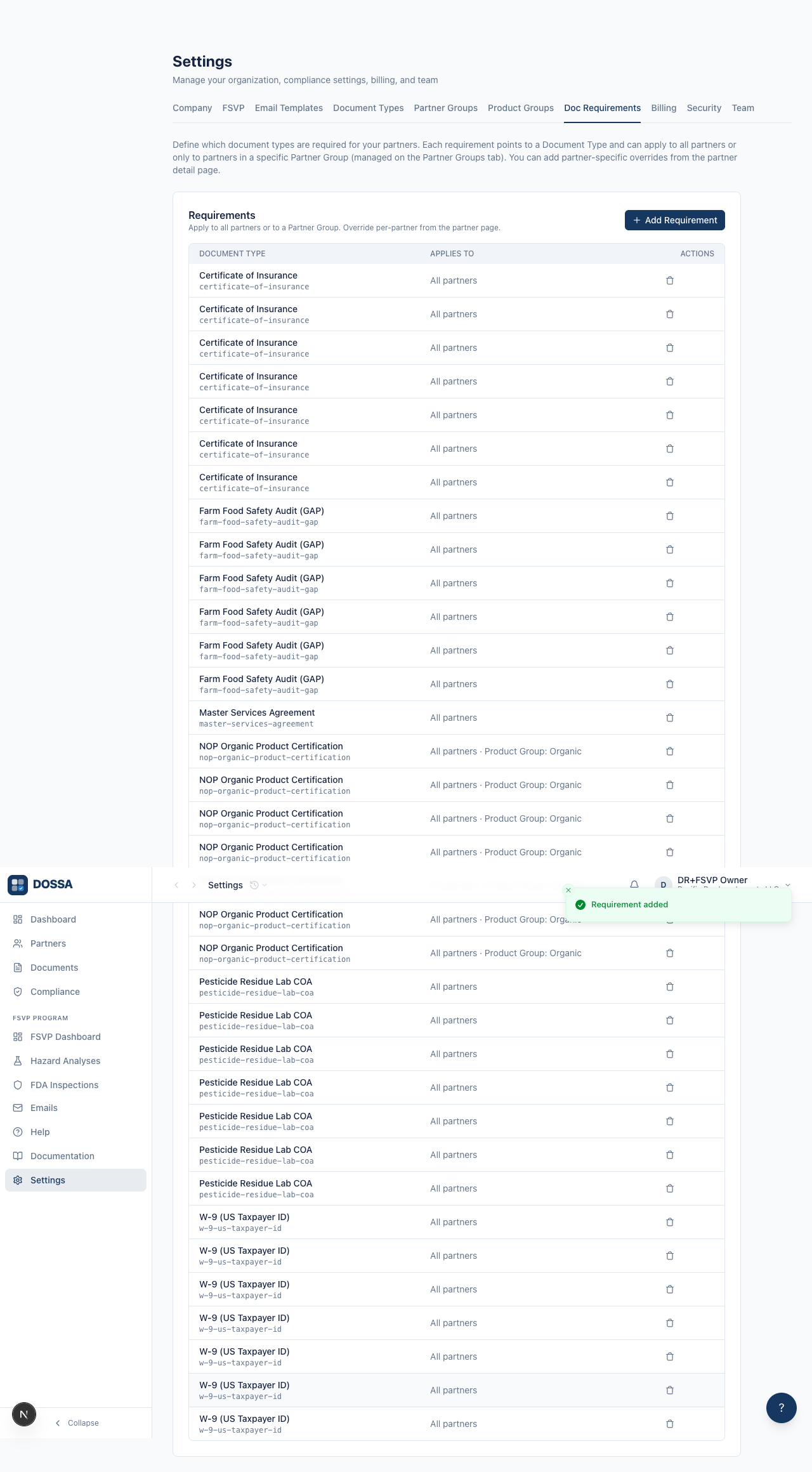
What you should see: A per-product requirement is added at the global level. Because this document is required per product, compliance will demand one COA for each product on a partner, not just one per partner.
Add a Farm Food Safety Audit requirement
Section titled “Add a Farm Food Safety Audit requirement”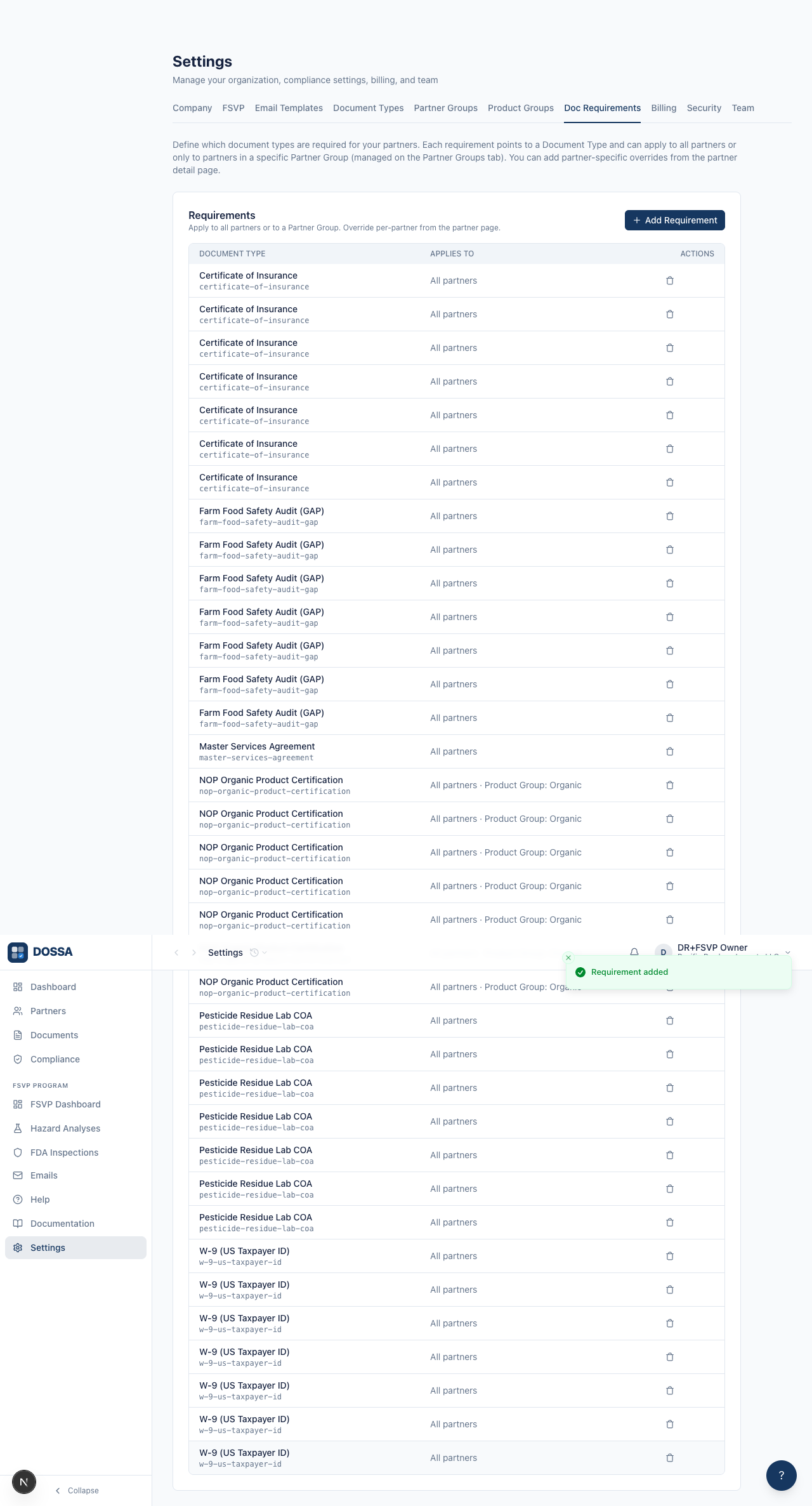
What you should see: The global requirements list now matches the org’s standard supplier approval program. From here, partner- and product-scope overrides handle the exceptions.
Correct a requirement that was set up wrong, without destroying it
Section titled “Correct a requirement that was set up wrong, without destroying it”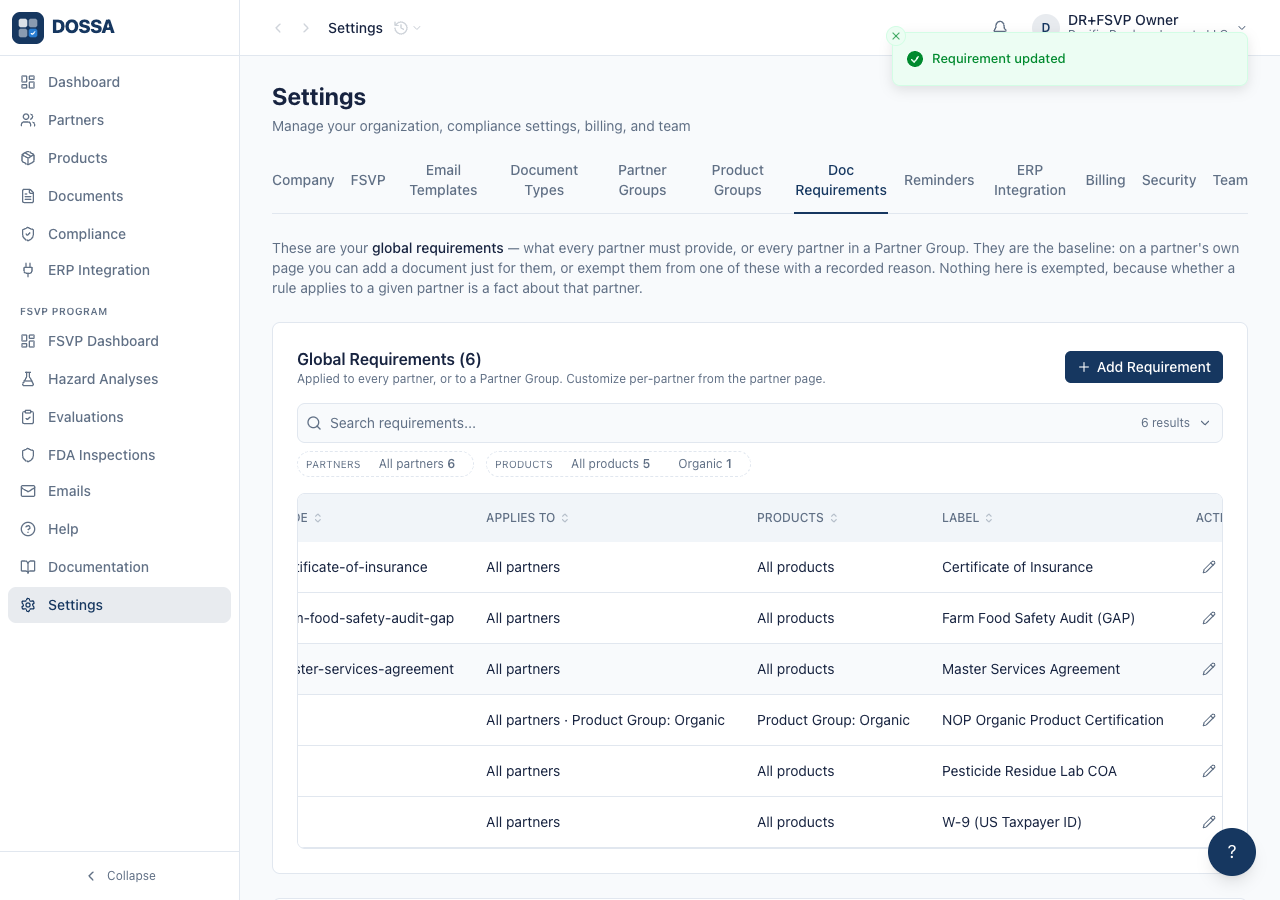
What you should see: The Applies To column now reads “Partner Groups: Domestic Vendor, Foreign Vendor”. Membership is a union — a partner in either group is measured against this one requirement, counted once. Compliance is computed from the current requirements, so the next read stops asking every other partner for it. If the new scope is already held by another requirement for the same document type, the save is refused by name rather than creating a second, indistinguishable row.
Remove a global requirement (e.g. the org decides the MSA is not always required)
Section titled “Remove a global requirement (e.g. the org decides the MSA is not always required)”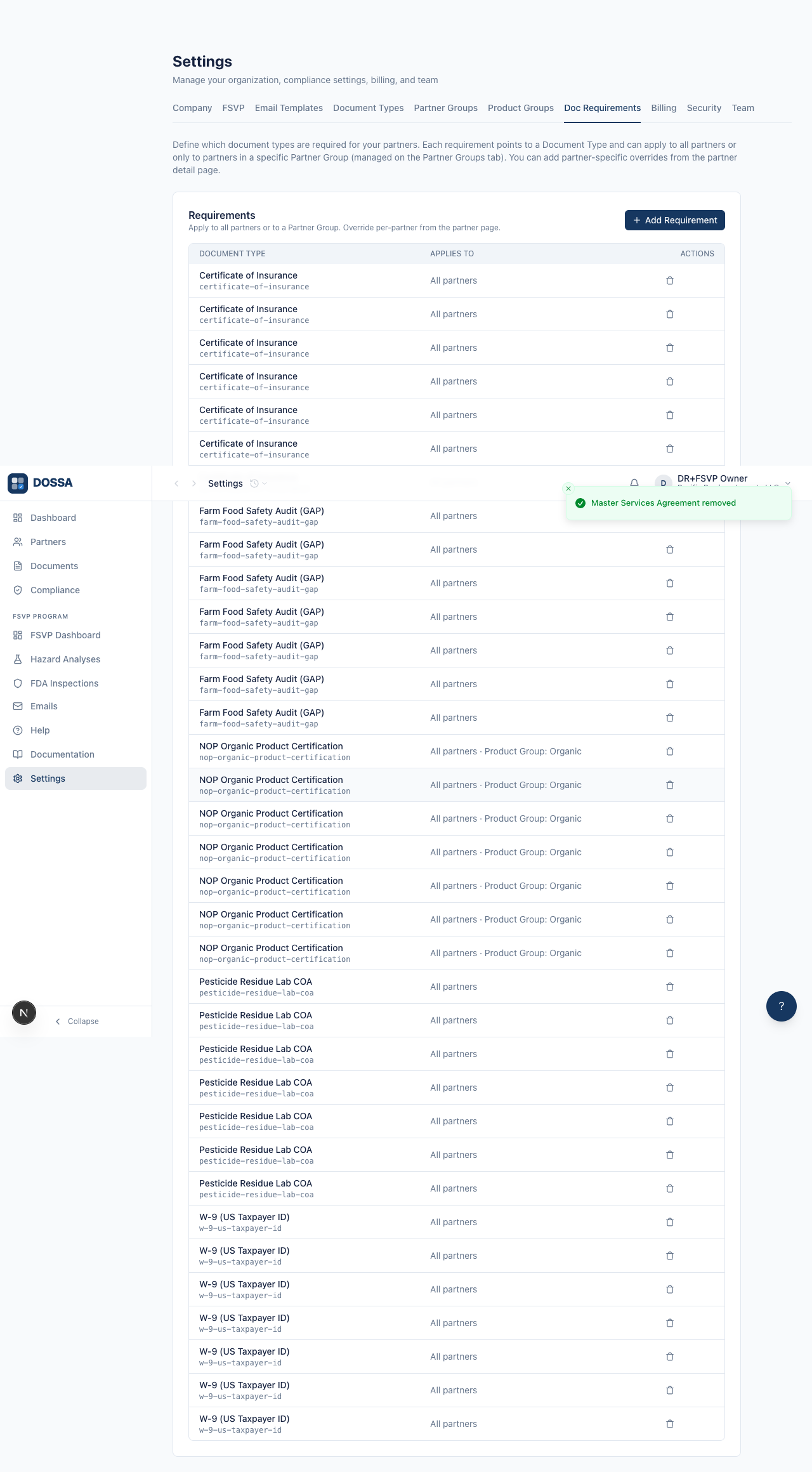
What you should see: Removing a global requirement drops it from every partner’s checklist going forward. Any documents partners already uploaded of that type are kept — they simply no longer count toward compliance. Removal always goes through a confirmation dialog, never a browser pop-up.
Open the Requirements tab on a specific partner to add partner-scope overrides
Section titled “Open the Requirements tab on a specific partner to add partner-scope overrides”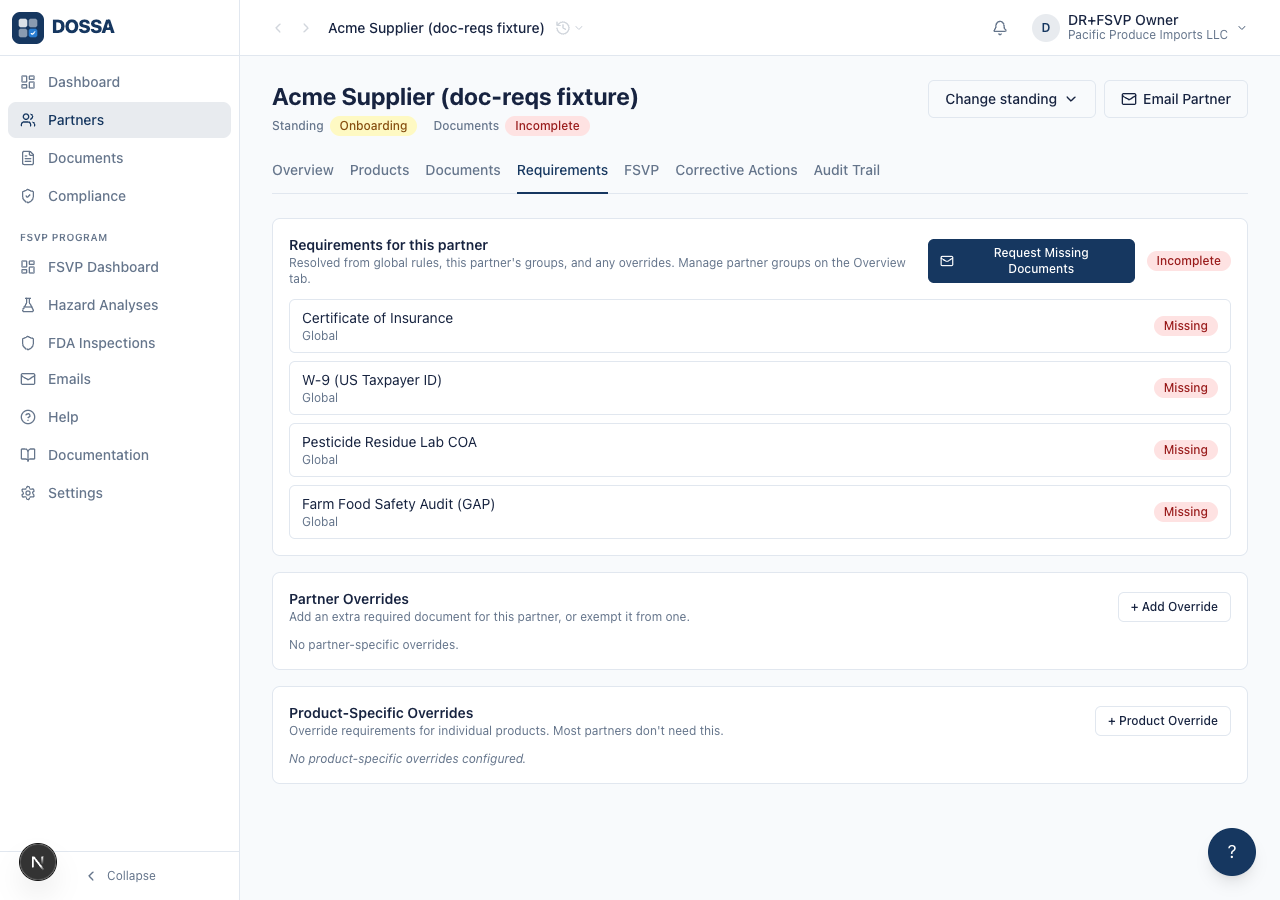
What you should see: The three-level requirement cascade is shown so the user can see exactly what applies to this partner. Global Defaults are read-only here (edited only in Settings); Partner Overrides and Product-Specific Overrides each have their own ”+ Add” button.
Add a partner-scope additional requirement (a Non-Disclosure Agreement for this partner only)
Section titled “Add a partner-scope additional requirement (a Non-Disclosure Agreement for this partner only)”What you should see: Partner-scope additions stack on top of the global requirements rather than replace them. The Non-Disclosure Agreement was not a global requirement — adding it here means this one partner must provide one. A reason is only requested for exemptions, so the Add path does not ask for one.
Confirm the Document Requirements card reflects the partner’s registered product and its resolved requirements
Section titled “Confirm the Document Requirements card reflects the partner’s registered product and its resolved requirements”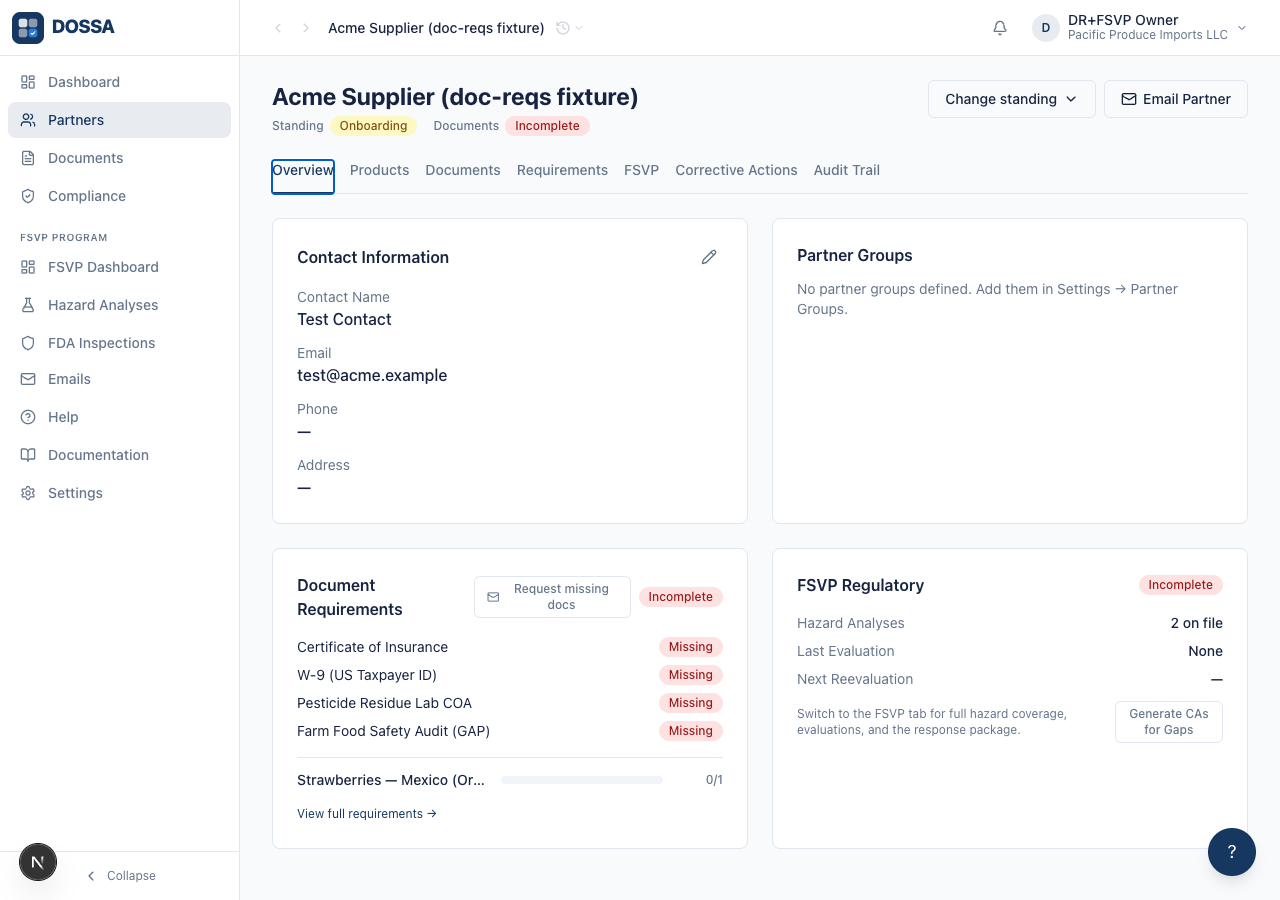
What you should see: This fixture partner has one registered product (Strawberries — Mexico, organic), so the Document Requirements card lists that product with its own resolved requirement count rather than an empty state. The count reflects the full cascade applied earlier — global defaults, minus the partner-scope COI exemption, plus the product-scope override and exemption — confirming the per-scope edits made on the Requirements tab actually changed what this partner must provide. (On a partner with no products yet, the same card instead shows “No products registered yet.” with an inline “Add Products” call to action — never a dead end.)