
Corrective Actions Lifecycle
How a Qualified Individual manages a corrective action end to end (21 CFR 1.508): finding the cross-partner list, opening a corrective action to review it, editing its details, progressing it through investigation and resolution, and creating a new one. Corrective actions are reached from the Compliance grid (each partner’s Open CAs column) or a partner’s Corrective Actions tab — they are no longer a sidebar menu item.
Who: Qualified Individual (QI) · Regulation: 21 CFR 1.508 — When a foreign supplier is not producing food in compliance, the importer must promptly take appropriate corrective action, investigate the cause, and determine whether the FSVP is adequate and modify it if needed. Each corrective action records that investigation and its resolution for audit-defensibility.
Open the cross-partner Corrective Actions list
Section titled “Open the cross-partner Corrective Actions list”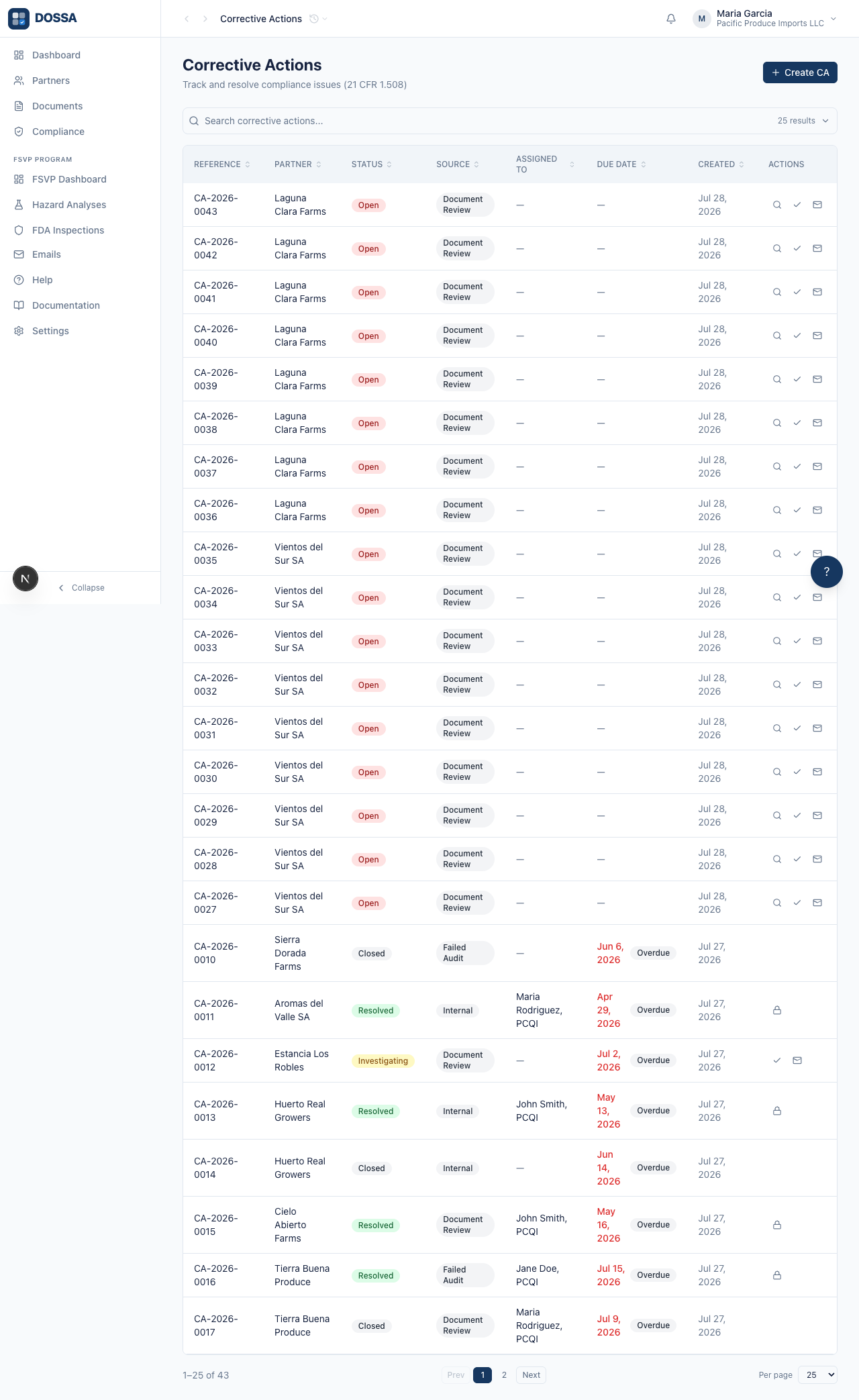
What you should see: The Corrective Actions list shows every corrective action across all partners in one grid — reference, partner, status, source, and due date. A “Create Corrective Action” button and the same column/filter/saved-view controls as the other grids sit above it. Click any row to open that corrective action.
Open a corrective action to review it
Section titled “Open a corrective action to review it”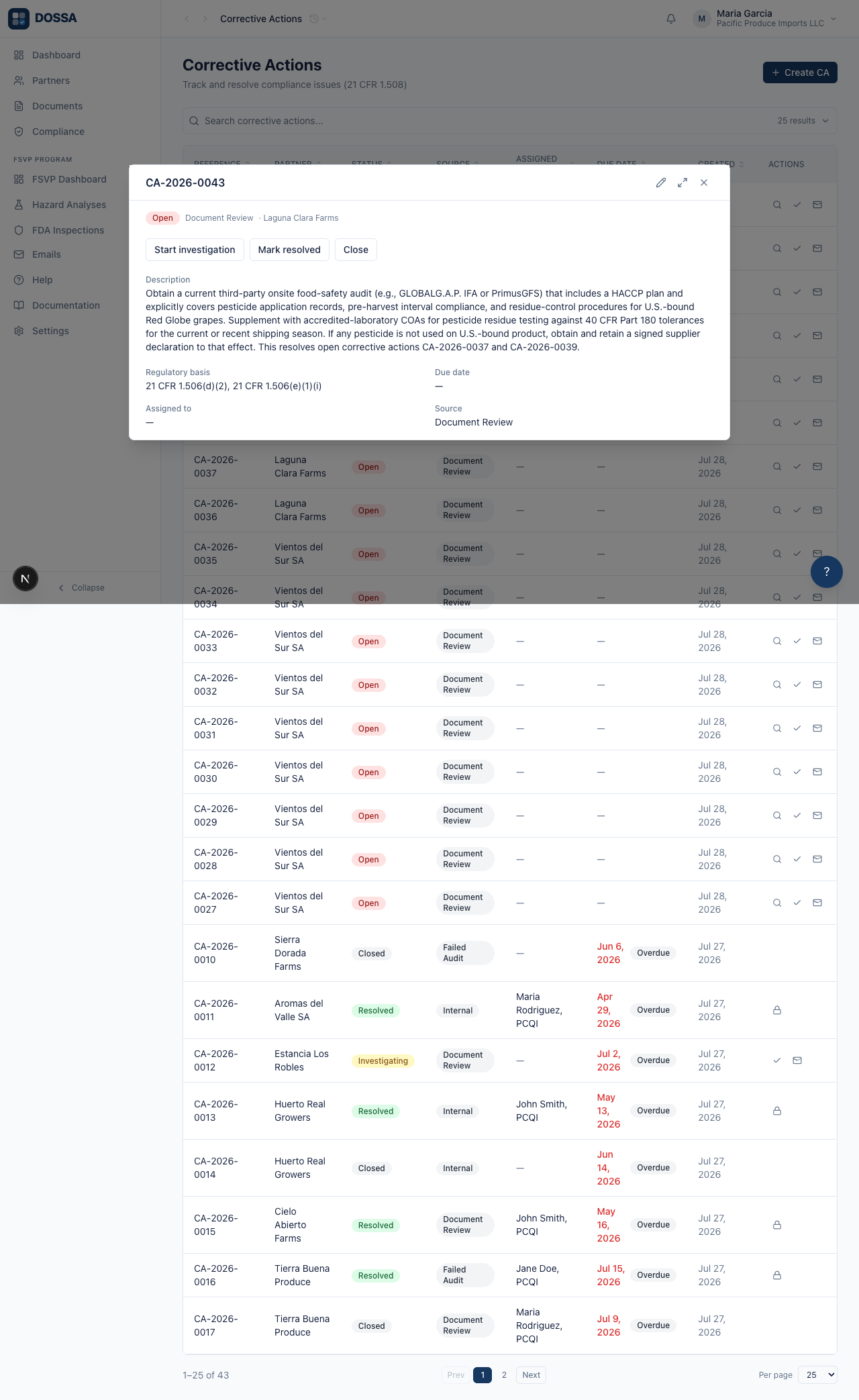
What you should see: The corrective action opens in a panel showing its status, source and partner, the description, regulatory basis, due date, and assignee. A row of status buttons at the top offers only the valid next steps for the current status — Start investigation, Mark resolved, Close, or Reopen — and any recorded investigation or resolution appears below.
Edit the corrective action’s details
Section titled “Edit the corrective action’s details”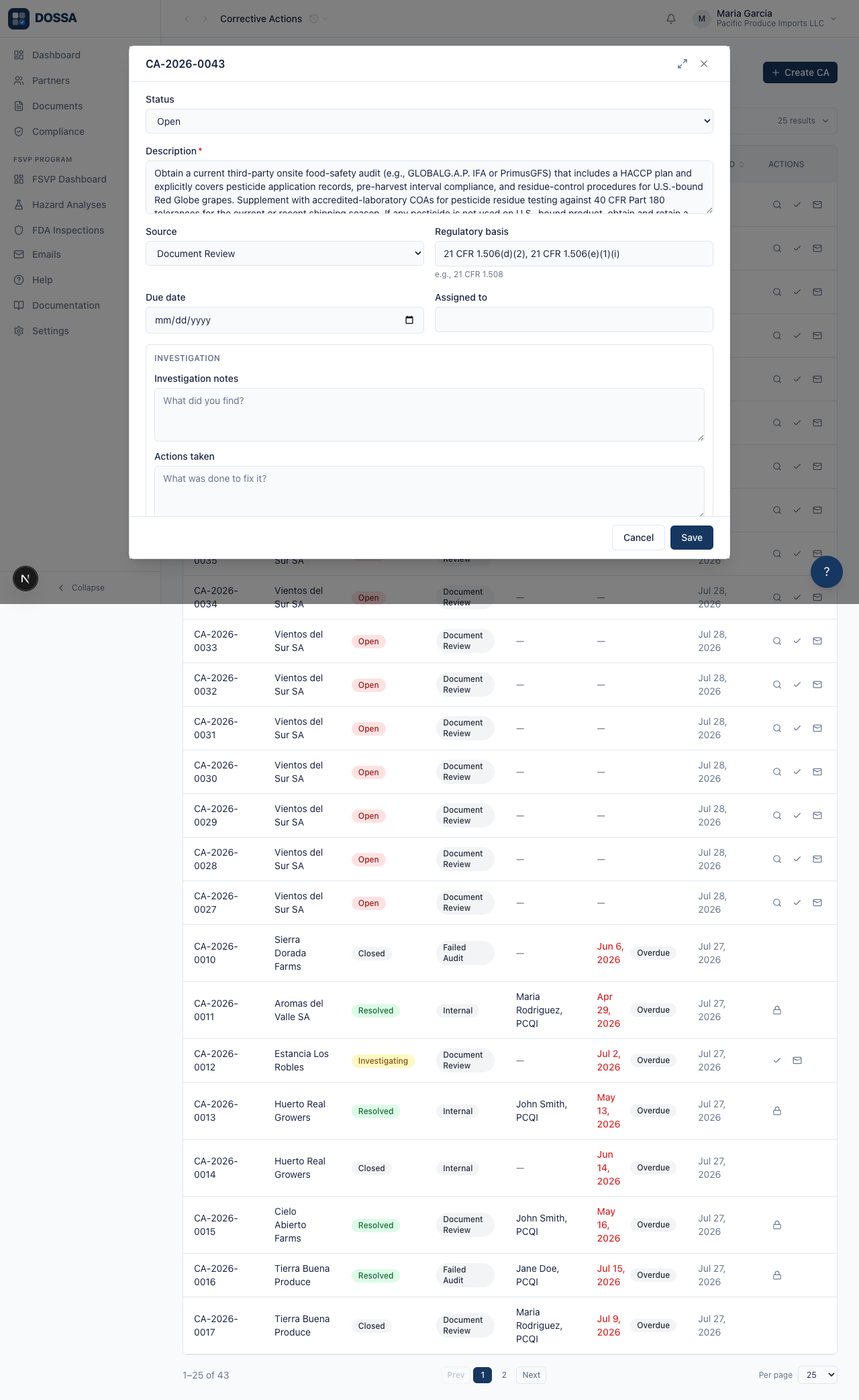
What you should see: Edit mode opens a form with the status, description, source, regulatory basis, due date, and assignee, plus an Investigation section (investigation notes, actions taken, and FSVP modification per 21 CFR 1.508(a)) and a Resolution section. The reference, partner, and evaluation link stay fixed — they define what the corrective action is.
Mark a corrective action resolved
Section titled “Mark a corrective action resolved”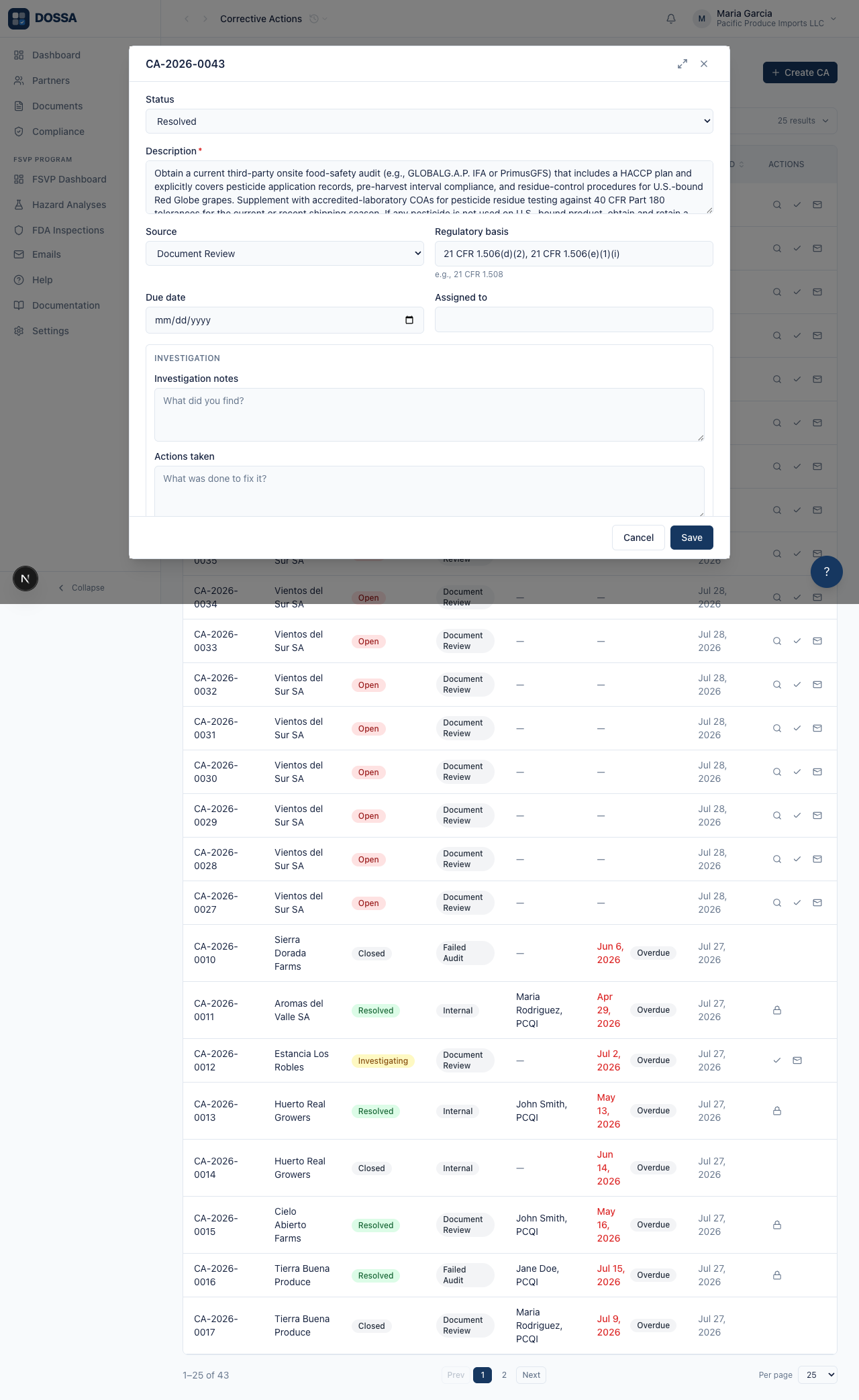
What you should see: Resolving a corrective action requires a resolution and a verifier (the QI who signed off) — the Resolution section is marked required. When you save, the corrective action moves to Resolved and the resolution date is stamped automatically, giving you an audit-defensible record. A closed corrective action becomes read-only except to reopen.
Create a new corrective action
Section titled “Create a new corrective action”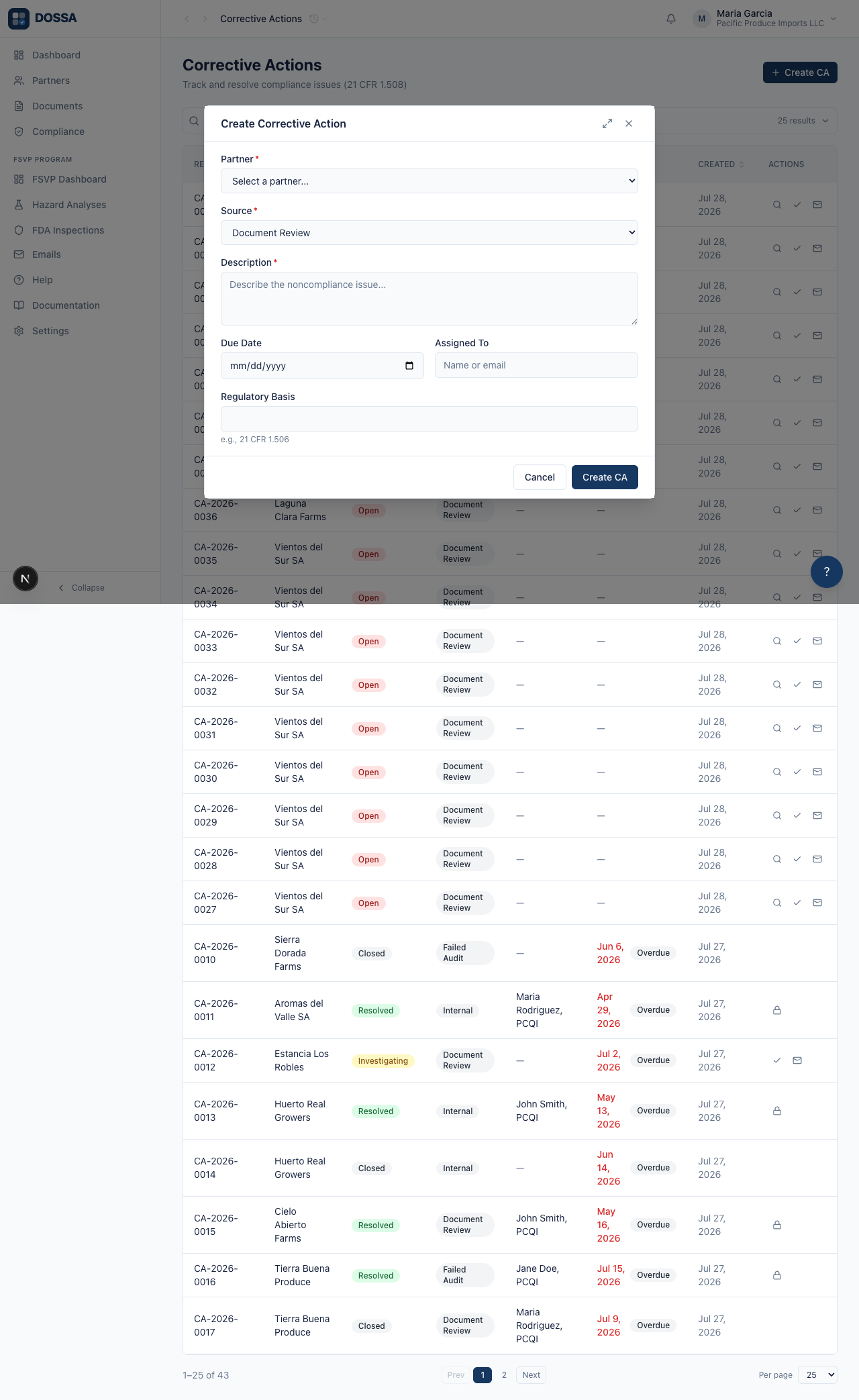
What you should see: The Create Corrective Action form collects the partner, source (Document Review, Evaluation Gap, FDA Inspection, Failed Audit, Internal, Other), a description of the noncompliance, and the regulatory basis. The new corrective action opens in the list at status Open, ready to assign, investigate, and resolve.