
Supplier Verification (FSVP)
Qualified Individual workflow for verifying a supplier under 21 CFR 1.505-1.506. Starts with the cold-start case — a new supplier whose hazard analysis is complete but who has no documents yet: from the partner’s FSVP tab the QI clicks “Generate Verification Request”, the AI maps each hazard requiring a supplier control to the org’s document-type catalog (a catalog-constrained coverage map: matched documents, plus gaps where no catalog type verifies a hazard), and the QI confirms which become requirements and copies the plain document checklist to email the supplier. Then, once documents are on file, it covers the Supplier Evaluations list, the Run Evaluation modal (partner and hazard-analysis pickers), the AI evaluation, the recorded decision (Approved / CA Required / Discontinued), approving the partner, downloading a response package, and the partner Audit Trail. Any partner with a matching hazard analysis can be evaluated — there is no hardcoded “foreign” requirement. Requesting documents is permissive; approval is gated — a hazard with no adequate document can never be evaluated as approved.
Who: Qualified Individual (QI) · Regulation: 21 CFR 1.505 (Supplier evaluation) and 21 CFR 1.506 (Verification activities). The QI uses information about the supplier, the hazards in the food, and the controls being applied to determine appropriate verification activities and record an evaluation decision for the supplier.
Generate a Verification Request for a new supplier that has no documents yet
Section titled “Generate a Verification Request for a new supplier that has no documents yet”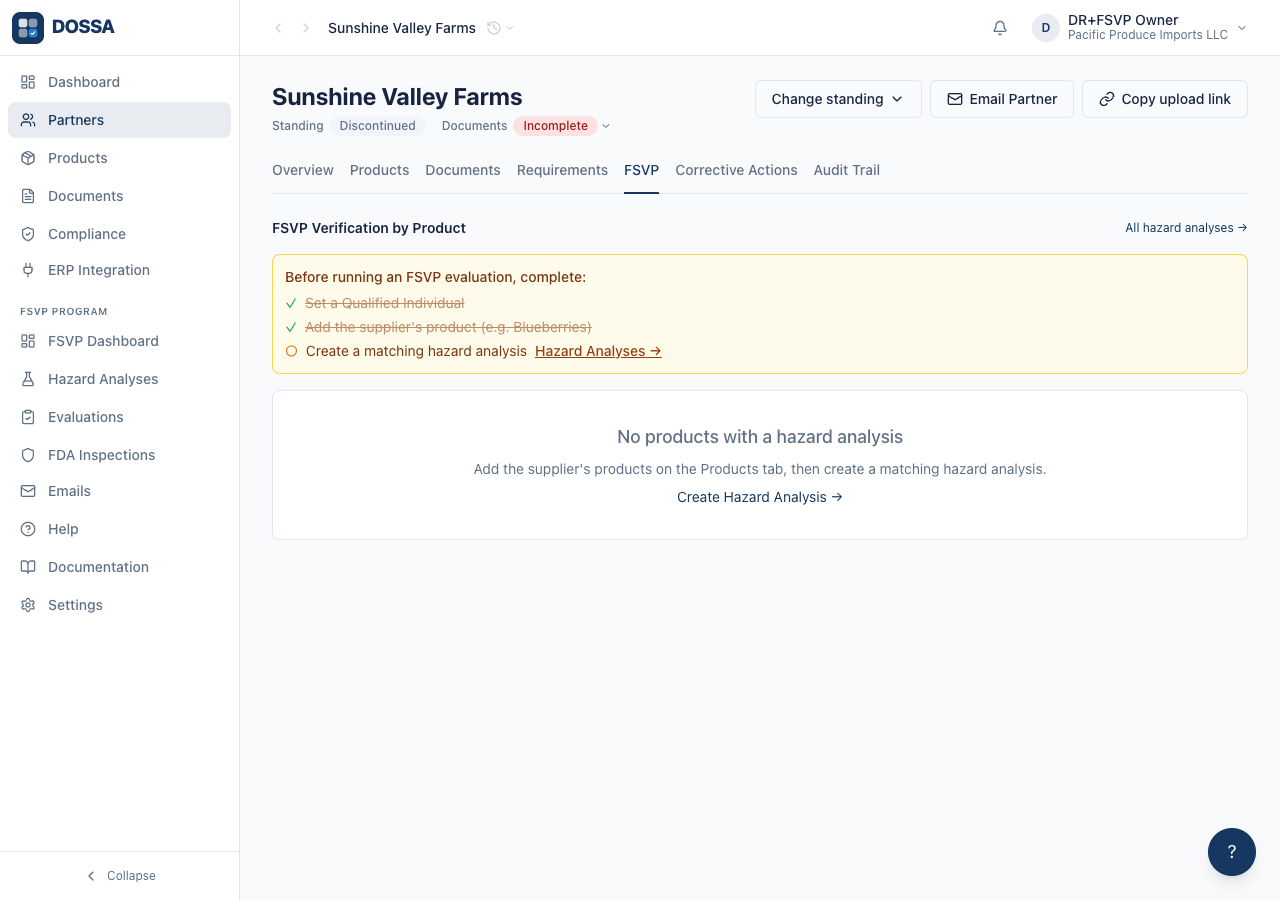
What you should see: A new supplier’s hazard analysis is done but no verification documents have been collected — an evaluation cannot run because there is nothing to assess (and would wrongly discontinue a brand-new supplier). Instead the QI generates a Verification Request: the AI reads the hazard analysis and maps each hazard requiring a supplier control to the org’s document-type catalog, then opens a review panel. This is the cold-start entry point to FSVP verification (21 CFR 1.505/1.506) — it tells the QI exactly which documents to request from the supplier, derived from the hazards rather than a generic checklist.
Review the hazard-to-document coverage in the Verification Request panel
Section titled “Review the hazard-to-document coverage in the Verification Request panel”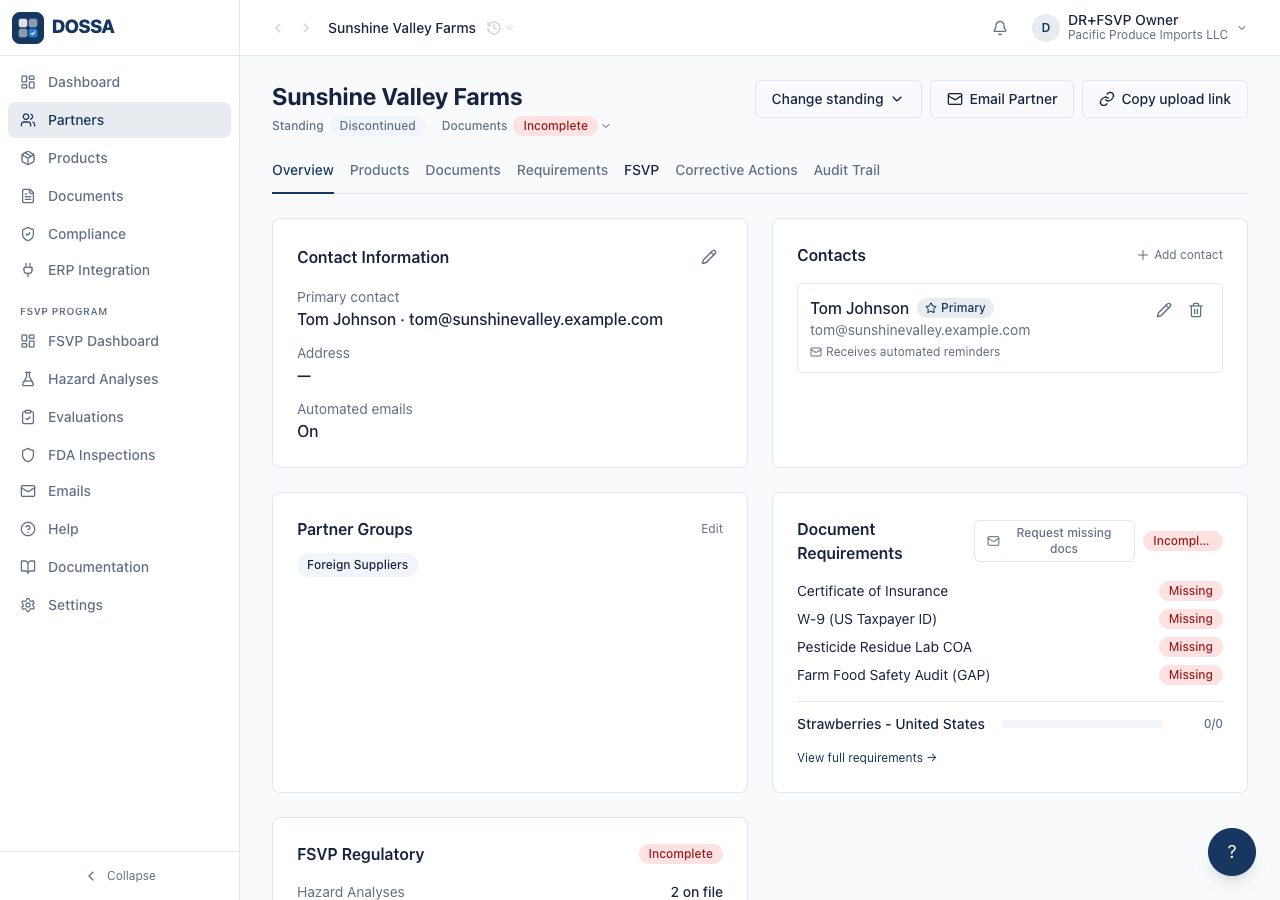
What you should see: The map is catalog-constrained: the AI only cites document types the org has defined — it never invents a document — so the vendor is never asked for something that does not exist. Every hazard requiring a supplier control is either matched to a document type or flagged as a gap. A gap names the KIND of document to create (e.g. a pesticide certificate of analysis) so the QI can add that type; until then the hazard stays uncovered and cannot pass an evaluation. A per-hazard rationale (hazard to document, with the 1.506 basis) is kept for the audit record.
Add the requirements and copy the request to send the supplier
Section titled “Add the requirements and copy the request to send the supplier”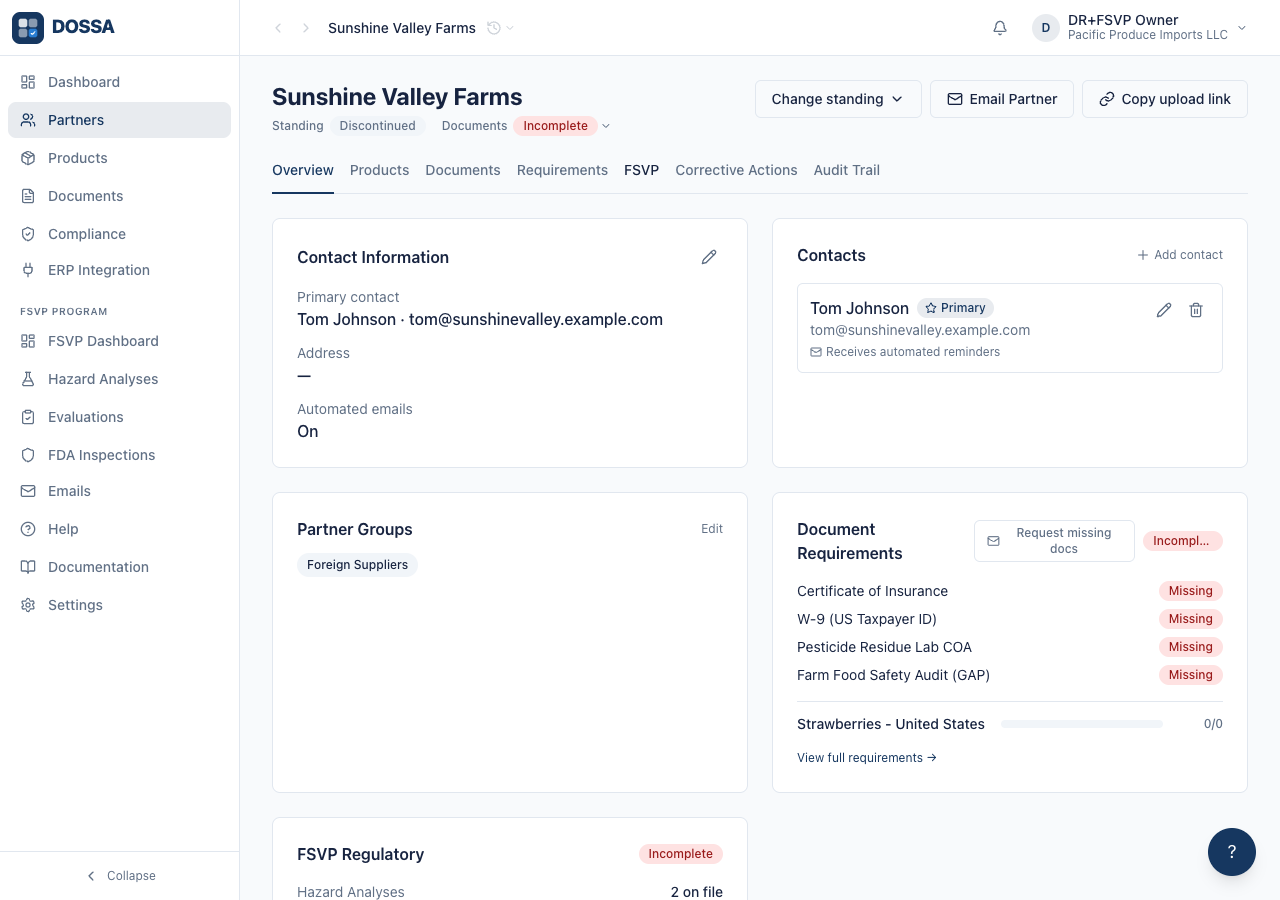
What you should see: The primary action is “Email request to supplier”: it opens the compose window pre-addressed to the partner’s contact email with a plain document checklist (in the vendor’s language — document names, never hazard lines) for the QI to review and send. “Add N requirements” is a secondary action, offered only when the map matched document types that are not requirements yet — it turns the QI-selected types into standing product-scoped requirements (the QI owns what becomes a requirement; nothing is added automatically). “Copy” is a clipboard fallback. Once the supplier returns the documents, run the evaluation (below) to assess whether each hazard is adequately verified.
Open the Supplier Evaluations list
Section titled “Open the Supplier Evaluations list”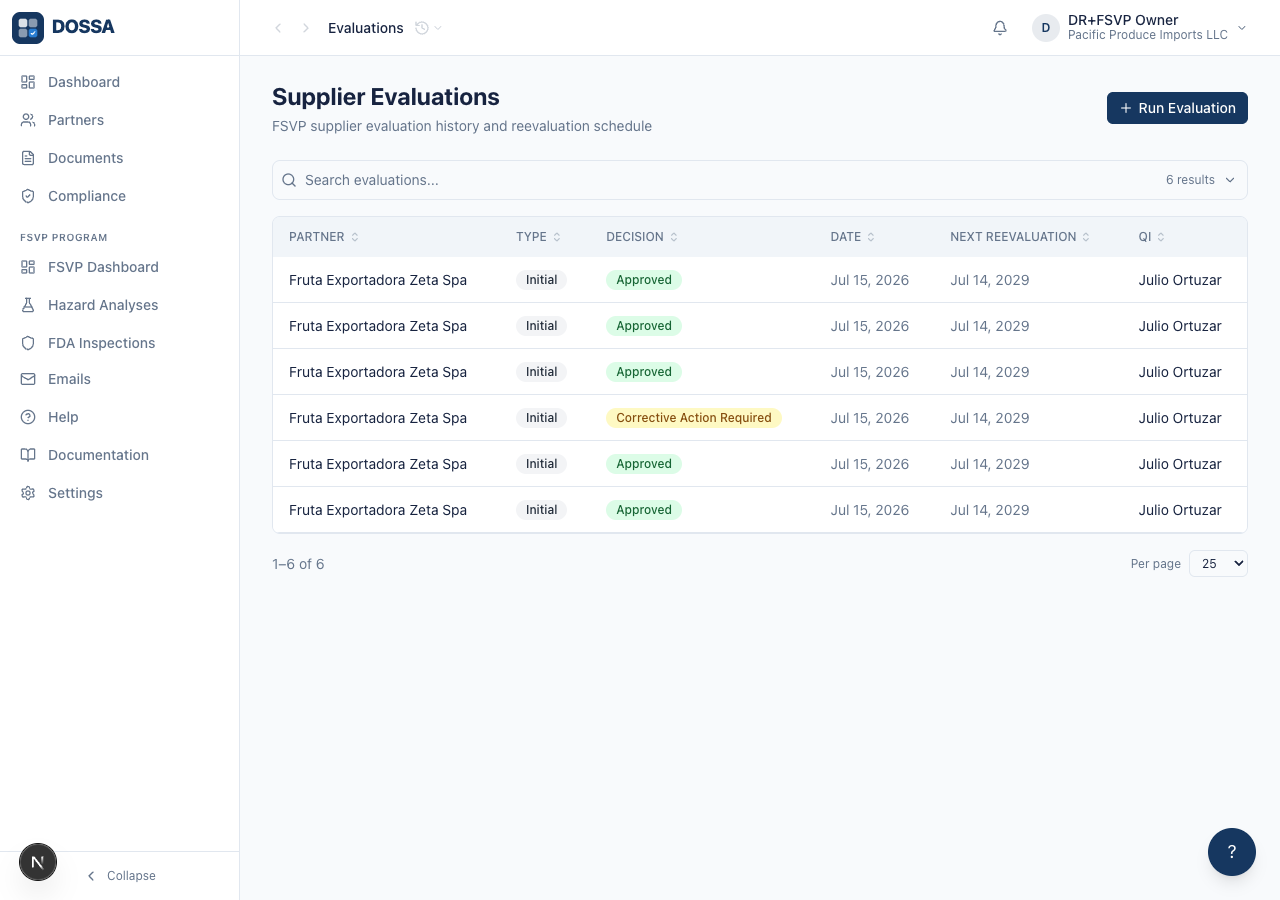
What you should see: The Evaluations list is the hub for FSVP verification activity records. The Next Reevaluation column tells the truth about which obligation is live. A supplier evaluated once and reevaluated later has two rows, each carrying its own next-reevaluation date; the superseded one shows its date struck through rather than asserting a 2029 deadline the reevaluation above it already discharged.
Open an evaluation and read the determination behind it
Section titled “Open an evaluation and read the determination behind it”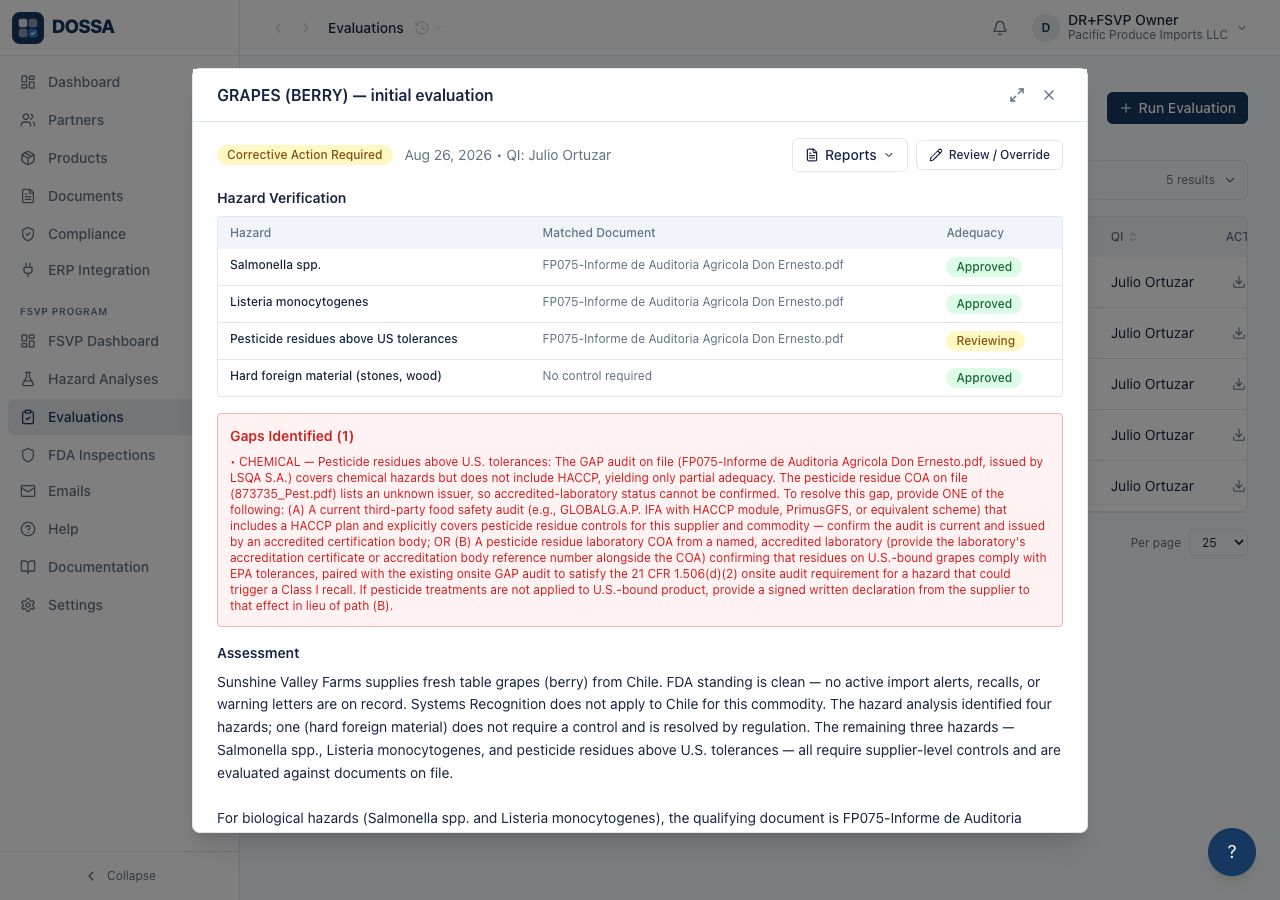
What you should see: The row you clicked is the record you get. Before this the list offered an eye icon and a clickable row that both navigated to the PARTNER — so the evaluation itself was the one thing the Evaluations page could not show you, and reading it meant opening the partner, finding the FSVP tab, and locating the same row again. The panel itself is not new; it was mounted only on the partner page. What changed is that the list which the FSVP dashboard links to can now open it, and that the single-form PDFs are reachable without generating the full FDA response package ZIP — a heavier artifact that pulls every cited document out of storage.
Open the Run Evaluation modal
Section titled “Open the Run Evaluation modal”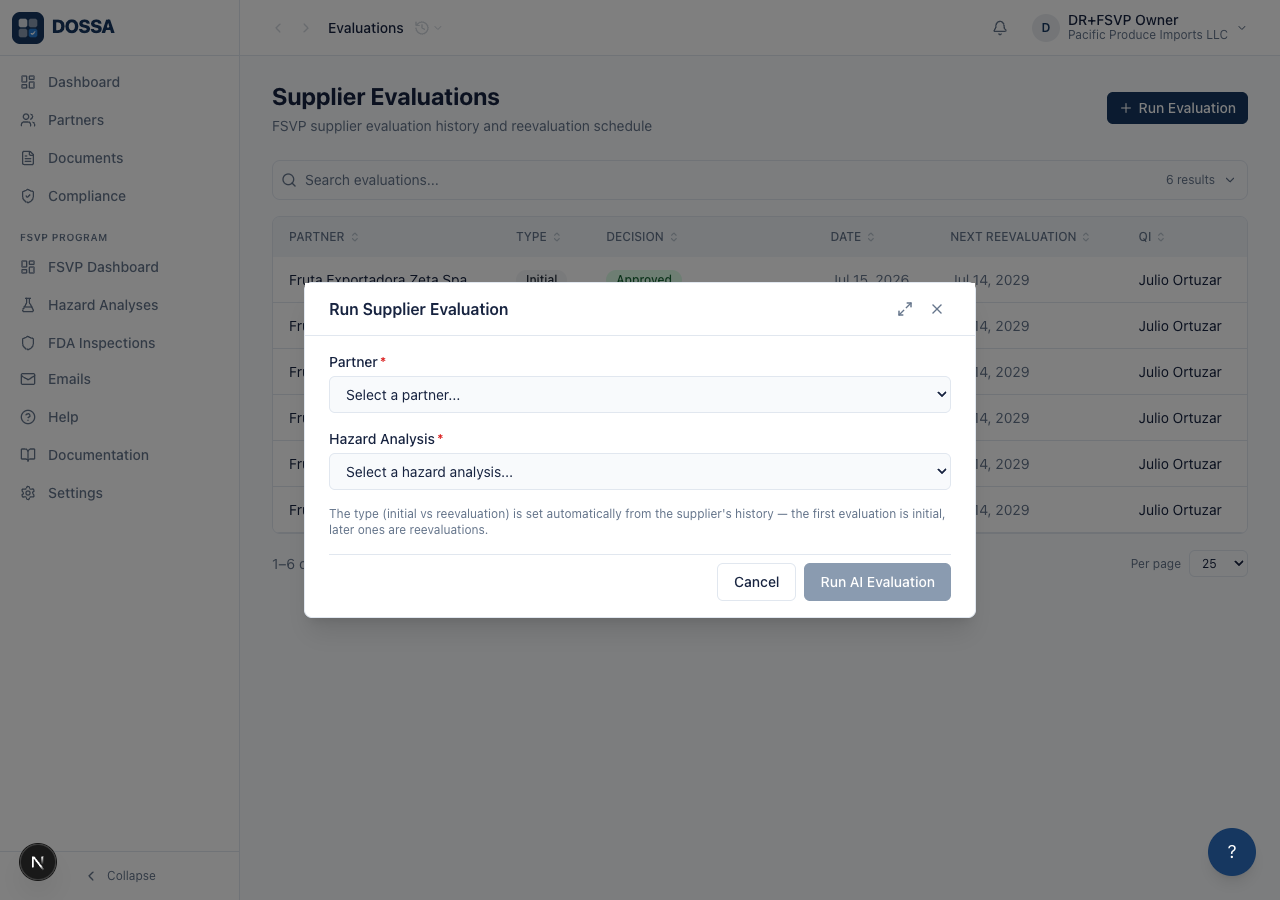
What you should see: The modal collects the minimum inputs the AI evaluation needs: which partner, which hazard analysis to match against, and whether this is an initial evaluation or a periodic reevaluation. The hazard analysis list is org-wide — pick the one that matches the partner’s commodity and country.
Run the AI supplier evaluation from the modal
Section titled “Run the AI supplier evaluation from the modal”What you should see: The AI checks every hazard from the analysis against the partner’s verified documents and records a decision of Approved, CA Required, or Discontinued. When the run finishes, the modal shows “Supplier evaluation complete.” and the new evaluation appears as a row in the list. If gaps are found, corrective actions are created automatically.
Open the partner’s FSVP tab to review the evaluation
Section titled “Open the partner’s FSVP tab to review the evaluation”What you should see: The evaluation results render as cards inside the partner’s FSVP tab — there is no separate detail page. Each evaluation card shows a Hazard Verification table (Hazard / Matched Document / Adequacy), a “Gaps Identified” panel for anything missing, and the AI Assessment text. This is the audit-defensibility view of which hazards were verified by which documents.
Read the evaluation decision the AI recorded
Section titled “Read the evaluation decision the AI recorded”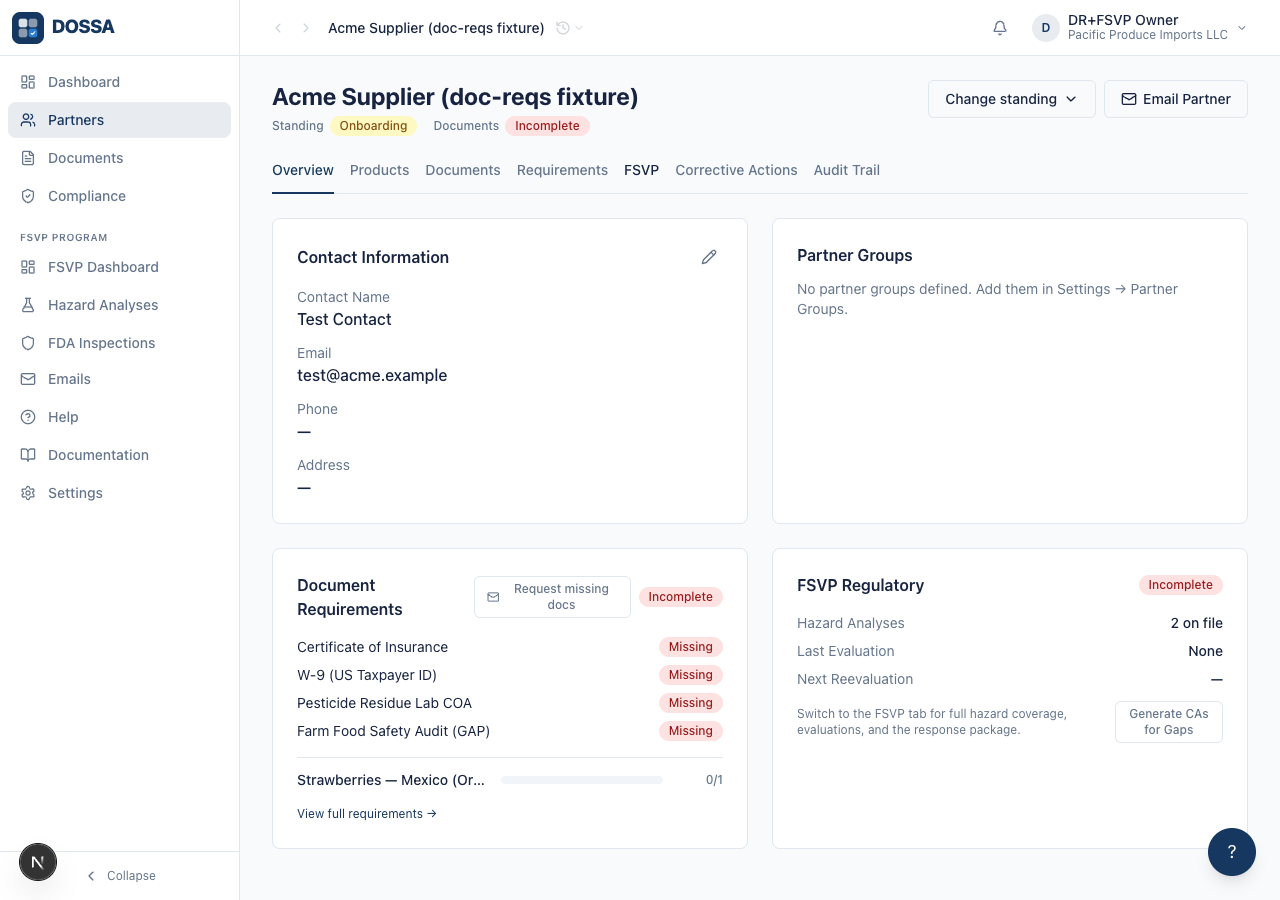
What you should see: The decision badge at the top of each evaluation card shows the outcome the AI determined — Approved, CA Required, or Discontinued — based on how the partner’s documents covered the hazards. The decision is read-only on this tab; to act on it, use the Approve Partner control in the partner header. The supporting assessment and gaps are the defensible record an FDA inspector would ask for.
Approve the partner from the partner header
Section titled “Approve the partner from the partner header”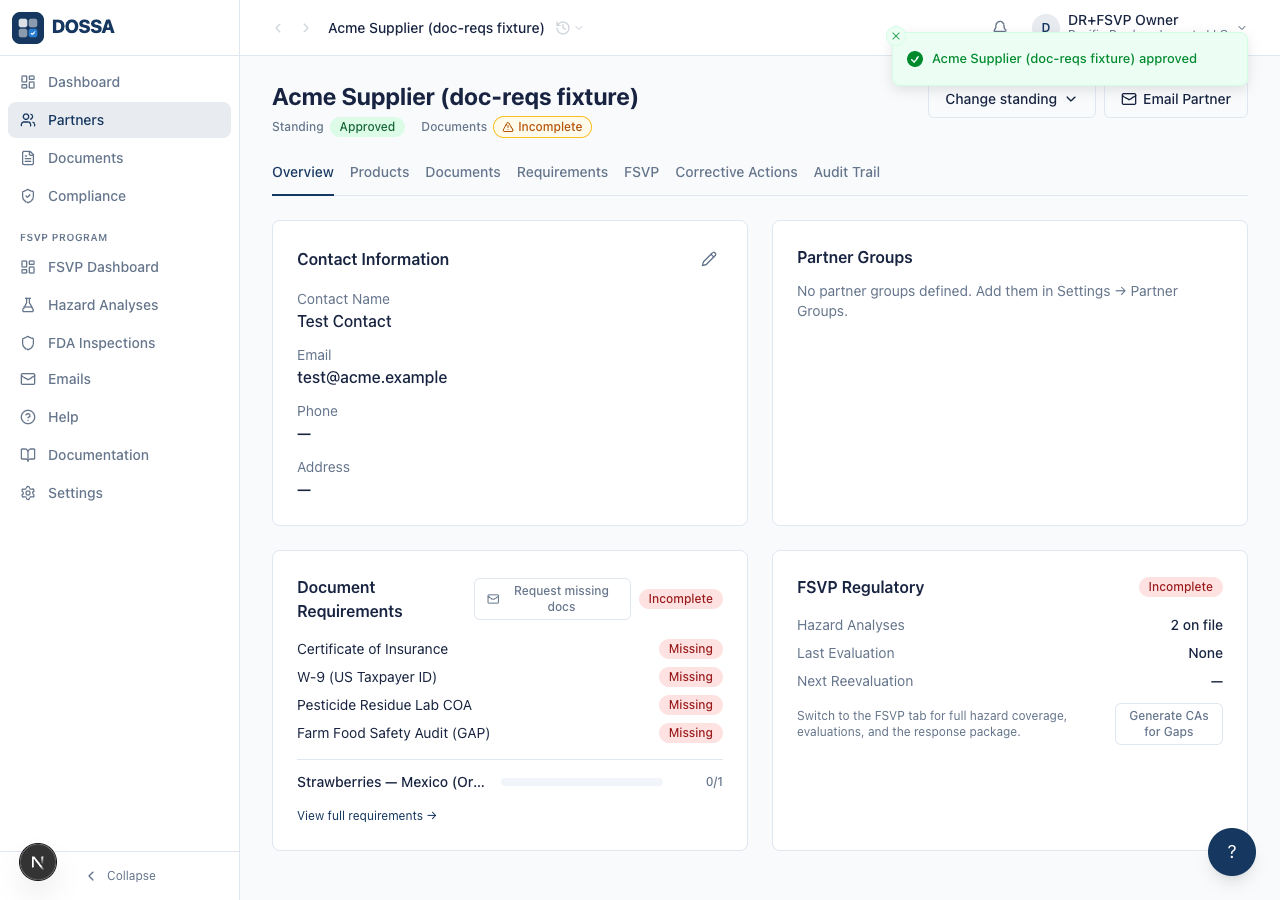
What you should see: The “Change standing” menu offers Approve once the partner is in onboarding. Approving records the partner as approved with a snapshot of its compliance state, giving you the FDA-defensible record that both tracks were satisfied at the time of approval: the Document Requirements checklist and the FSVP evaluation decision.
Email the partner via the compose window (response-package attachment is manual)
Section titled “Email the partner via the compose window (response-package attachment is manual)”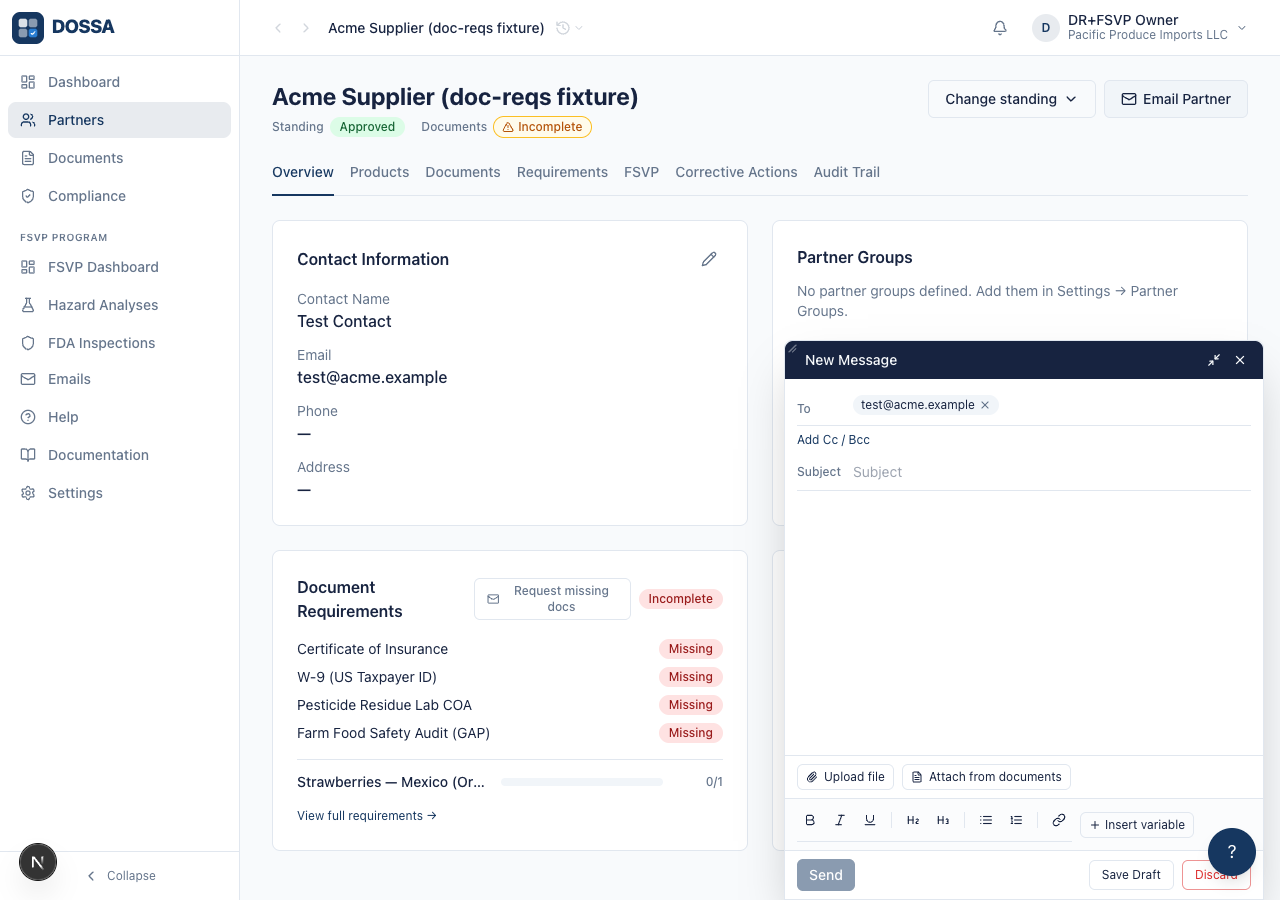
What you should see: The compose window opens pre-addressed to the partner’s contact email. Write the note, attach the downloaded response package with “Attach from documents”, and send so the partner has a copy of the FSVP record. The sent email is logged under Emails.
Verify the partner Audit Trail tab renders
Section titled “Verify the partner Audit Trail tab renders”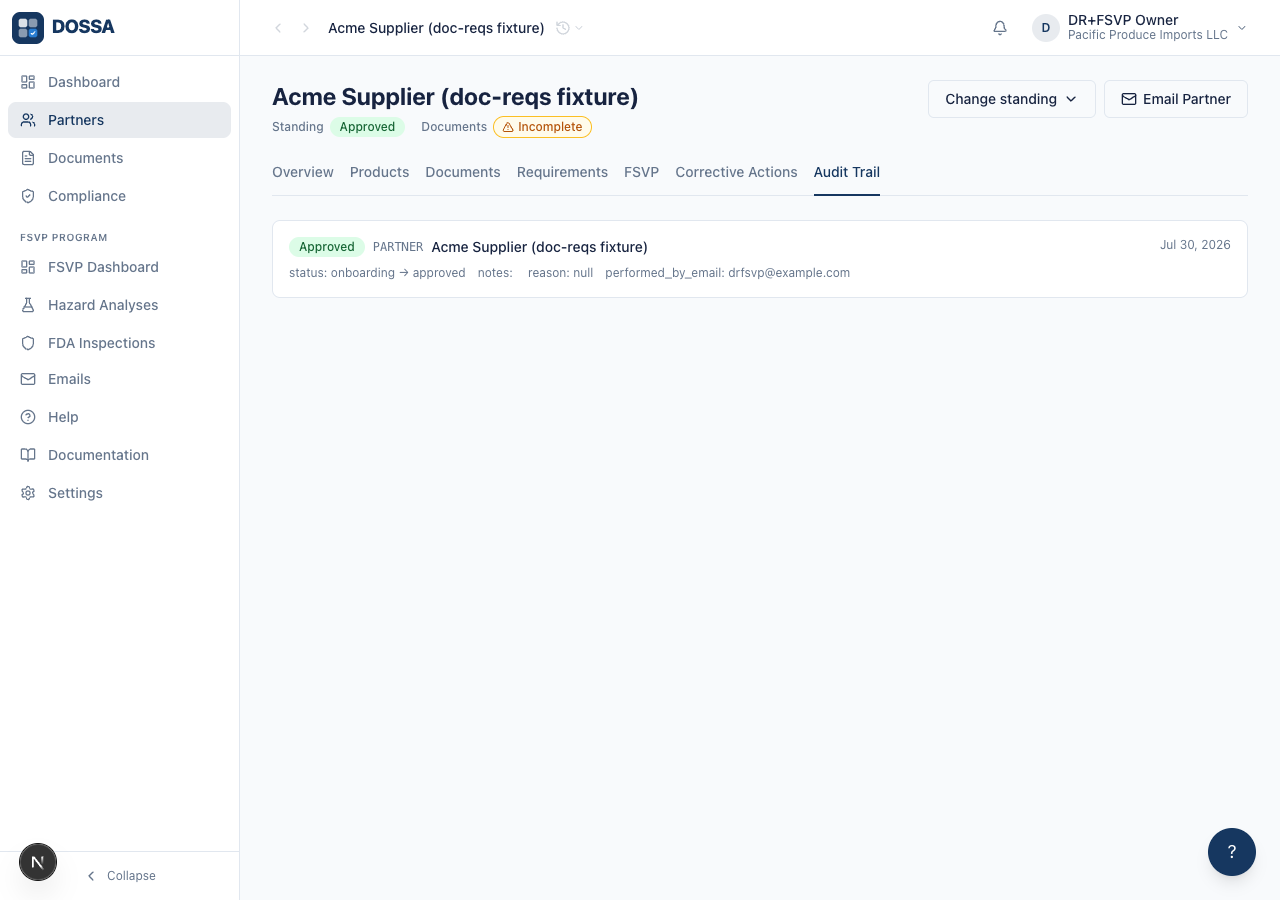
What you should see: The Audit Trail tab is the FDA-facing record of activity on this partner. Each entry shows who did what and when, with the compliance state captured at the time, giving you the defensible history of the partner’s evaluation and approval per 21 CFR 1.510.