
Email Templates Setup
Owner / Admin workflow for customizing the system-generated email templates the platform uses for partner communications. Covers the override editor: list view (grouped by product scope, “Modified” badge), template selection, subject + rich-text body editing, dropping in dynamic variable chips and pre-built section blocks via the Insert variable menu, save, restore-to-default, and the fallback chain that lets system templates work without overrides. This workflow is OPTIONAL. The platform ships with sensible system templates baked in. Overrides give the org control over tone, boilerplate, and signoff without a code deploy. Users never write markup — variables and sections are inserted as visual chips that the platform fills in automatically when the email is generated. Per-user template overrides are explicitly out of scope. Two kinds of chip — read this first: - Variables (inline blue pills) are single facts: a recipient’s name, today’s date, a due date. They resolve to one short string. Examples: Partner Name, Contact Name, QI Name, Due Date. - Sections (dashed-border block cards) are pre-built reusable content blocks the platform writes for you: a bulleted list of missing documents, a corrective-actions summary table, an evaluation outcome card. They resolve to fully-formatted multi-line content. Examples: Missing Documents List, Corrective Actions Summary, Expiring Documents. Both are inserted via the Insert variable button next to the body editor — never typed by hand. The Subject input is plain text and shows variables as the literal {VariableName} format (a single capitalized word, no spaces — e.g. {PartnerName}) because subject lines aren’t rich text; the body uses chips because it is.
Who: Owner / Admin · Regulation: No regulatory citation. Partner communications are platform-internal; the templates encode the org’s chosen voice and standard disclaimers.
Navigate to the Email Templates editor from Settings
Section titled “Navigate to the Email Templates editor from Settings”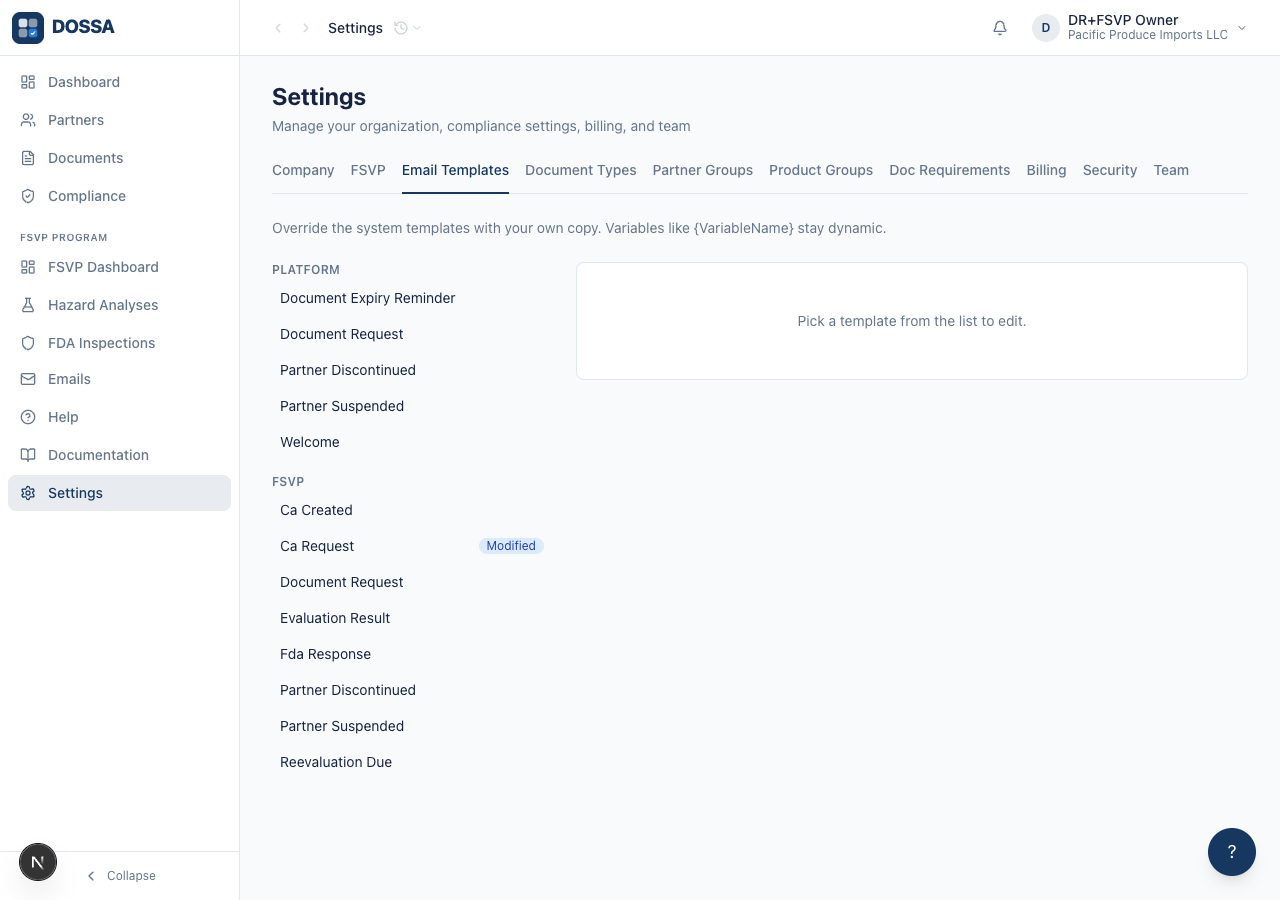
What you should see: The Email Templates tab loads as a two-pane layout. The left pane lists templates grouped by product scope — a “platform” group (the foundation templates) and, when the org has the FSVP add-on, an “fsvp” group. The right pane shows the empty-state card “Pick a template from the list to edit.” A blue “Modified” badge appears next to any template the org has already customized; on a fresh org none are shown yet.
Review the list of registered system templates
Section titled “Review the list of registered system templates”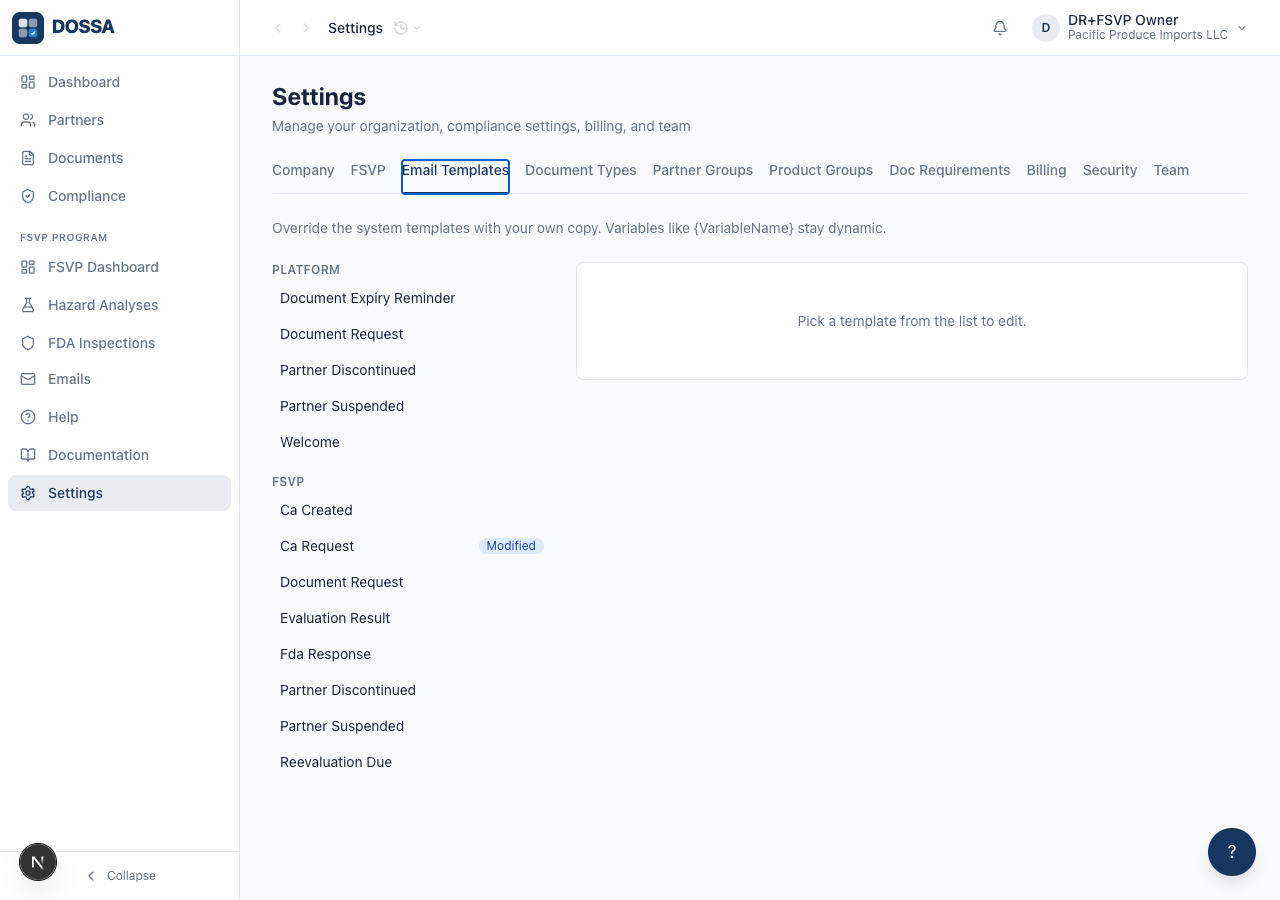
What you should see: The list shows every template the platform can send. With the FSVP add-on entitled, that is eleven templates total — four in the platform group and seven in the FSVP group. A DR-only org would see only the four platform templates and no FSVP group. Each template falls back to the platform-provided default until the org overrides it here.
Open the Document Request template in the editor
Section titled “Open the Document Request template in the editor”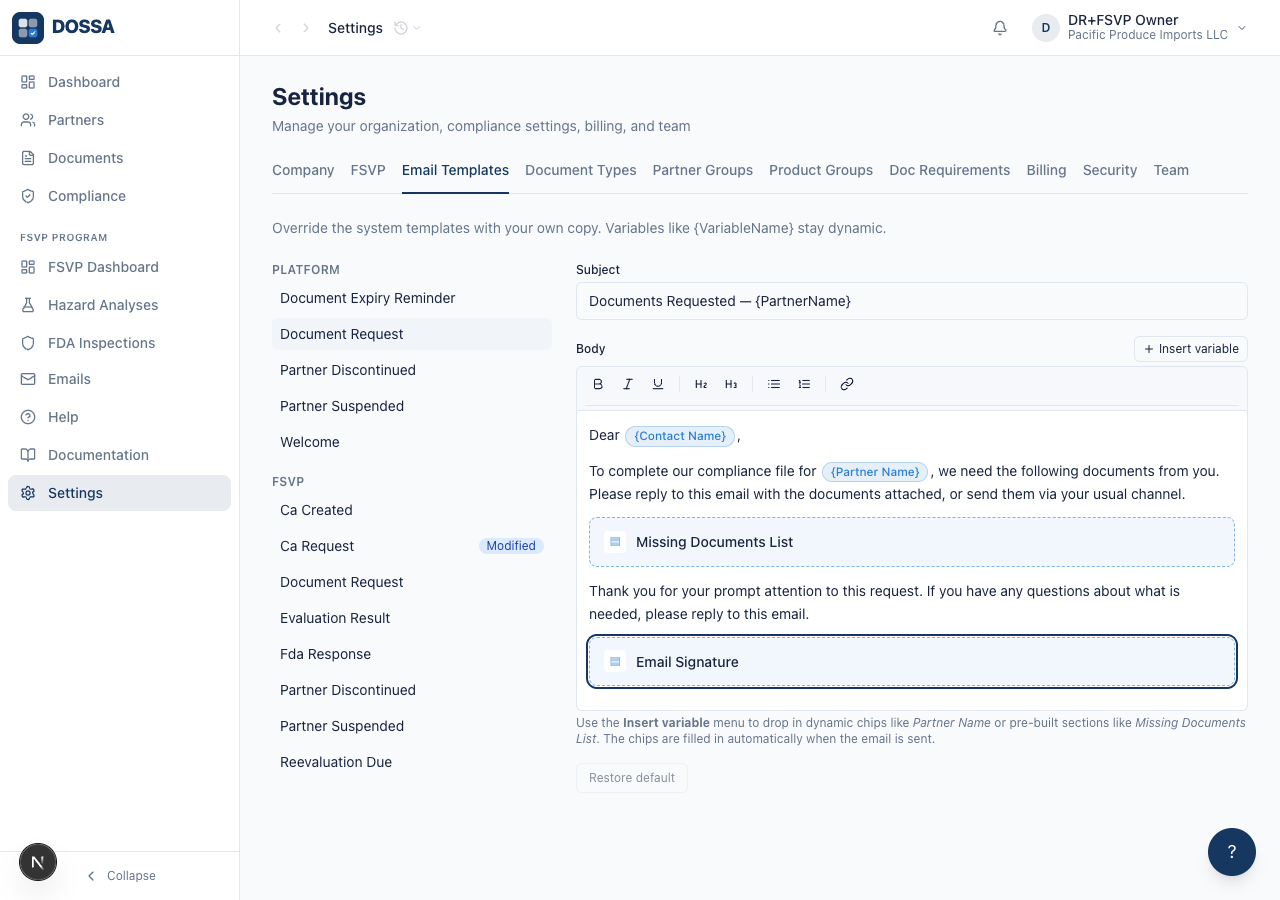
What you should see: The editor loads with the system template. The body is editable rich text; single facts (like Partner Name) appear as inline chips and pre-built sections (like Missing Documents List) appear as block-level cards. The user reads everything in plain language and never sees the underlying template syntax.
Edit the template subject line
Section titled “Edit the template subject line”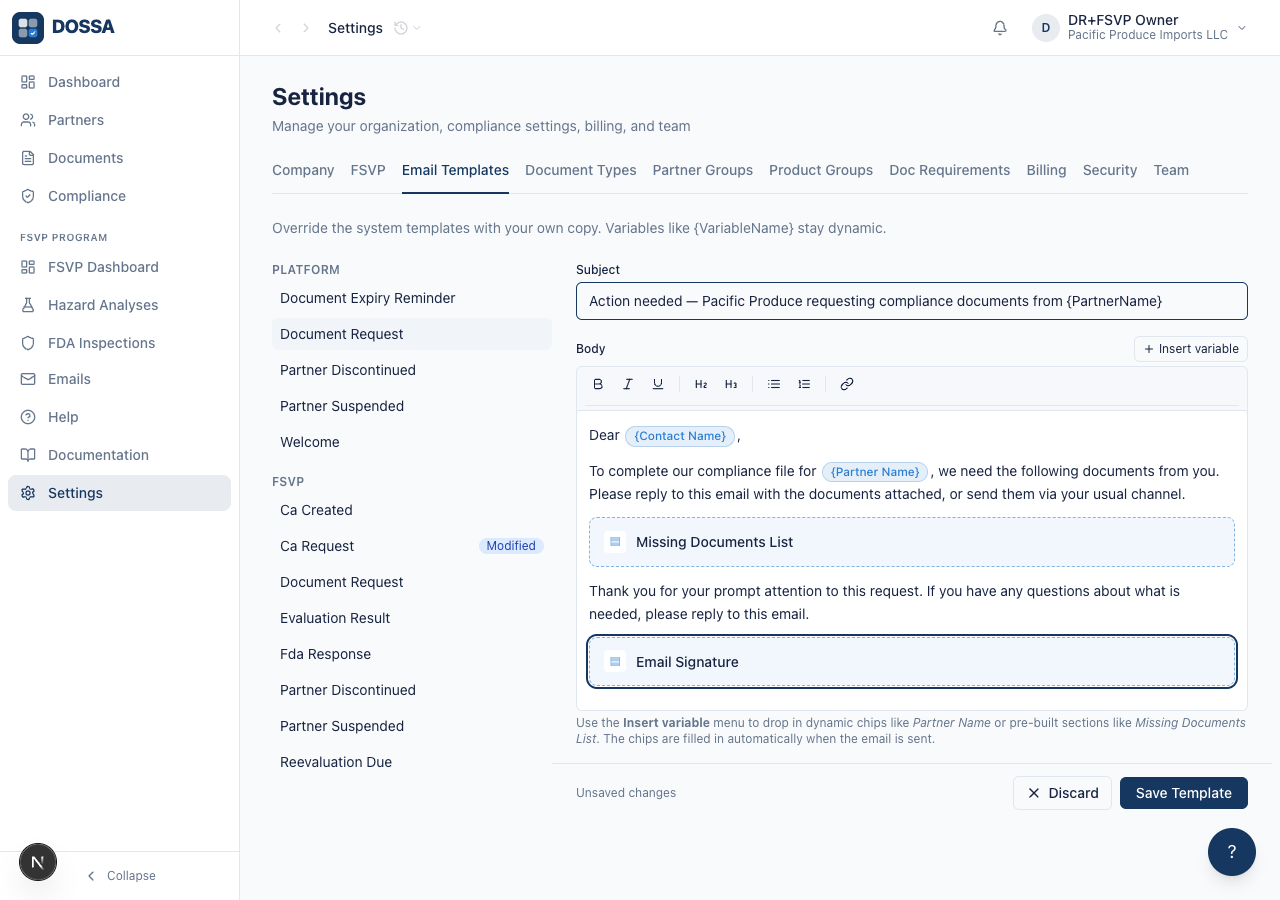
What you should see: The new subject is held as an unsaved edit. Because the form is now dirty, the “Save Template” button appears at the bottom of the editor. When a draft is created, {PartnerName} is replaced with the recipient’s company name.
Edit the body prose around the inserted chips
Section titled “Edit the body prose around the inserted chips”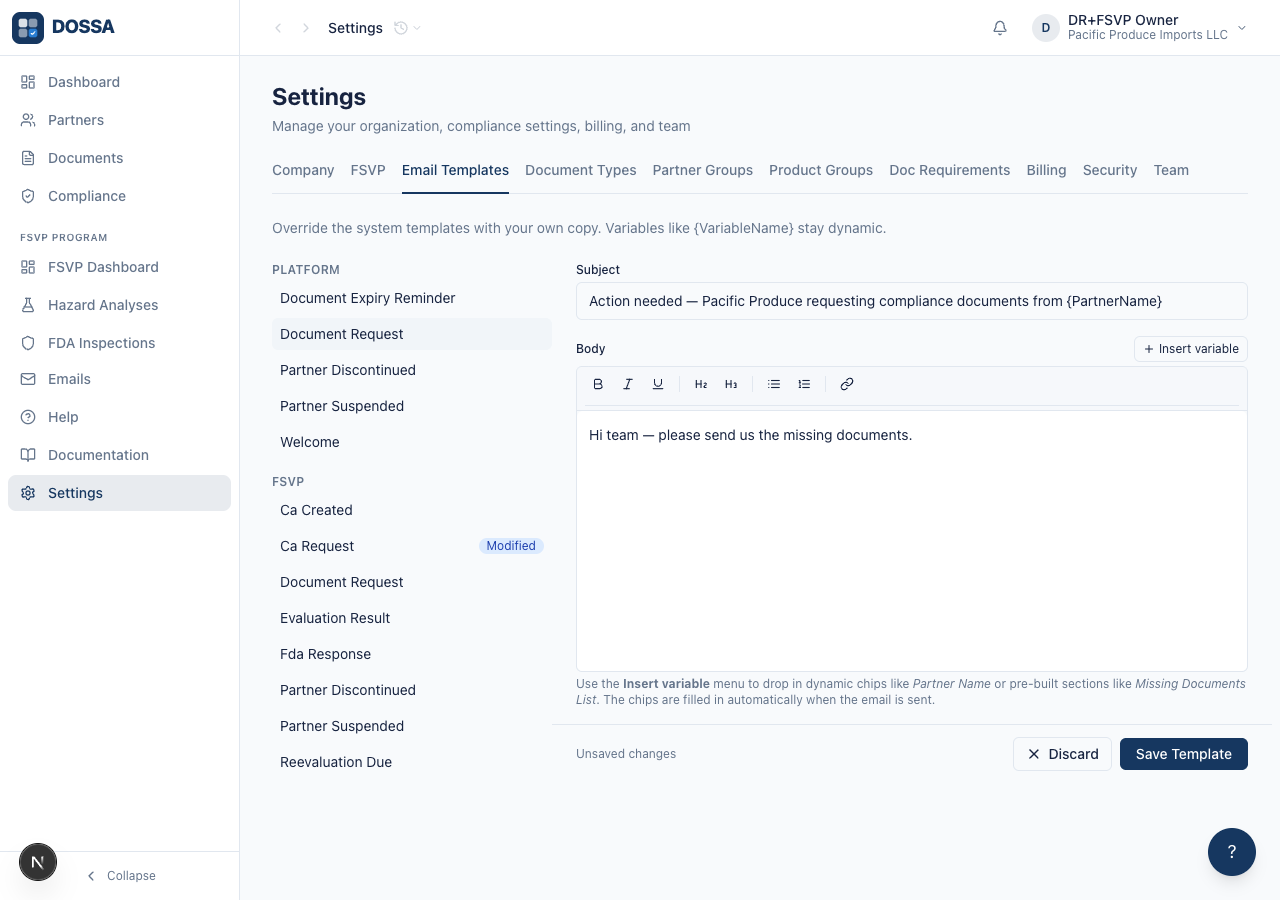
What you should see: The body is edited as rich text. Users only ever see formatted prose plus the visual chips — no tags, no template syntax, no code. On save, the platform stores the body with the chips intact so the same template can serve every recipient.
Open the Insert variable menu and view the Variables tab
Section titled “Open the Insert variable menu and view the Variables tab”What you should see: The Insert variable menu opens with two tabs: “Variables” and “Sections”. The Variables tab is shown first, listing single facts the platform can fill in — Contact Name, Vendor Name, QI Name, Importer Name, Due Date, and so on, each with a short description. These are the atomic chips that resolve to one piece of text when the email is generated.
Insert a variable chip into the body from the Variables tab
Section titled “Insert a variable chip into the body from the Variables tab”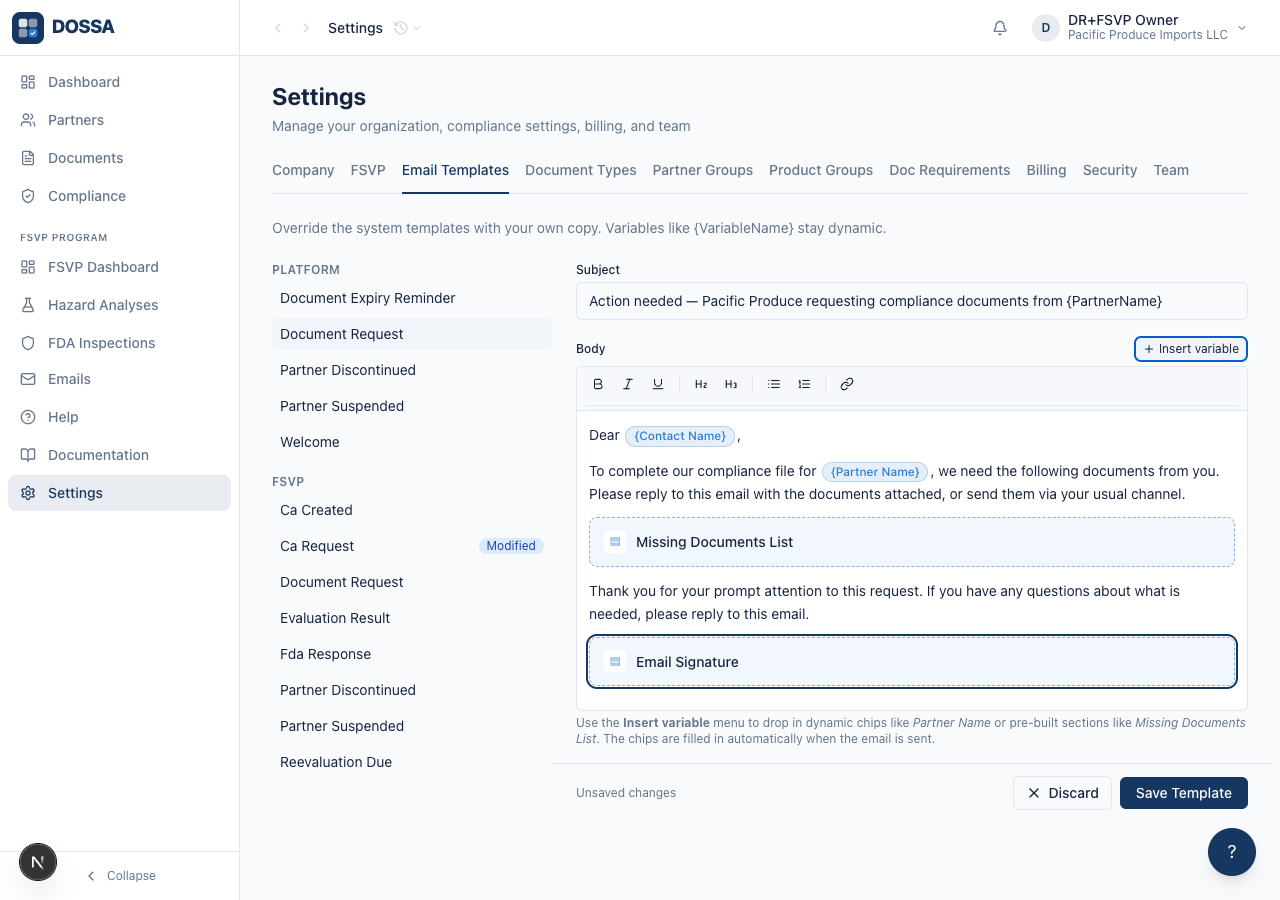
What you should see: A “Contact Name” chip is now inline in the body where the cursor was. The chip is a single visual unit — the user can move or delete it but cannot type inside it. When the email is sent, it is replaced with the recipient’s contact name.
Insert a pre-built section block from the Sections tab
Section titled “Insert a pre-built section block from the Sections tab”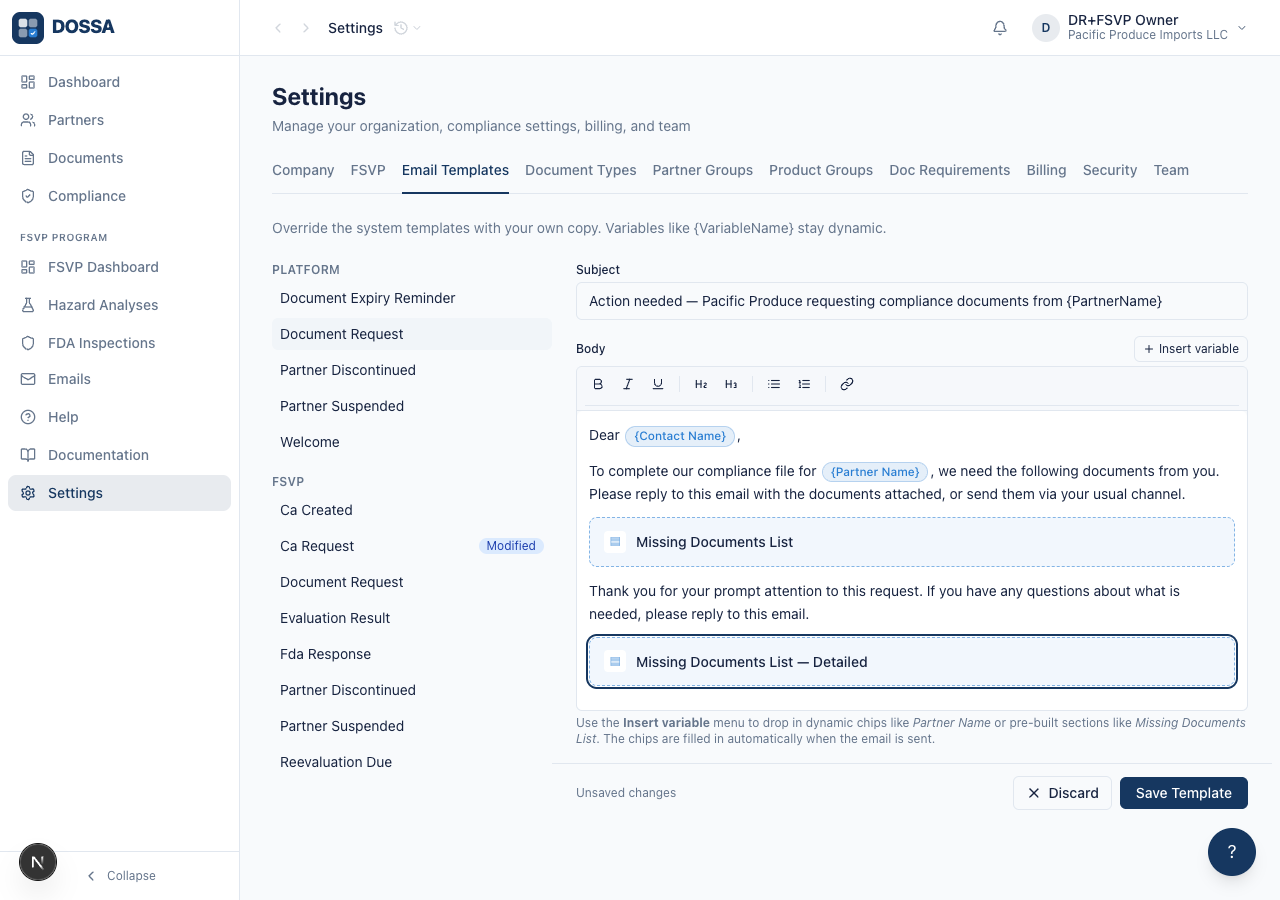
What you should see: A “Missing Documents List” block is dropped into the body as a single dashed-border card. The user can move it, delete it, or swap it for a different layout, but cannot edit “inside” it. When the email is generated, the block is replaced with the recipient’s actual list of missing documents grouped by product.
Save the customized template as an org override
Section titled “Save the customized template as an org override”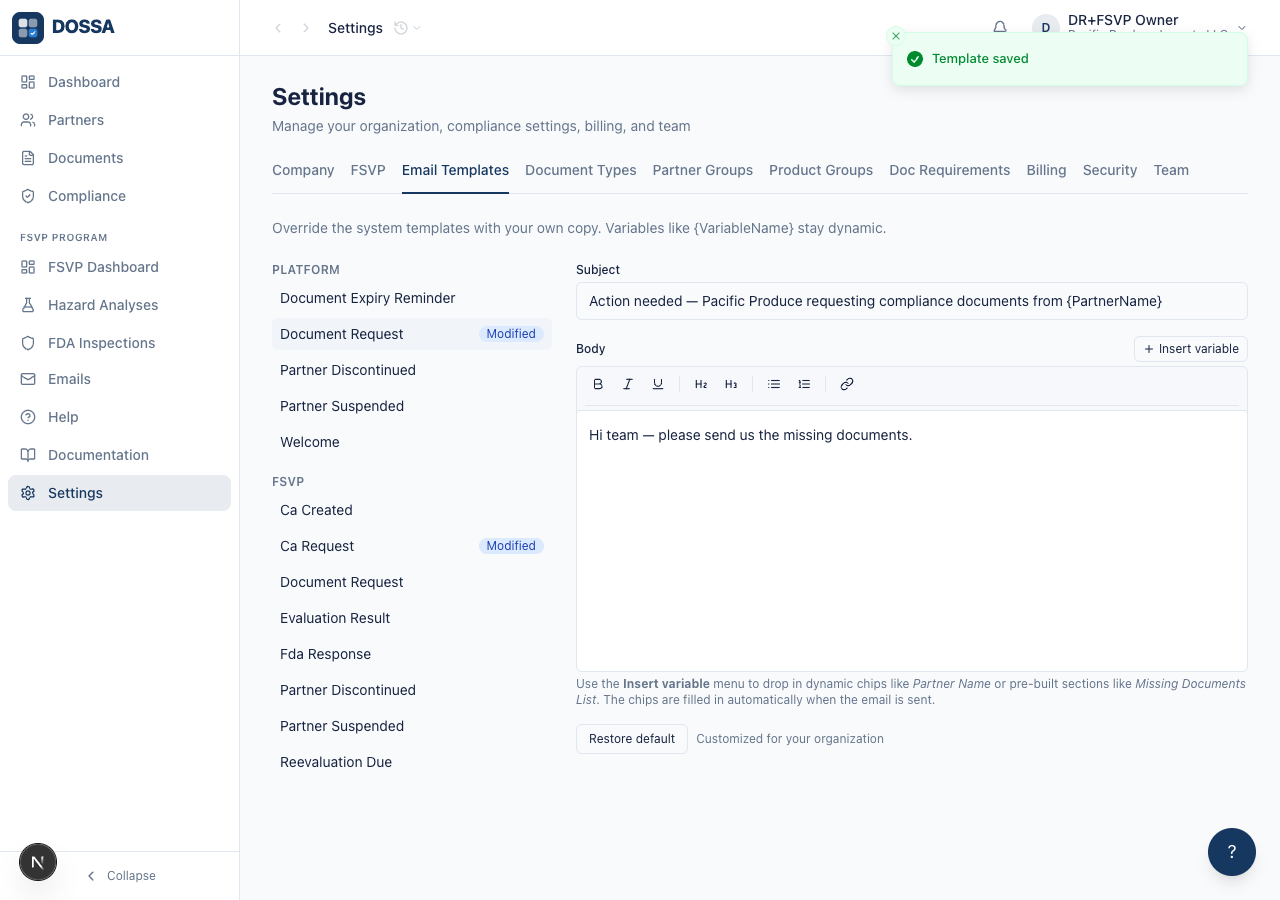
What you should see: The override is saved for the whole organization. From now on, every Document Request email the platform generates uses the org’s customized subject and body; the platform default is the silent fallback for templates the org has not customized.
Confirm the override reaches the composer the next time a Document Request draft is created
Section titled “Confirm the override reaches the composer the next time a Document Request draft is created”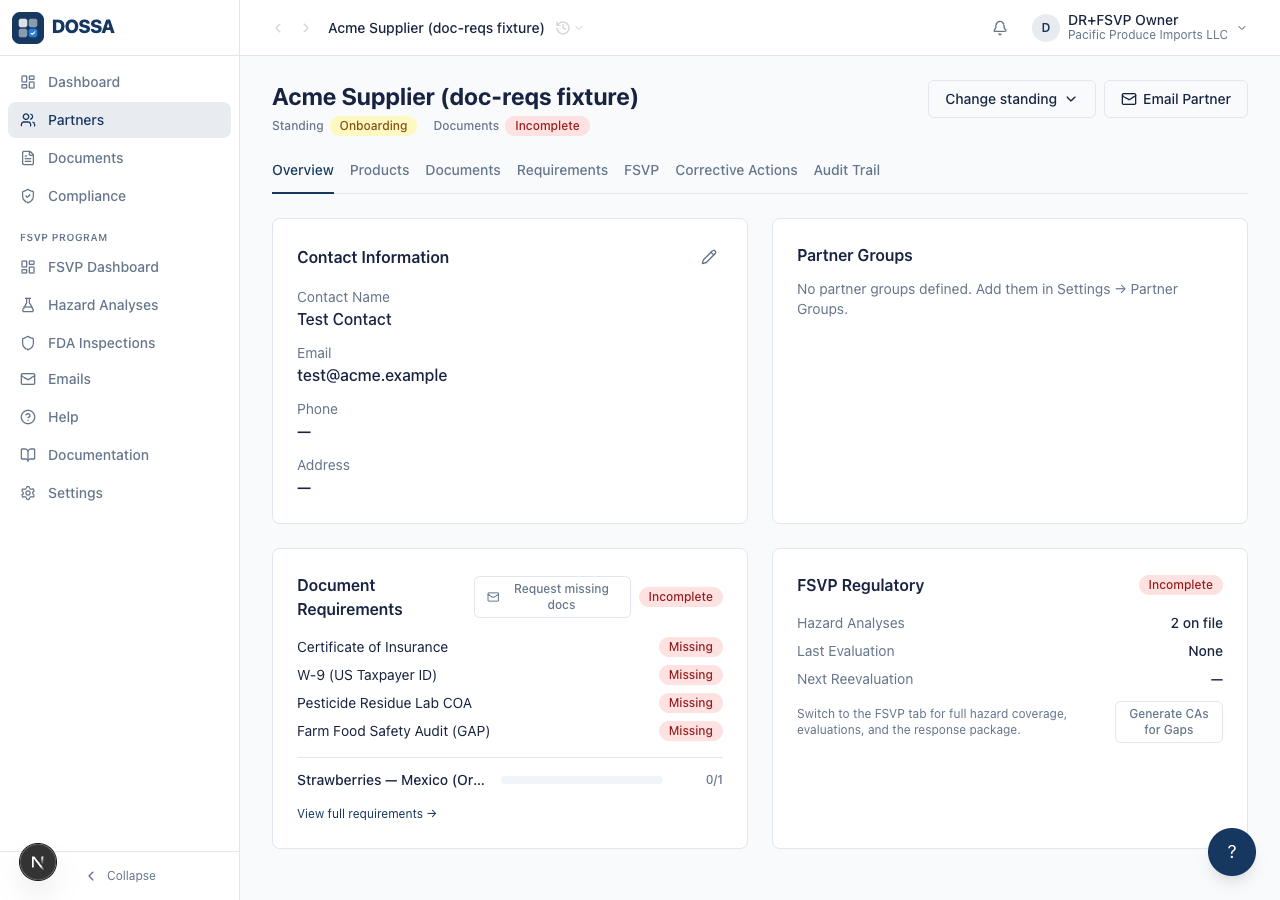
What you should see: The override is live end to end. The draft uses the org’s customized subject and body. The Missing Documents List section has already been resolved into a real list before the user sees the draft, so the email is immediately readable; the remaining variable chips stay as chips so the user can edit the prose around them, and are filled in automatically when Send is clicked.
Restore the document_request template back to the system default
Section titled “Restore the document_request template back to the system default”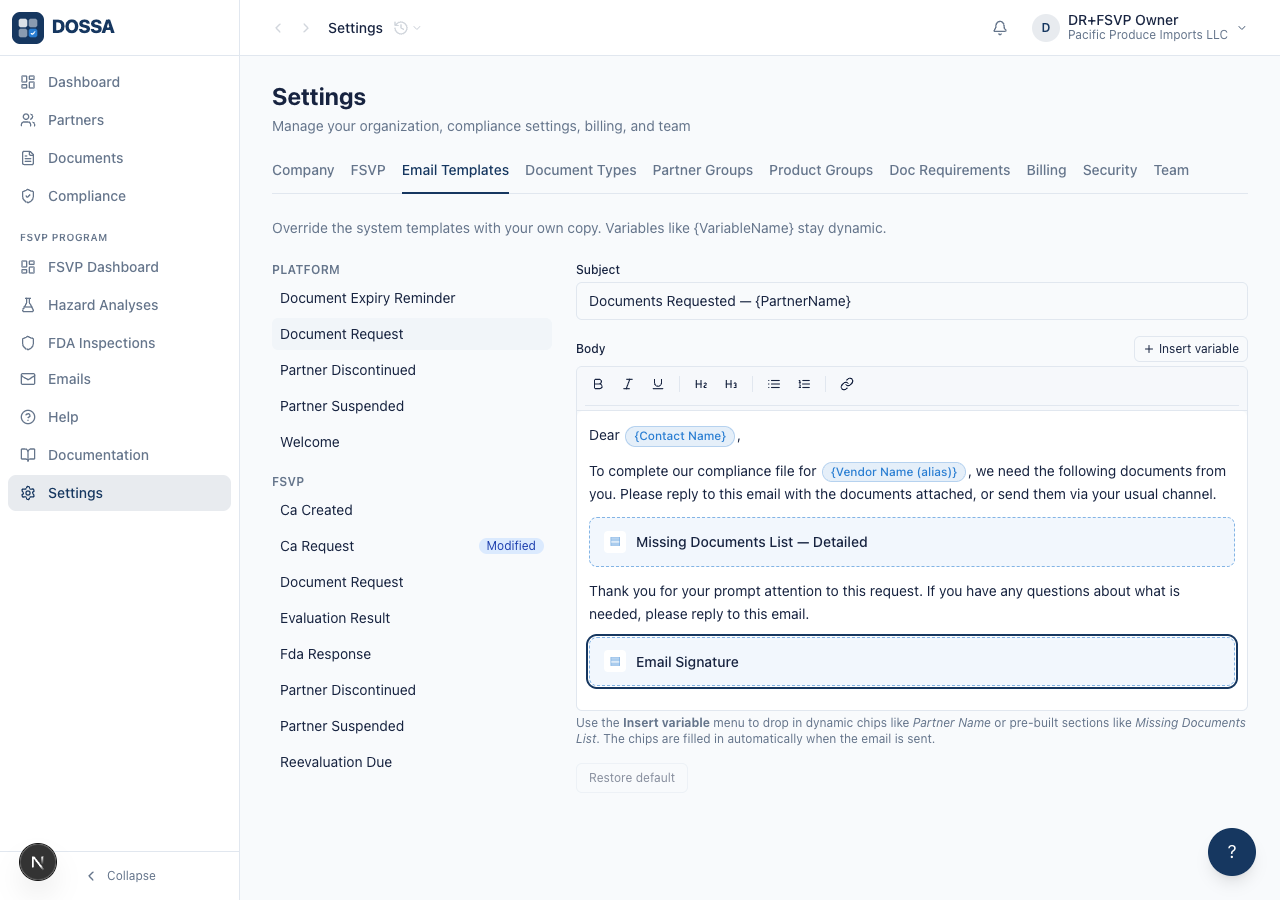
What you should see: The org override is removed. From this point, Document Request emails fall back to the platform’s default content. The restore always goes through a confirmation dialog warning what will be deleted — never a browser pop-up.
Customize an FSVP add-on template and save it (FSVP-entitled orgs only)
Section titled “Customize an FSVP add-on template and save it (FSVP-entitled orgs only)”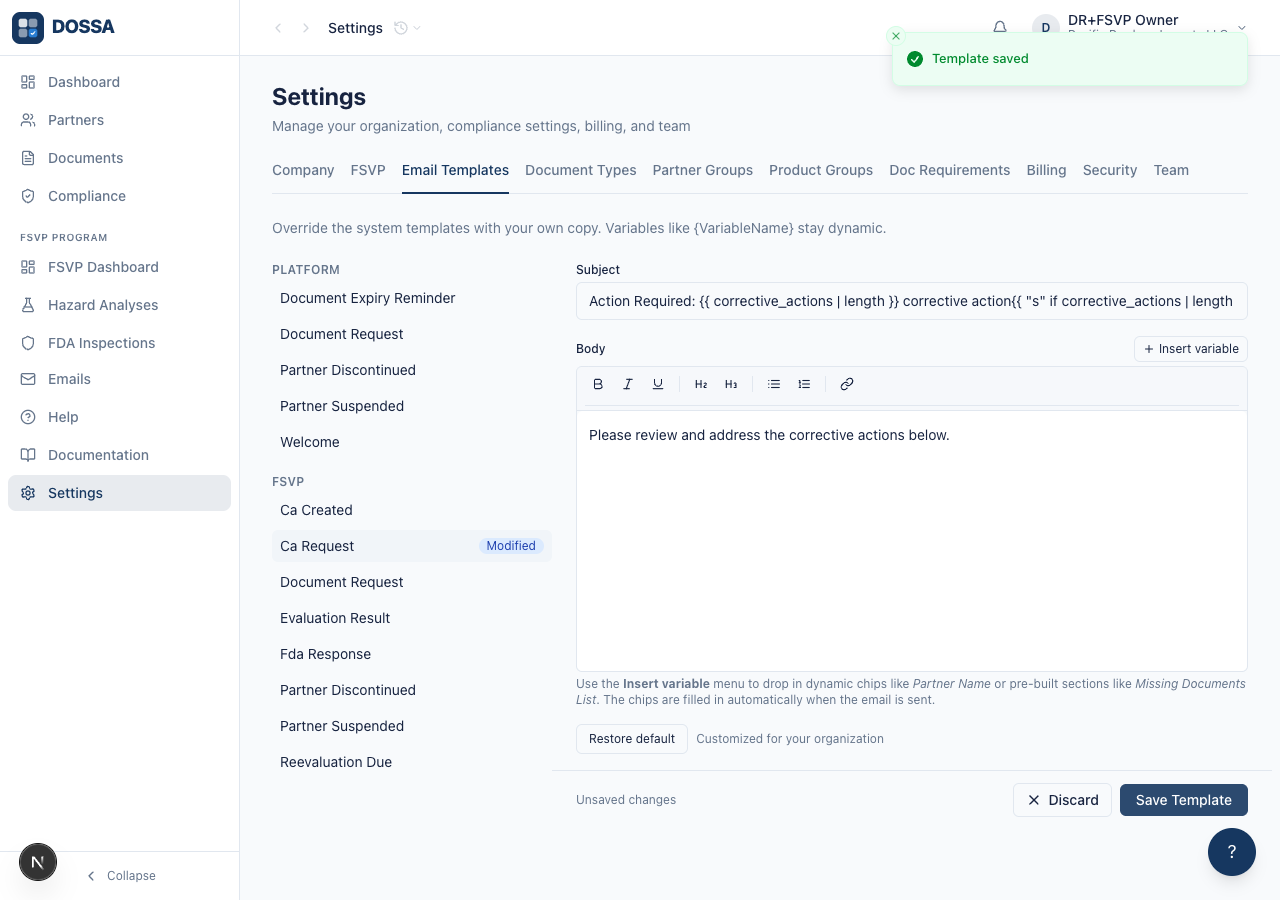
What you should see: The FSVP Ca Request template is saved as an org override. From now on, corrective-action request emails use the org’s customized copy. FSVP templates behave exactly like the foundation templates — they just live in the FSVP group and offer FSVP-specific section blocks.
Final review confirming the list reflects current override state
Section titled “Final review confirming the list reflects current override state”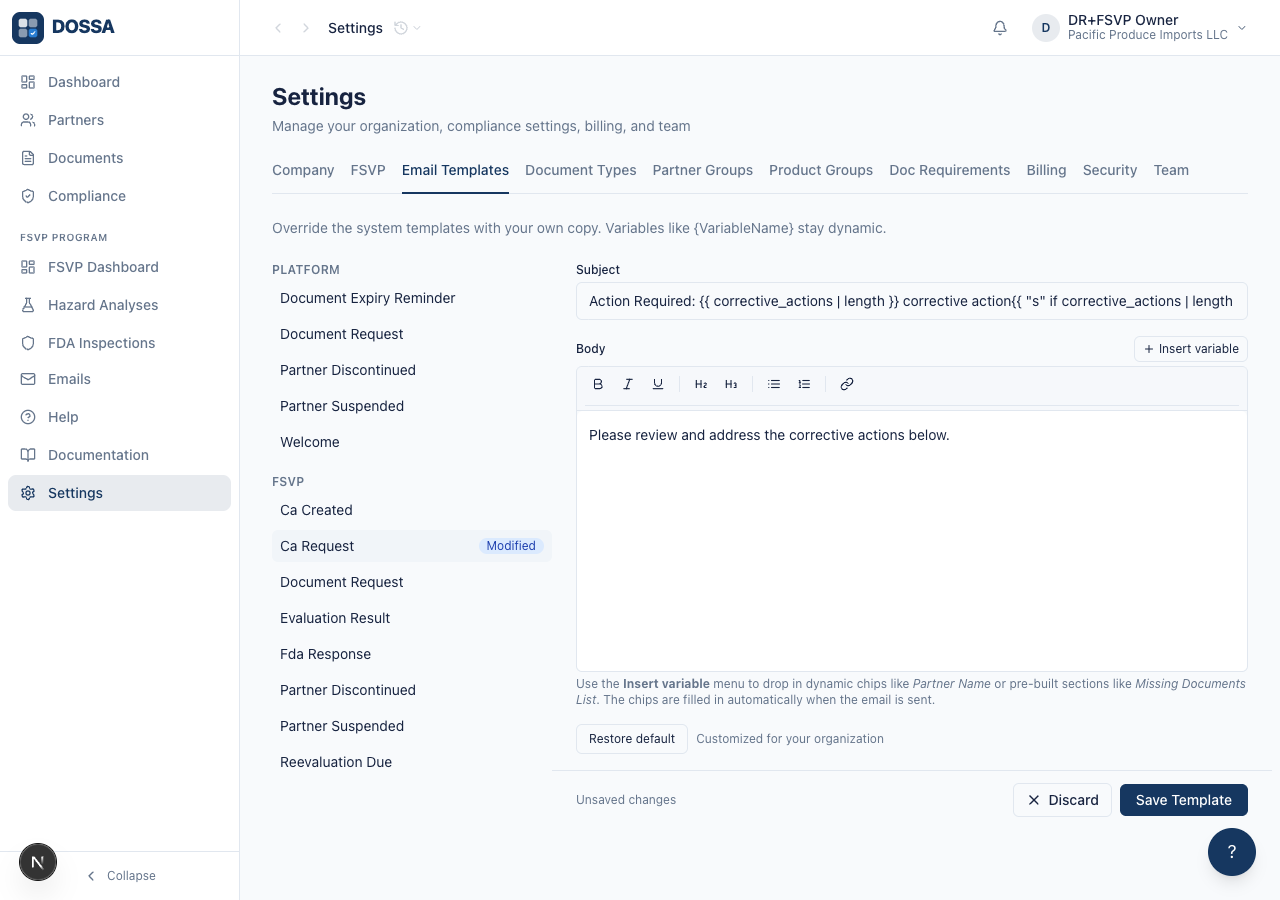
What you should see: The template list is the single place to see override state at a glance. The org now has exactly one customization (the FSVP Ca Request template) — every other template falls back to the platform default.