
DR-only onboarding (foundation product, no plugins)
Walks the full happy path for an organization that has only the Document Requirements (DR) foundation product and no FSVP add-on. A property manager, general contractor, franchisor, or healthcare staffing customer would follow this same flow. The user never sees any FSVP surface: no FSVP sidebar section, no FSVP partner tab, no FSVP settings tab, and no FSVP compliance columns. The org onboards its first partner, defines a global document requirement, and reviews compliance — all from the foundation product alone.
Who: Compliance Operator (DR-only customer) · Regulation: None (DR is vertical-agnostic)
Verify the dashboard renders cleanly with no FSVP widgets
Section titled “Verify the dashboard renders cleanly with no FSVP widgets”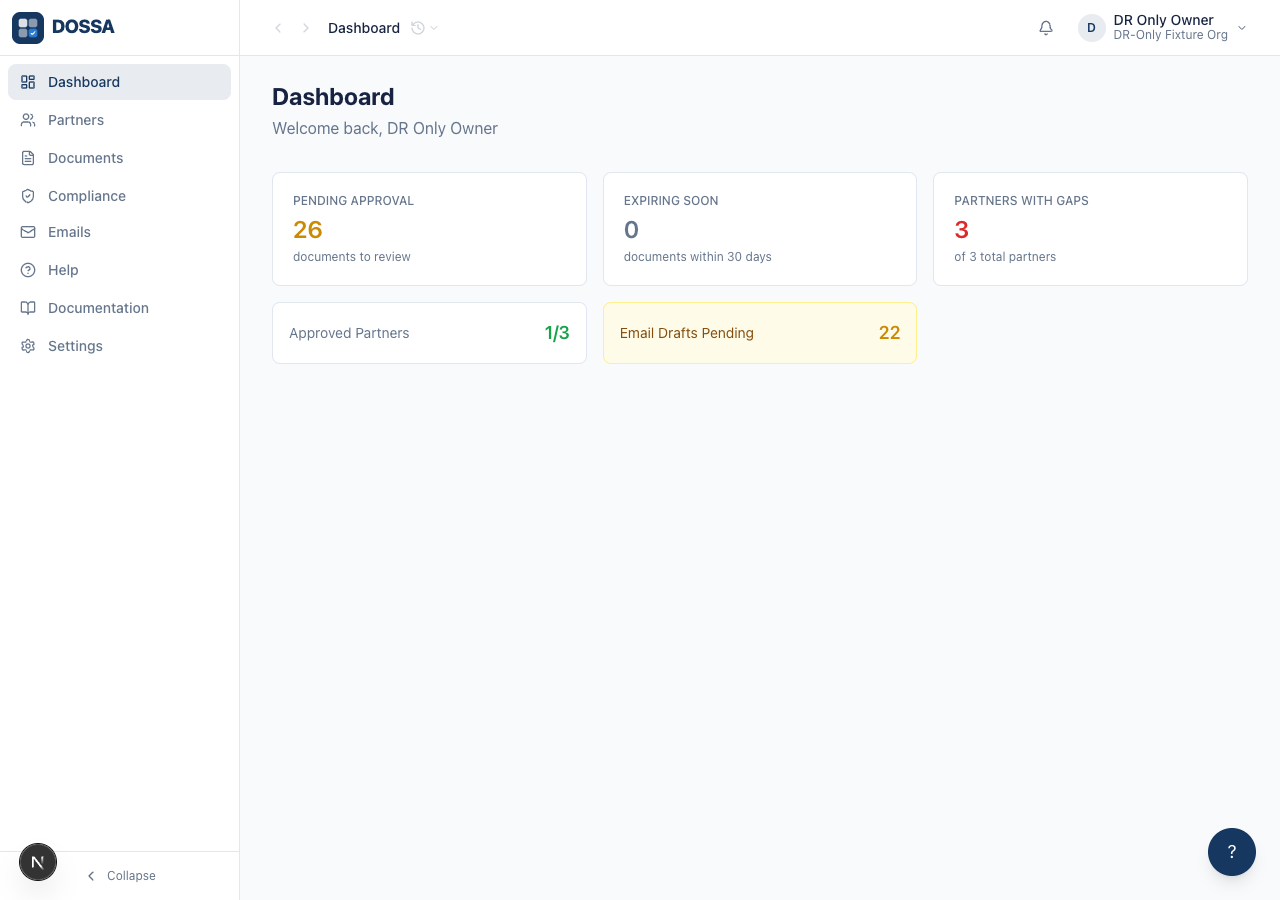
What you should see: The dashboard shows the three foundation tiles — Pending Approval, Expiring Soon, and Partners with Gaps. No FSVP widgets appear, because the organization does not have the FSVP add-on.
Create the first partner via the Partners list page
Section titled “Create the first partner via the Partners list page”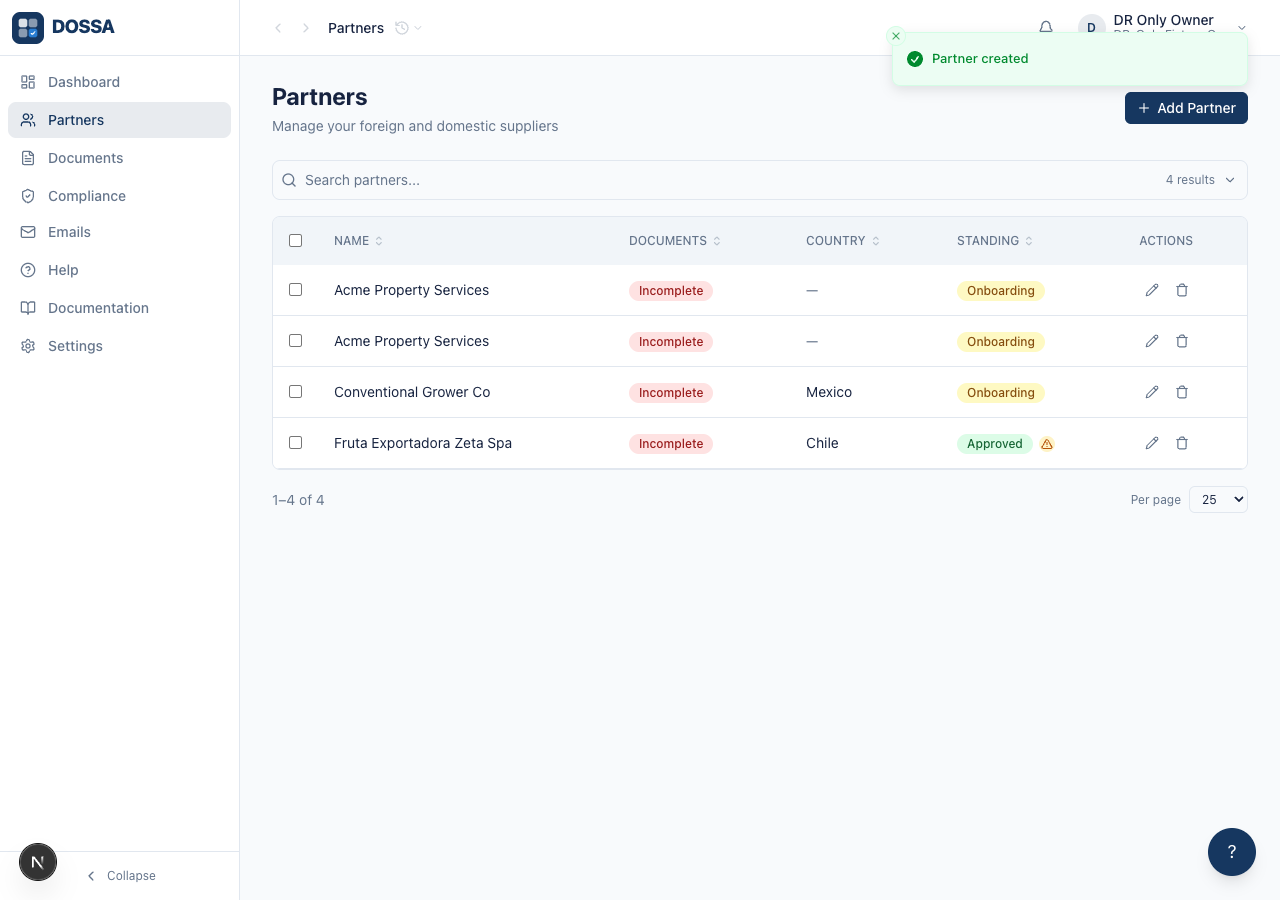
What you should see: Partner “Acme Property Services” appears in the list with the status Onboarding. New partners start directly in Onboarding — there is no pre-approval “invited” state. The Add Partner form asks only for foundation fields — company name, contact name, contact email, and country. There are no FSVP-specific fields.
Verify the partner detail page shows only the foundation tabs
Section titled “Verify the partner detail page shows only the foundation tabs”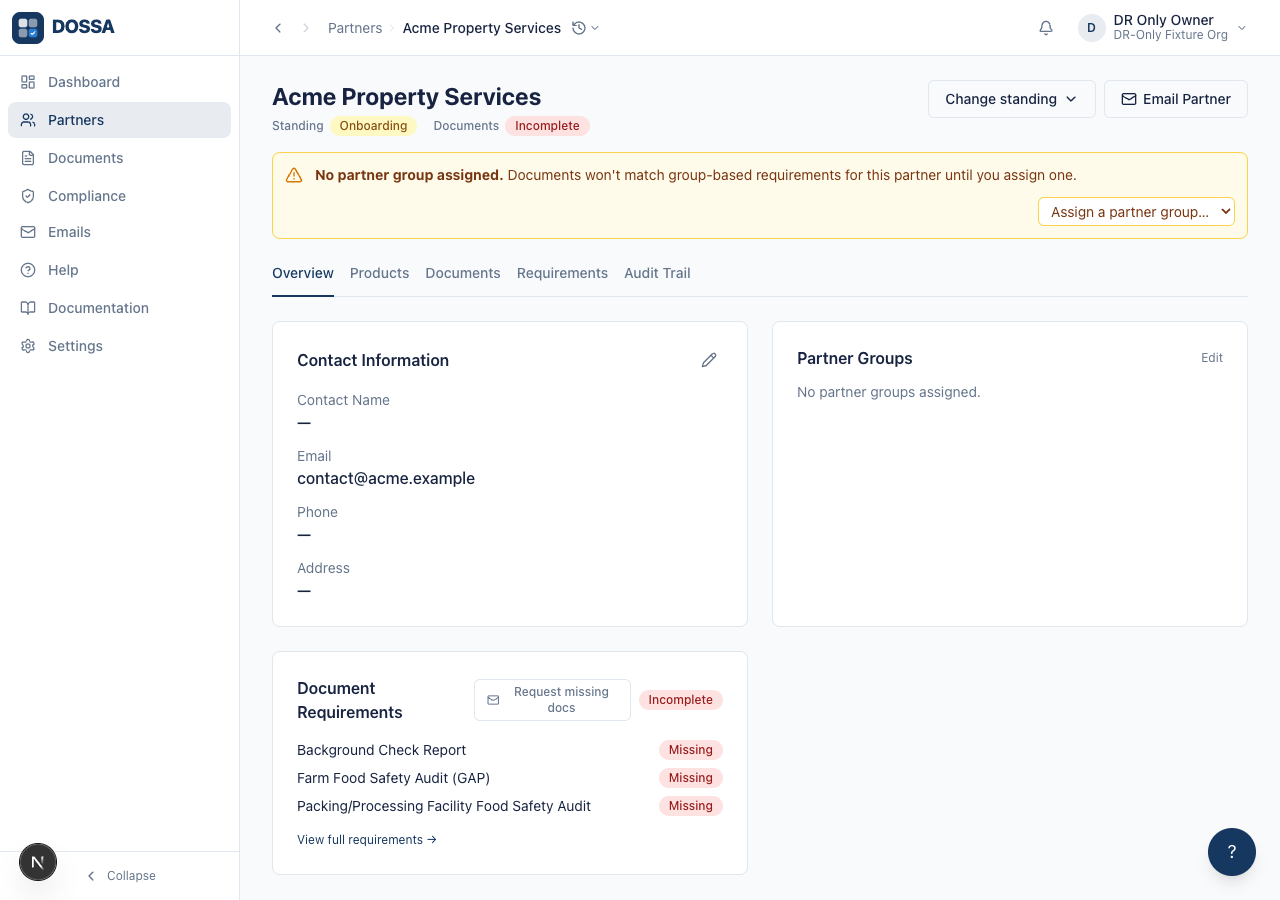
What you should see: The partner detail page shows four tabs — Overview, Documents, Requirements, and Audit Trail. No FSVP tab and no Corrective Actions tab appear, because the organization does not have the FSVP add-on.
Approve the onboarding partner
Section titled “Approve the onboarding partner”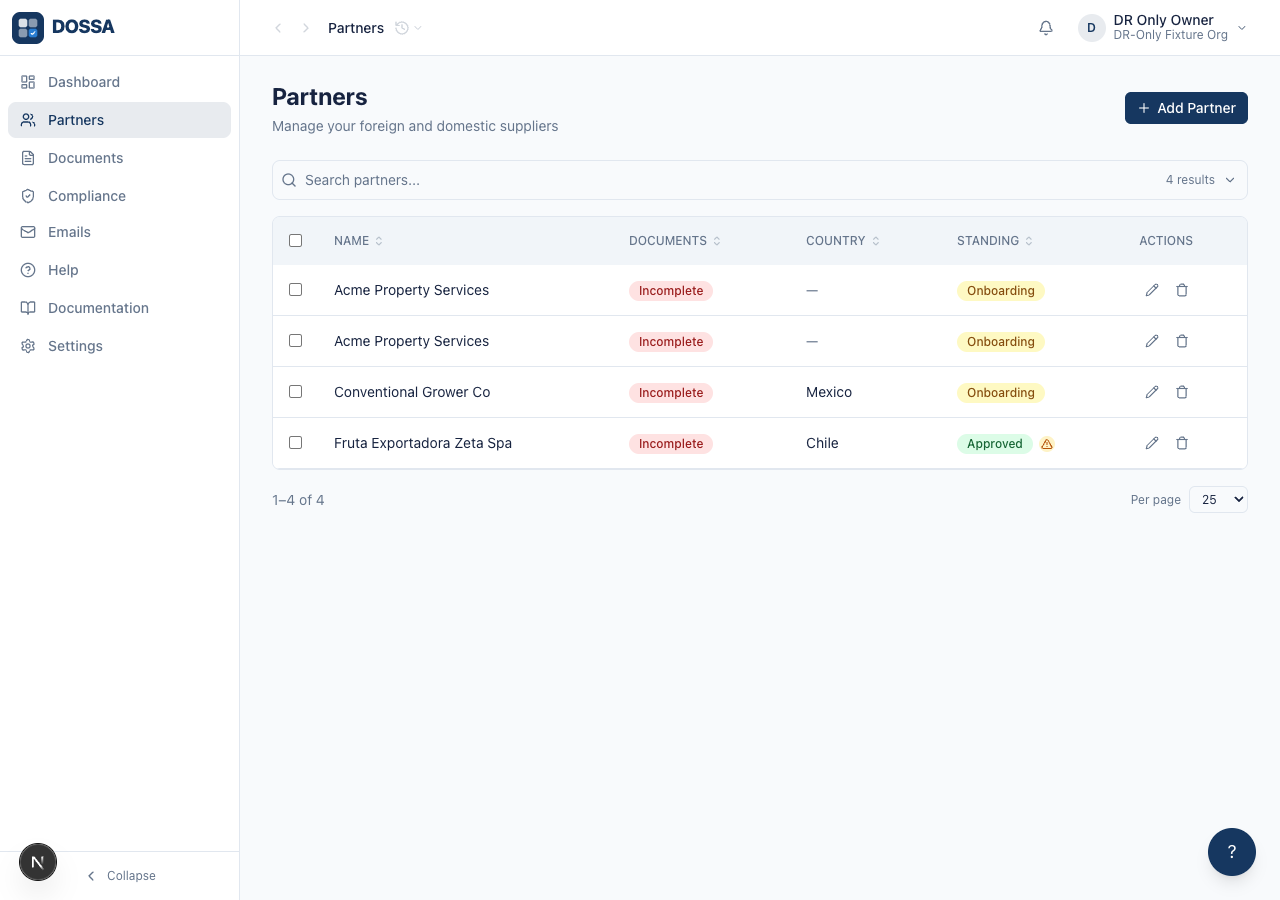
What you should see: A confirmation toast reads “Acme Property Services approved” and the status badge changes to Approved. Re-opening “Change standing” now offers Suspend and Discontinue (the transitions available from “approved”).
Add a global document requirement in Settings
Section titled “Add a global document requirement in Settings”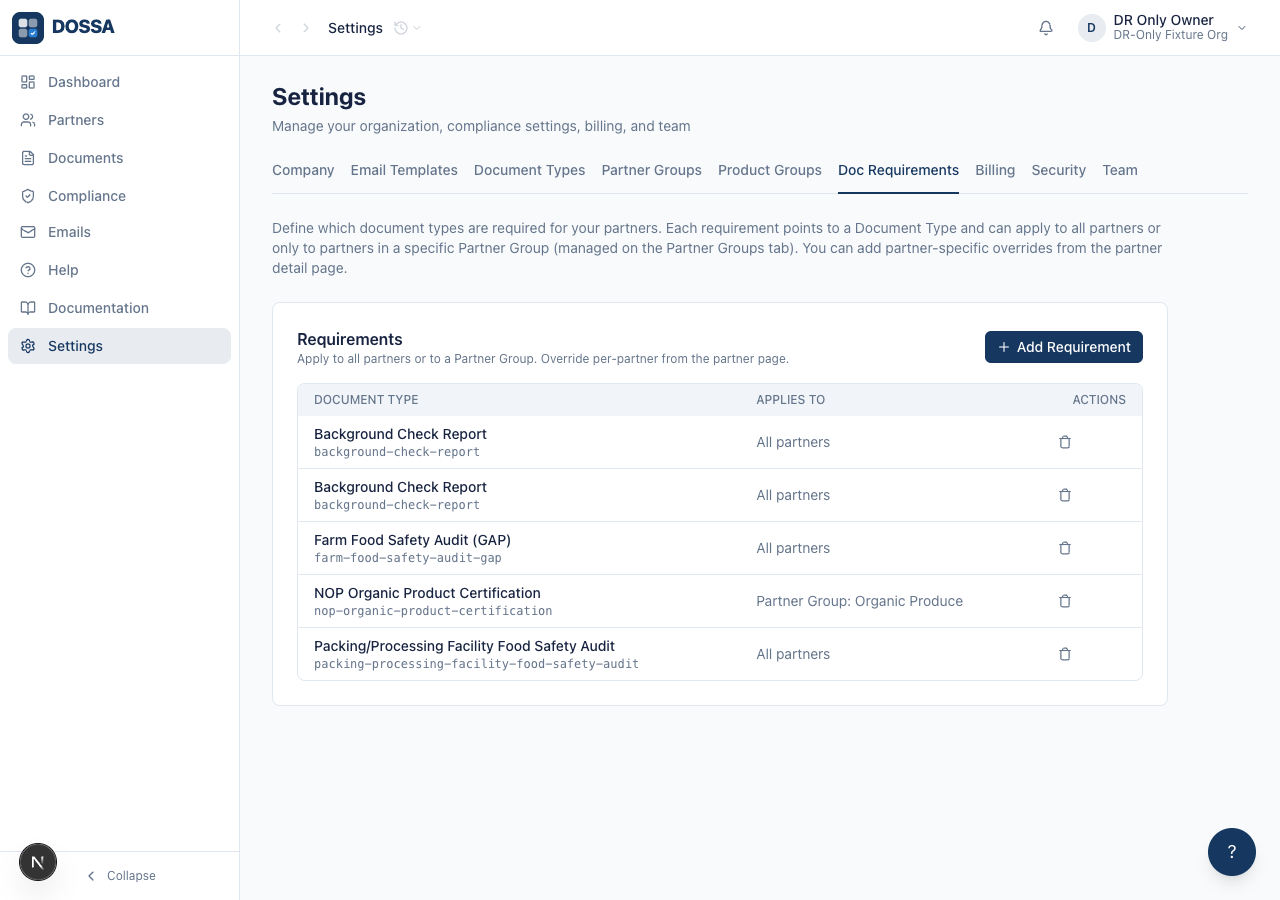
What you should see: The Add Requirement form shows two controls only — Document Type and Applies To (All products / Organic products only). After saving, a toast reads “Requirement added” and the new requirement appears in the Global Requirements list, applying to all partners. Partner-specific overrides can be added later from the partner detail page.
View the partner Documents tab and its Upload Document control
Section titled “View the partner Documents tab and its Upload Document control”What you should see: The Documents tab opens with an Upload Document control. Until a file is uploaded it shows an empty state. When a document is uploaded, the platform categorizes it automatically against the organization’s document types.
Review partner compliance — only the foundation status appears
Section titled “Review partner compliance — only the foundation status appears”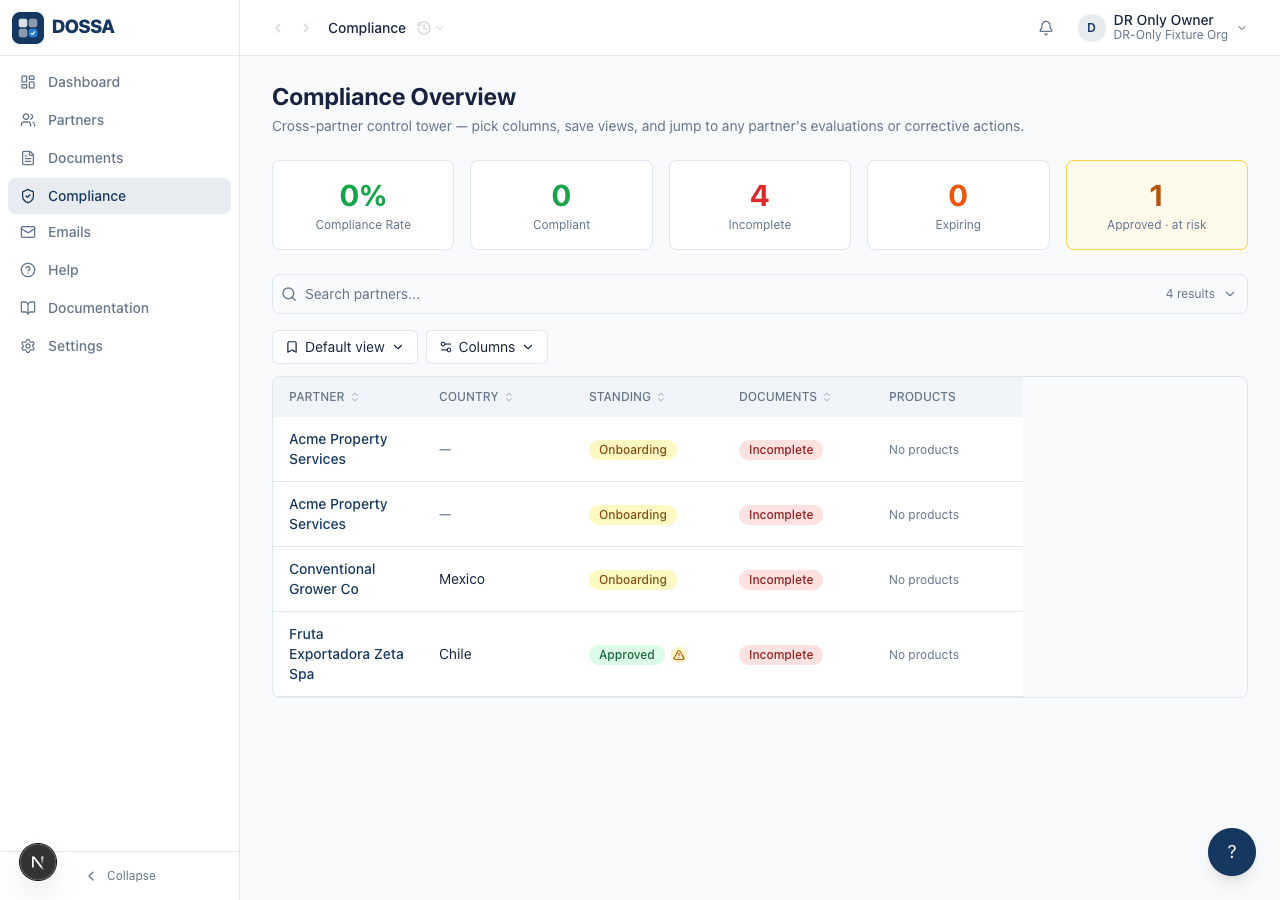
What you should see: The Compliance Overview page lists partners with their document requirement status. There is no FSVP breakdown, because the organization does not have the FSVP add-on.