
Document Management (cross-partner)
Daily-operations workflow covering the cross-partner /documents page. This is the lens for compliance staff who think in terms of “what’s expiring this month?” or “which document still needs review?” — across every partner at once. Per-partner uploads happen on the partner detail page; this page is for searching, filtering, opening, verifying, and pruning the corpus. The page is built on the shared UnifiedSearchBar + DataGrid pair, so its filter and search behavior matches every other list page in the product. The states worth acting on appear as counted chips directly under the search bar — “Expiring Soon 7” — so you can see how much work each holds before clicking. Chips toggle, and a state with nothing in it is not shown at all. The full filter set (source, review state, and column searches) still lives in the search-bar dropdown. Filenames are clickable and open an inline document viewer.
Who: Compliance staff (manager role) · Regulation: None directly. Document expiry tracking maps to 21 CFR 1.506(c) “monitor” obligations for FSVP-entitled orgs (the QI must keep verification status current), but the page is a generic compliance ops surface usable by any DR-only org.
Open the cross-partner Documents list page
Section titled “Open the cross-partner Documents list page”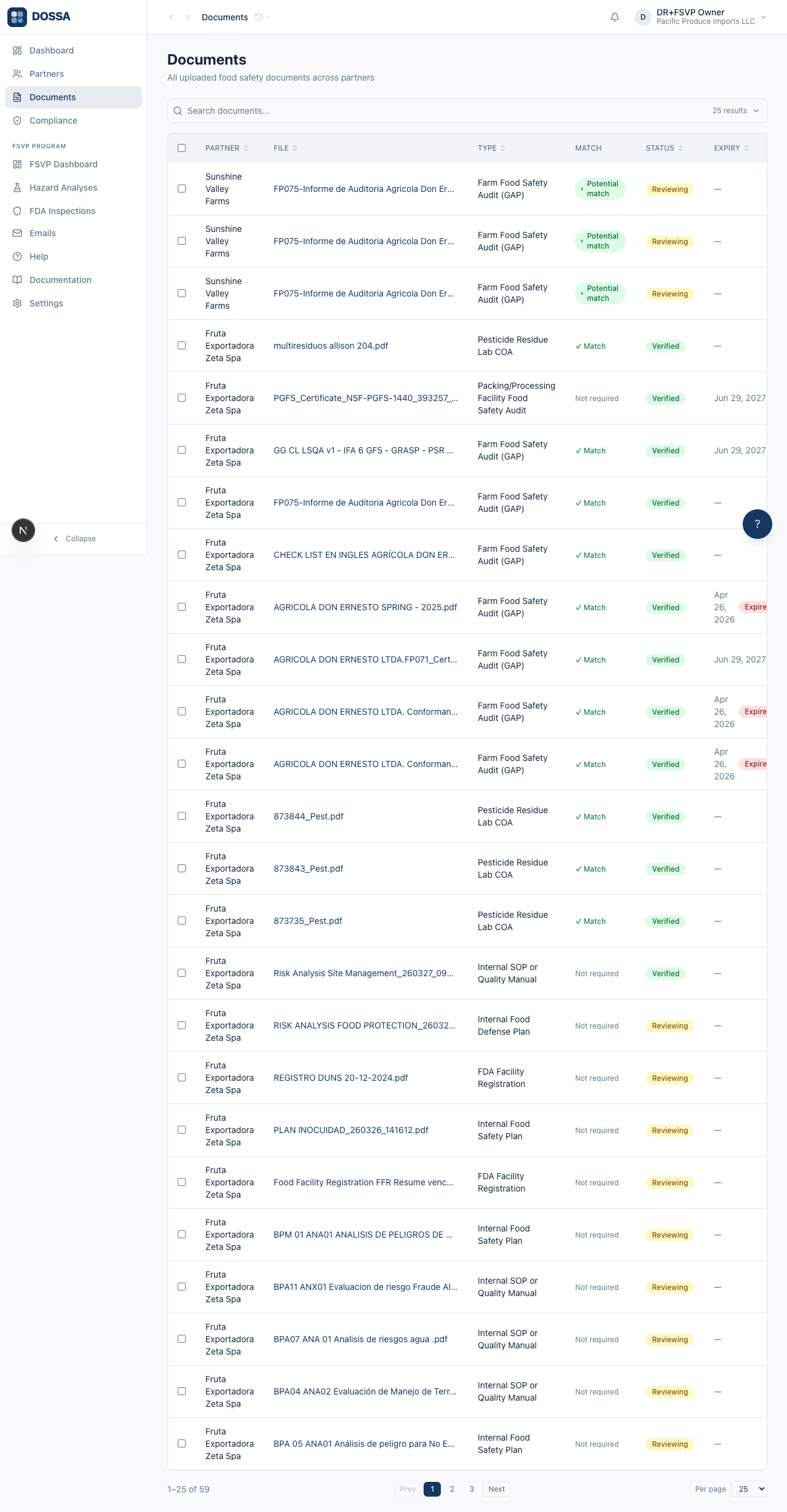
What you should see: Documents page is the cross-partner lens — every uploaded document, regardless of which partner it belongs to. Sort by any column. Filters and column searches open from the search-bar dropdown and apply as visible chips inside the bar.
Use the search bar to narrow by file name
Section titled “Use the search bar to narrow by file name”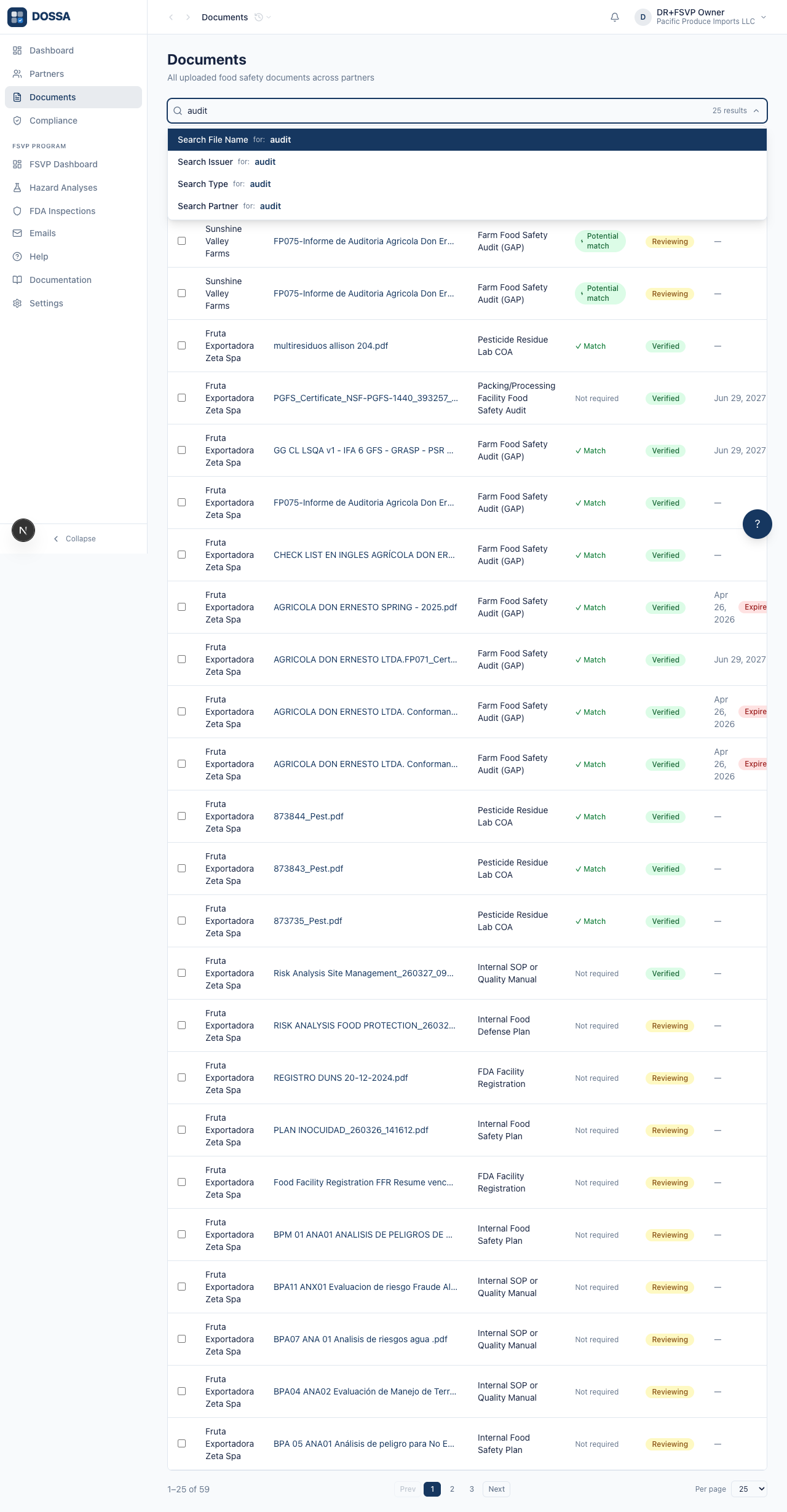
What you should see: Plain text typed into the bar runs a fuzzy search across every searchable field (file_name, issuer, document_type_name, partner_name). Pick a “Search X for: …” suggestion to scope the filter to one field. Empty results show “No documents match your filters.”
Pin the search to a single partner using the column-search suggestion
Section titled “Pin the search to a single partner using the column-search suggestion”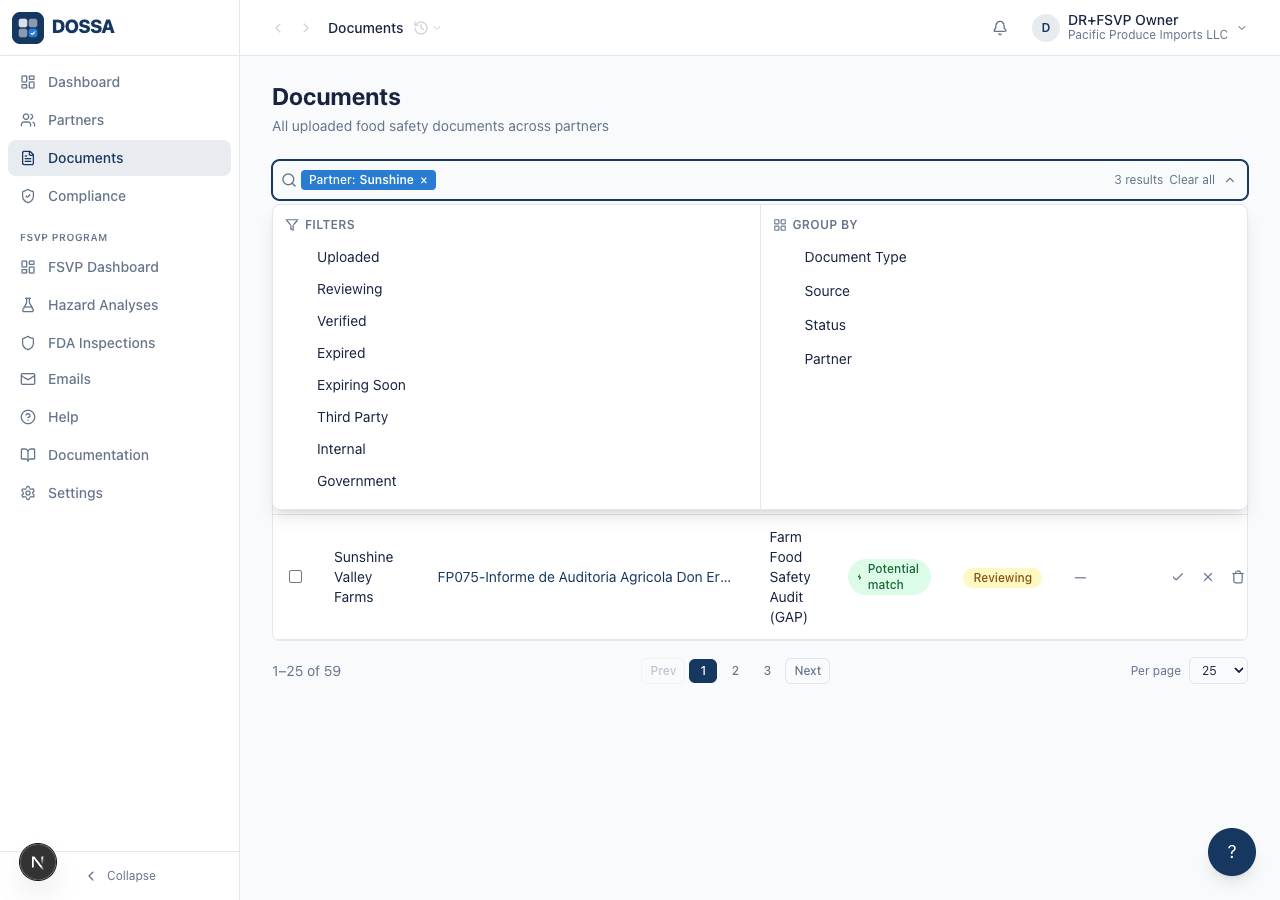
What you should see: Column-scoped searches apply as removable chips. They compose with the global search and filters — every chip narrows the visible set further.
Apply the “Expiring Soon” filter
Section titled “Apply the “Expiring Soon” filter”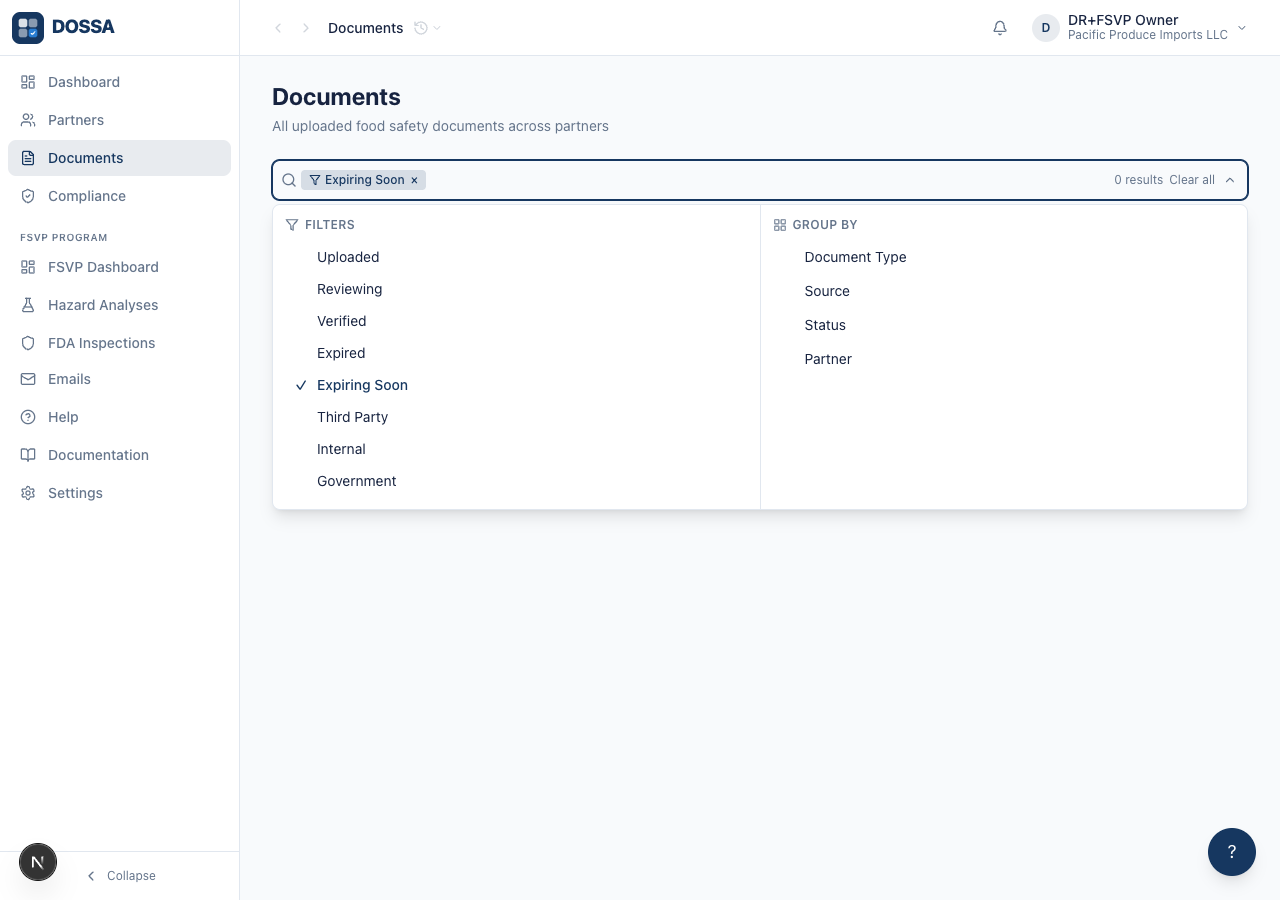
What you should see: Filter chips are the fast path to common compliance questions. The “Expiring Soon” boundary is a hardcoded 30-day window; expanding to a configurable threshold is a future enhancement.
File a document the AI could not place, so the Uncategorised queue can reach zero
Section titled “File a document the AI could not place, so the Uncategorised queue can reach zero”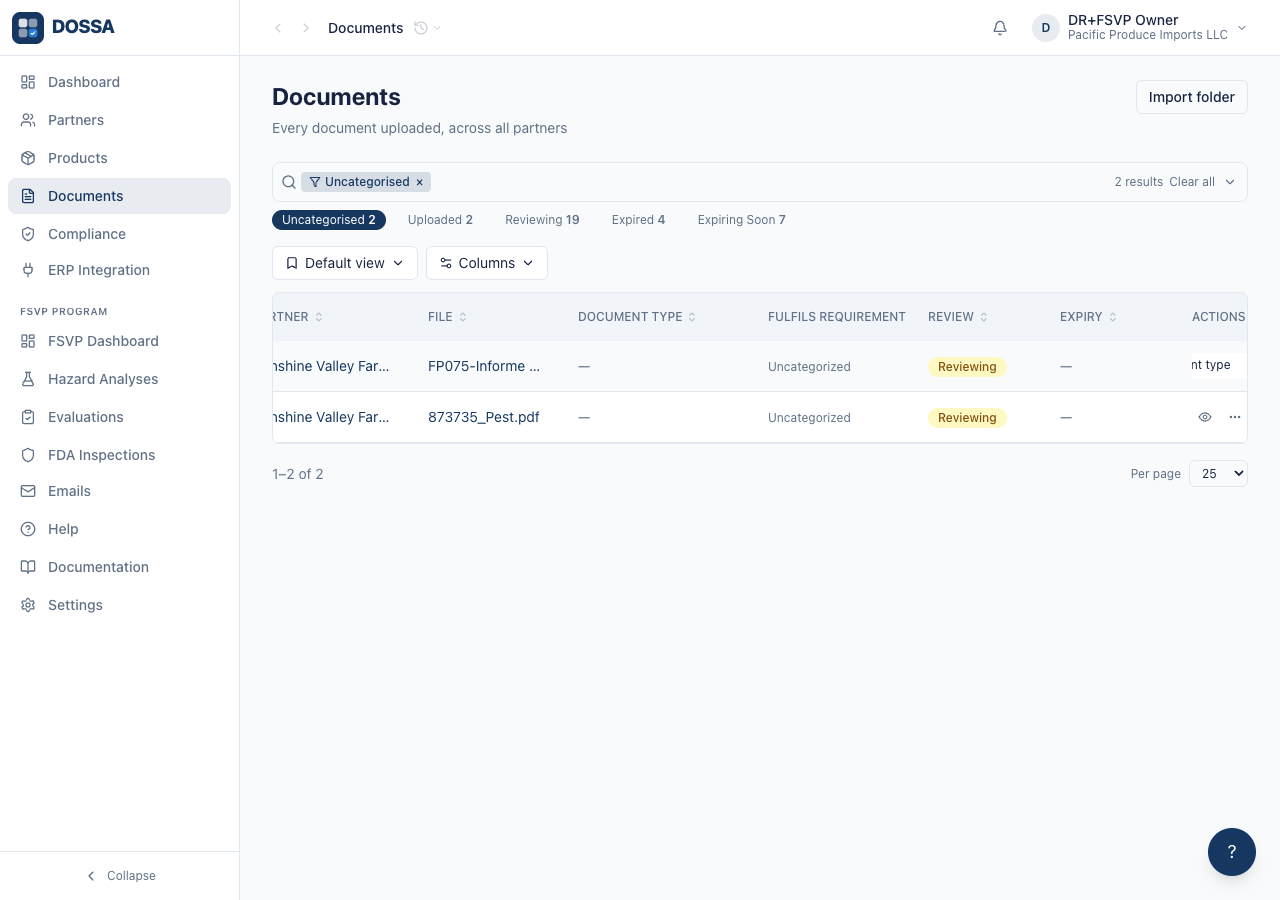
What you should see: Filing the document is what drains the queue. A count that cannot be cleared stops being read, and takes the counts beside it with it. The same action works in bulk over a selection, which is the shape the queue is actually worked in. It matters more since the upload portal shipped: partners send things the AI cannot confidently place, so uploads needing a human decision now arrive faster than before. Picking an existing type is one of three exits. The next step covers the other two, because the interesting case is the document where nothing in this list is right.
Resolve a document that matches none of the existing types, without inventing clutter or deleting a record
Section titled “Resolve a document that matches none of the existing types, without inventing clutter or deleting a record”What you should see: Until these existed, a document matching no type had three exits and all three were bad. Invent a type for it — and a catalogue of near-duplicates makes the AI WORSE, because it now has several confusable options where it had one. Give it a wrong type — which can satisfy a requirement and put a compliance claim on record that nobody made. Or delete it, destroying a record the customer must retain for two years (21 CFR 1.510). The queue could only reach zero dishonestly. Defining a type opens the AI wizard already filled in from the document, and warns FIRST if the proposal duplicates a type you already have — the first real run of this feature proposed the exact name of an existing type, so that warning is the common case rather than the edge one. Before saving, the wizard can read your other unrecognised documents and show which ones this type would also catch. That number is both the work-saver and the sharpest signal on whether the type is any good: one matching nothing is probably too narrow, one matching everything is a catch-all that will swallow real types later. “Reference only” is a decision, not a classification. The categorizer never sees it — a catch-all always matches, so an AI allowed to choose it would file everything there and report high confidence doing so — and no document requirement may point at it.
Switch to the Expired filter
Section titled “Switch to the Expired filter”What you should see: Documents whose coverage has lapsed AND that the partner has not already replaced. A lapsed document keeps its Verified review badge — a QI did accept it, and that stays true — while the Expiry column carries the Expired badge. Once a newer document of the same type is verified for that partner, the old one reads Superseded and leaves this queue, so the count can actually reach zero.
Open a document inline via the FileViewer
Section titled “Open a document inline via the FileViewer”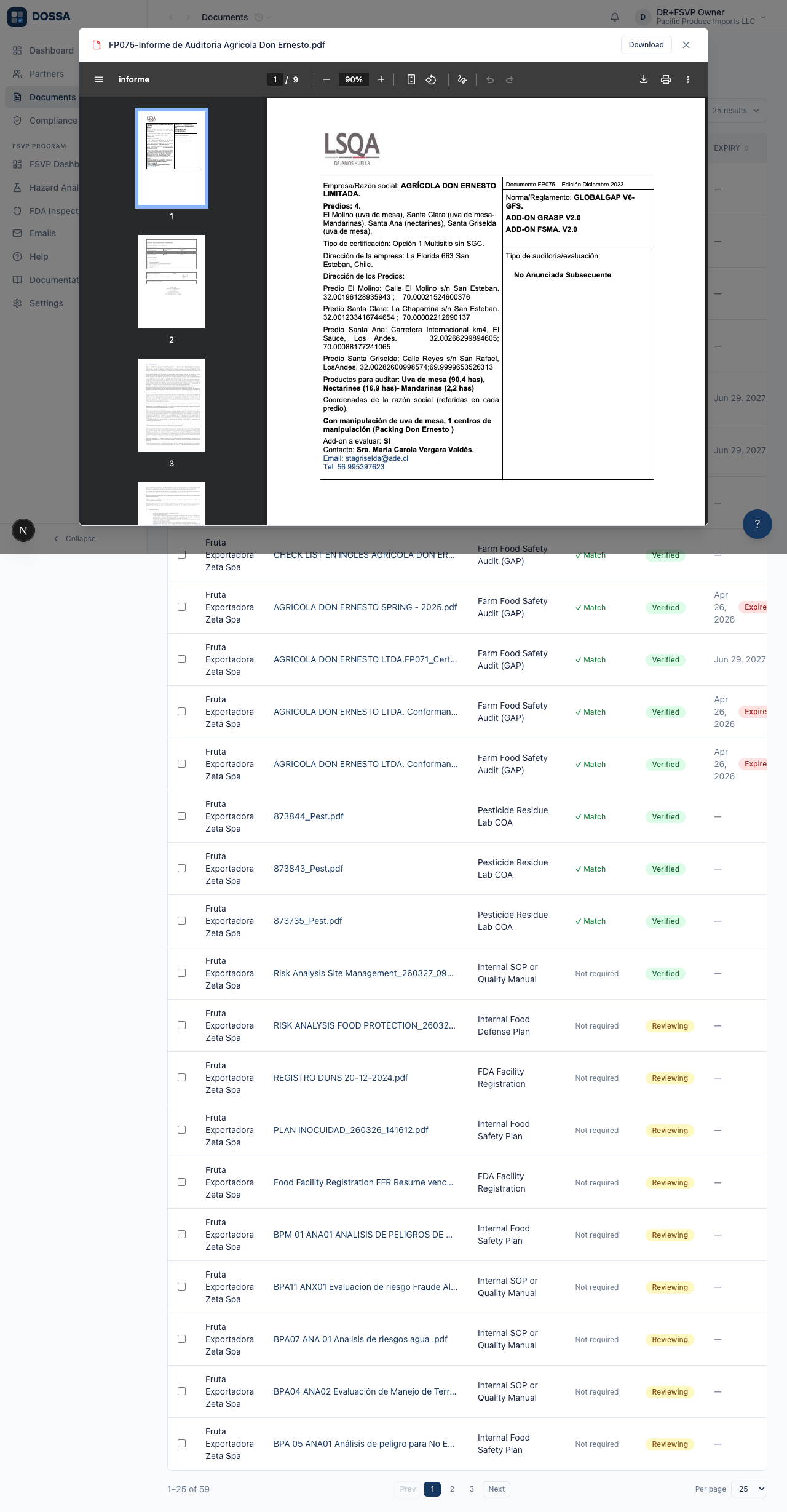
What you should see: Inline preview keeps compliance staff inside the Documents page rather than bouncing to the per-partner view. The viewer pulls the file from S3 via a presigned URL and shows the AI’s extracted summary alongside the rendering.
Verify a document that is in Reviewing review state
Section titled “Verify a document that is in Reviewing review state”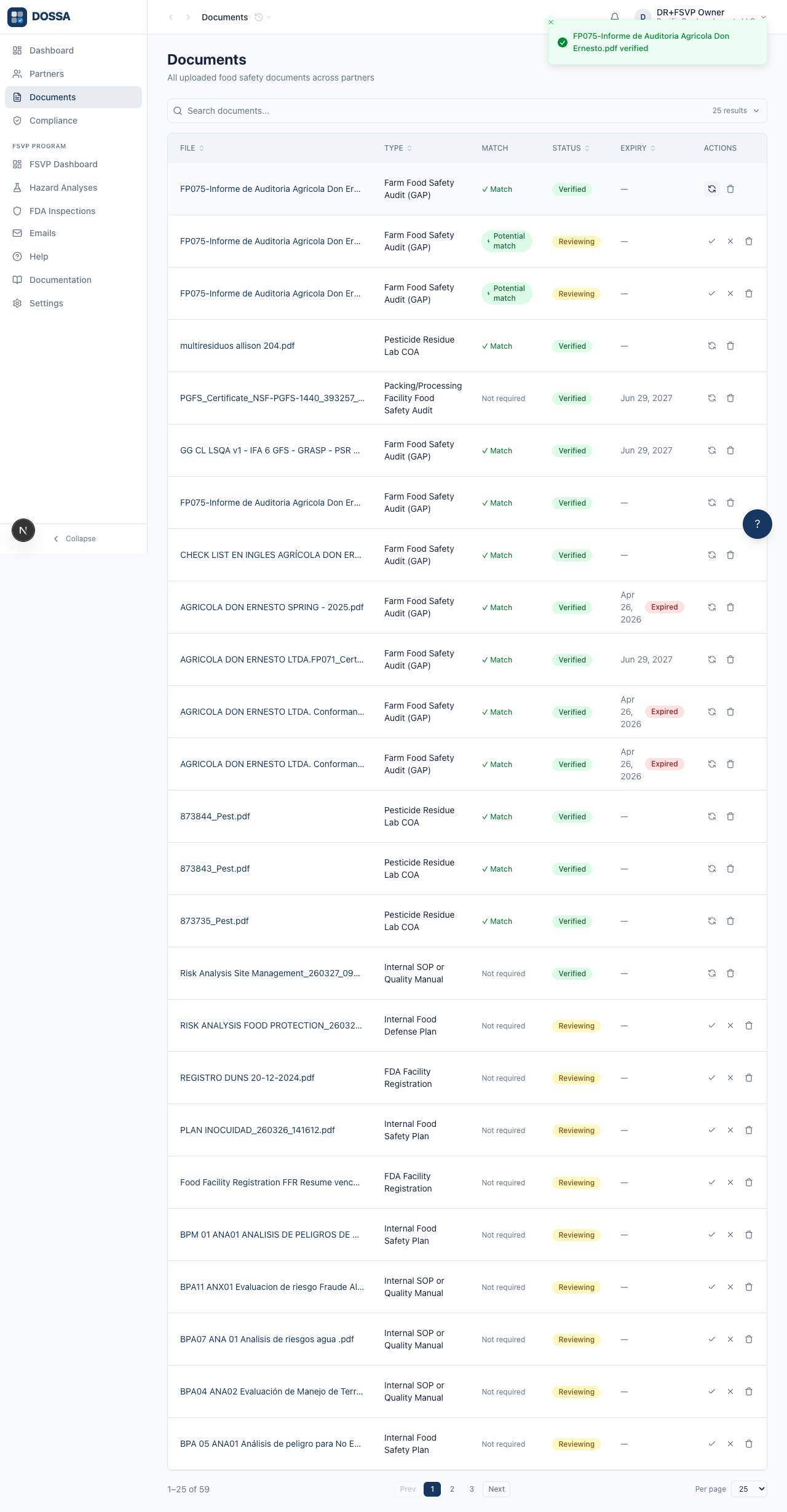
What you should see: Verifying is offered in three places, because a decision should be available wherever it is formed. In the row’s ⋯ menu for clearing a queue quickly; in the bulk bar over a selection, which is how twenty at once actually gets done; and in the document’s own detail panel, under its status, with the line that says what the word means — a qualified individual accepted it, 21 CFR 1.506. The panel is where a person READS the document, and until recently it was the one screen that could not accept it. The QI reviews each one before promoting it. The Documents page is the natural place to clear a backlog of reviewing items because they’re all in one list, not scattered across partner pages. Documents categorized at upload time arrive here as Reviewing if AI confidence is high; uncategorized documents stay in Uploaded until a manual type is set on the partner detail page.
Delete an obsolete document with a confirmation prompt
Section titled “Delete an obsolete document with a confirmation prompt”What you should see: Destructive actions always go through a confirmation prompt — the platform never uses a browser confirm. The document is soft-deleted (its deleted_at timestamp is set), so it no longer counts toward compliance and can’t be referenced. Re-uploading a fresh version creates a new row rather than restoring the deleted one.
Cross-link to the per-partner Compliance page
Section titled “Cross-link to the per-partner Compliance page”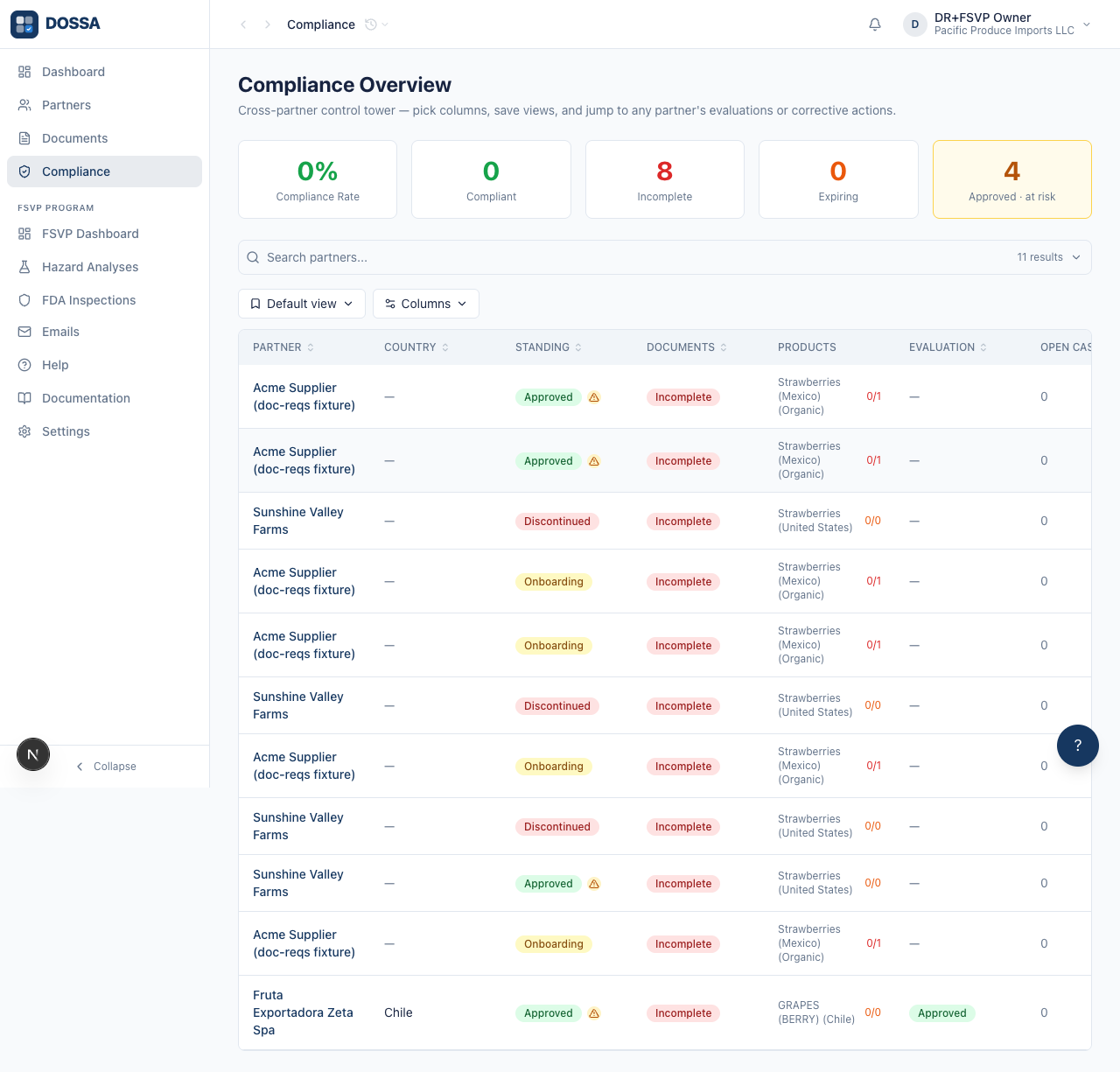
What you should see: The Compliance Overview page is the per-partner lens; the Documents page is the per-document lens. Doc-management staff use either depending on whether they’re chasing one partner’s gaps or every document expiring this month. The matrix rolls compliance up per partner and per commodity, while the Documents page stays at the individual-document level.